



Looking for an iPod copy? Start with what H20 Pro offers
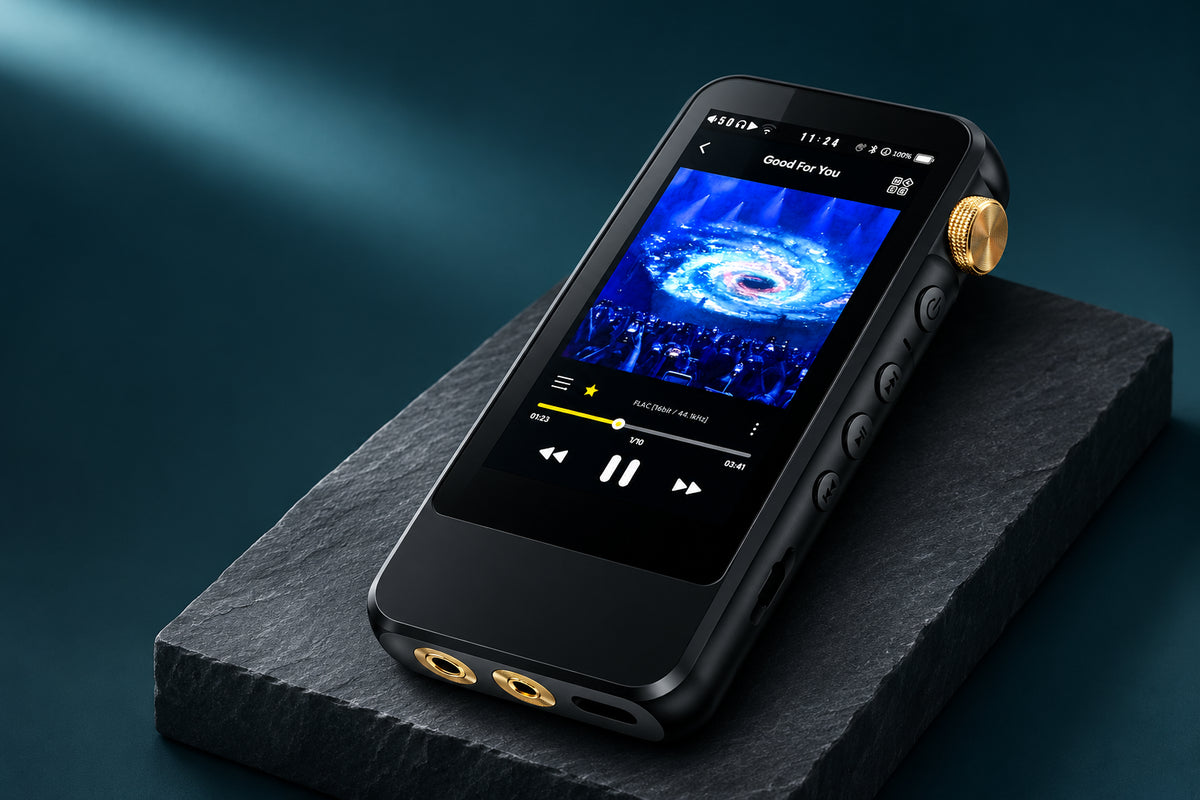
Choose the HIFI WALKER H20 Pro for touchscreen album browsing, a physical volume knob, and separate playback buttons. Searching for an iPod copy to carry your own music collection? H20 Pro brings those controls together with dedicated audio hardware and wired connection options. Browse music on its 3.2-inch screen, then use the buttons for playback.
The reasons to choose it are concrete: touch navigation, two ES9219PC DAC chips, 3.5mm and 4.4mm wired outputs, and expandable microSD storage. Together, these give you a player built around selecting and playing saved music, with connection options for different listening setups.
You do not need to recognize the model name beforehand. H20 Pro is part of HIFI WALKER's dedicated local-file player range. Its touchscreen is for navigating the player's own music functions; this is not an Android app player. That distinction matters when deciding whether it fits the collection you want to bring.
This guide explains those features through the decisions they affect: how you select music, connect your listening equipment, organize albums, and begin playback. If you are also considering smaller physical formats, the HIFI WALKER iPod alternative guide introduces H2 and H2 Mini.
Expert Insights: Key Takeaways
- H20 Pro combines a 3.2-inch touchscreen with a volume knob and separate playback buttons.
- Two ES9219PC DAC chips, plus 3.5mm and 4.4mm wired outputs, define its dedicated audio setup.
- Use compatible local files on microSD, then browse by folder, album, or favorites.
- ►1. Looking for an iPod copy? Start with what H20 Pro offers
- ►2. Why choose a touchscreen player with physical controls?
- ►3. Dedicated audio hardware and two wired connection options
- ►4. Bring an album collection that can grow with you
- ►5. Find music by folder, album, or favorites
- ►6. From a prepared memory card to your first album
- ►7. Is H20 Pro the right iPod alternative for you?
Why choose a touchscreen player with physical controls?
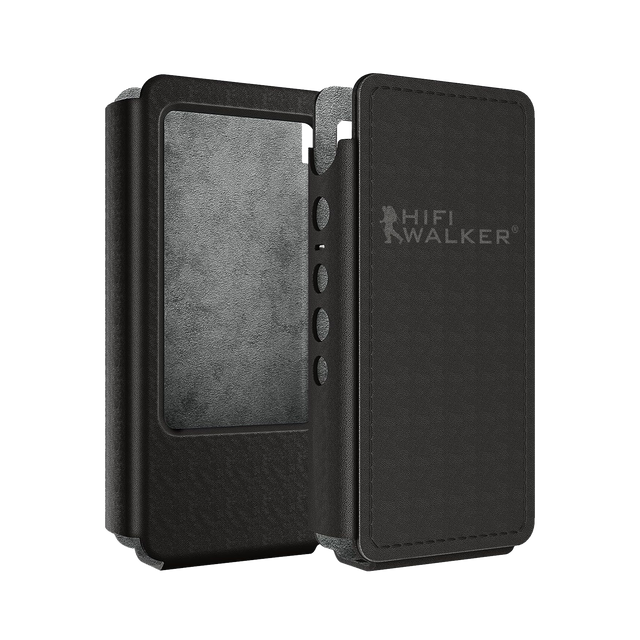
H20 Pro combines a screen for browsing with separate controls for the actions you repeat during playback. Its 3.2-inch touchscreen lets you enter the music area and select from the local collection. A dedicated volume knob and previous-track, play/pause, and next-track buttons provide a second way to operate the player.
Consider the difference between finding an album and skipping a track. Finding an album involves looking through choices; skipping a track is a single action. The touchscreen and buttons divide those tasks. You can select music visually, then use the playback controls without returning to the browsing view for every change.
The knob also makes volume adjustment a distinct action rather than another item to locate in a menu. Start at a low level when connecting listening equipment, then increase it gradually. The advantage is a clear physical control, not a promise that everyone will prefer the same layout.
This combination is the strongest reason to put H20 Pro on your shortlist when you want a touchscreen music player with buttons. Check the official product photographs for the positions of those controls, then consider which ones you would reach for most often.

Explore the HIFI WALKER H20 Pro to see its screen, control layout, and current purchase options.
Dedicated audio hardware and two wired connection options
H20 Pro uses two ES9219PC DAC chips with four-channel independent amplification, according to its official specifications. A DAC converts digital music data into an analog signal for playback. Here, the important buying point is that the player includes dedicated conversion and amplification hardware alongside its music-navigation functions.
That gives buyers more to evaluate than the screen alone. The touchscreen determines how you choose music; the audio circuitry and outputs are part of how the player connects that music to your listening equipment. H20 Pro brings both parts into one dedicated local-file device.
The 3.5mm headphone output is the starting point for compatible earphones or headphones with a matching plug. The separate 4.4mm balanced output provides another connection route for equipment fitted with a compatible balanced cable. Identify the cable you intend to use before choosing an output.
For a buyer who already has compatible 4.4mm equipment, that second output is a specific reason to examine H20 Pro. For someone using a matching 3.5mm plug, the player also has a direct connection for that setup. You can make the purchase decision around equipment you actually use.
H20 Pro also lists DSD256 support, giving owners of compatible DSD files another format to check against their collections. Dedicated conversion hardware, format support, and output connections are different parts of the audio setup. Consider them together with the files and listening equipment you intend to use.
For example, someone with compatible local albums and a 4.4mm balanced cable has a direct reason to examine this player: the library can be browsed on its touchscreen and the cable has a matching output. A buyer using 3.5mm equipment can take the other wired route while retaining the same browsing and physical playback controls.

Bring an album collection that can grow with you
A local-file player is particularly relevant when you already have albums on a computer or memory card. H20 Pro stores the collection on microSD, with support up to 512GB and a maximum of 14,999 recognized songs. Capacity and track count are separate limits, so use both when planning a large library.
File size affects how much music fits on the card. A collection of larger lossless files uses storage differently from smaller compressed files. The song-recognition limit still matters even when free card space remains. These are practical planning details for buyers bringing an established collection.
Check the formats in your own library against the product specifications before loading the card. A format describes how audio is stored; protection or account restrictions are a separate issue. A supported format does not make a protected service download transferable to a local-file player.
The first purchasing question is therefore about the music itself: do you have accessible, compatible audio files to copy? A song listed in a computer library and a transferable music file are not always the same thing. Knowing that before ordering makes the path to listening much clearer.
For an existing iTunes collection, use the guide to iPod alternatives that work with iTunes music files to check the source files and protection status. H20 Pro uses compatible local files; it does not reproduce Apple's computer-sync system.
An iPod replacement can preserve the role of carrying owned albums without reproducing the old software workflow. For H20 Pro, the buying case is a collection you can prepare on microSD, expandable storage within the listed limits, and several ways to browse that music on the device.
↑ Back to Top
Back to Top ↑Find music by folder, album, or favorites
The H20 Pro manual describes Folders, Albums, and Favorites as ways to navigate music. These are useful for different kinds of collections. Rather than learning every menu at once, start with the route that matches how you already identify an album or a track.
Use Folders when you have arranged music into recognizable directories. For example, an artist folder containing individual album folders gives you a clear structure to follow. This route is useful when you remember where a recording was saved and want to navigate through that organization.
Use Albums when the album title is your natural starting point. File information matters for library organization, so check that the tracks belong to the album you expect. If a recording does not appear as expected in the album list, compare that view with its folder before assuming the file is missing.
Use Favorites for selected tracks you want to return to quickly. An album collection and a shorter favorites selection serve different purposes: one preserves a full listening sequence, while the other provides a smaller set of frequent choices. You can use both without reorganizing the entire card around one approach.
These browsing options make the touchscreen relevant to the purchase. It is not simply an extra specification on the box: it is where you select a route into the collection. The separate buttons then take over the recurring playback actions after you have chosen something.
A useful first check is to find the same album through its folder and through the album list. That shows you how your prepared files appear in each view. Once the small selection is organized correctly, expand the collection using the same approach.
From a prepared memory card to your first album
The H20 Pro manual provides a short route from startup to browsing. Keep a backup of your original music files and begin with a small, compatible selection. That makes it easier to confirm the setup before adding a much larger collection.
Turn on H20 Pro
Hold the power button for three seconds, as described in the official manual. Locate the Music area on the main screen.
Refresh the music library
After adding or removing music files, open System Settings and choose Update Database. This updates the library for the changed collection.
Find the prepared album
Open Music and use Folders or Albums to locate your selection. Check that the expected tracks are present.
Start playback and use the separate controls
Choose a track on the touchscreen. Use the play/pause and track buttons for playback, and adjust the volume gradually with the knob.
Copying files and refreshing the library are different steps. When files have been added to the card but the browsing list has not changed, the database update is the relevant menu action to check. This is a more useful detail than repeatedly reloading an entire collection.
The official HIFI WALKER Download Center provides the H20 Pro manual and control diagrams. Use it for the full menu reference while keeping the model name visible; instructions for a similarly named player may describe a different control arrangement.
Once the album appears and plays, check the next track and pause control. This brief setup check confirms that the prepared selection is usable and that you know the controls needed for normal listening.

Is H20 Pro the right iPod alternative for you?
Choose H20 Pro if your priorities are a local album collection, touchscreen browsing, physical playback controls, and wired audio connection options. That is a clear combination of capabilities to buy for, rather than a general promise that one player will suit everyone.
For an album collector, expandable microSD storage and the folder/album browsing routes are central. For someone who dislikes using a screen for every playback action, the separate buttons and volume knob are the attraction. For a buyer with compatible balanced equipment, the 4.4mm output adds a further reason to choose this model.
If your iPod copy search is about finding an exact replica of Apple's interface or click wheel, inspect the product photographs before ordering: H20 Pro has its own touchscreen and side-control layout. If the goal is to carry and play a personal music collection on dedicated hardware, its feature set directly addresses that job.
Keep the music source in view when making the final choice. H20 Pro is a Linux-based local-file player, not a device for installing Android streaming apps. A collection of compatible saved files is the match for this model; an app-centered library requires a different type of player.
Before ordering, confirm your file formats, preferred listening connection, and the current package on the H20 Pro product page. Then use the manual's library-update and browsing instructions to get that collection playing. You have a specific product choice and a practical route to using it.
Touchscreen browsing. Physical control. Your own collection.
Choose H20 Pro for a dedicated local-file setup with the controls and connections you want.
See the H20 Pro control layout and current package.
Frequently Asked Questions
Q1: Can H20 Pro replace an iPod for a saved music collection?
Yes, for compatible local audio files. H20 Pro plays music from microSD and offers touchscreen browsing with separate playback controls. It has its own interface rather than Apple's operating system or computer-sync workflow.
Q2: Does this iPod alternative run Spotify or Apple Music apps?
No. H20 Pro is a Linux-based local-file player, not an Android app player. Choose it for compatible saved audio files rather than subscription-app downloads.
Q3: Can I use H20 Pro without touching the screen for every change?
Yes. Select music on the touchscreen, then use the separate previous-track, play/pause, and next-track buttons during playback. Adjust the level with the physical volume knob.
Q4: What should I check if newly added music is missing from the library?
Use System Settings → Update Database after adding or removing files. Compare the album list with Folders to check the prepared selection, and confirm the files use a supported format.


