


Give kids their own way to listen to Spotify
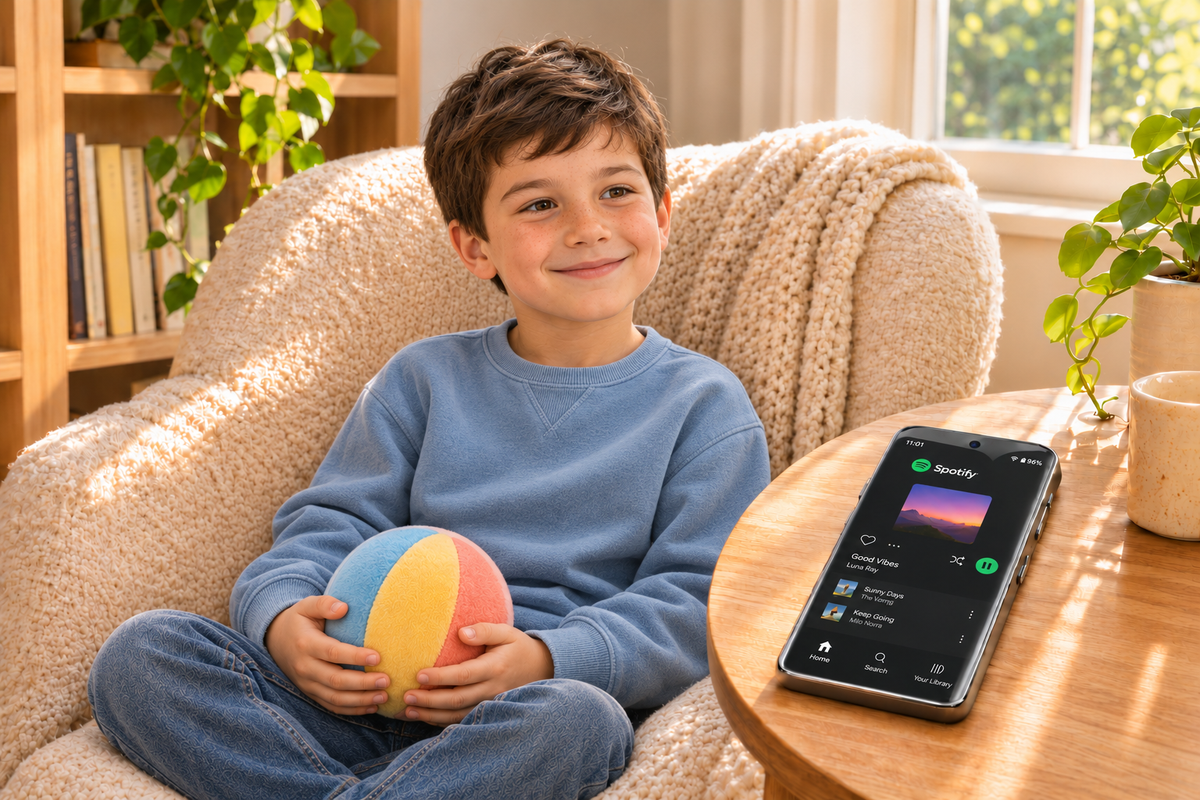
Kids can listen to Spotify without a phone by using a compatible player that runs the Spotify app itself. The HIFI WALKER G7 Pro is an Android music player with confirmed Spotify support. Connect it to Wi-Fi, prepare an appropriate Spotify account, and help your child find music they enjoy. For listening away from Wi-Fi, plan around Spotify’s eligible offline downloads before leaving home.
Does your child keep asking to borrow your phone for the same favorite songs? You want them to enjoy choosing music, but you would rather keep your own device with you. A separate player gives that everyday request a practical answer: their music has a device of its own, and your phone can stay in your pocket.
The important purchase question is what happens after you open the box. Which account should you use? Which apps should remain available? Will the playlist work on a trip? This guide follows those decisions so you can prepare a G7 Pro around your family’s listening routine, with a clear plan for the first listening session.
Want to go straight to a practical answer? Start with the family-goal settings table, follow the final setup checklist, or jump to help with saved playlists, content settings, and account changes.

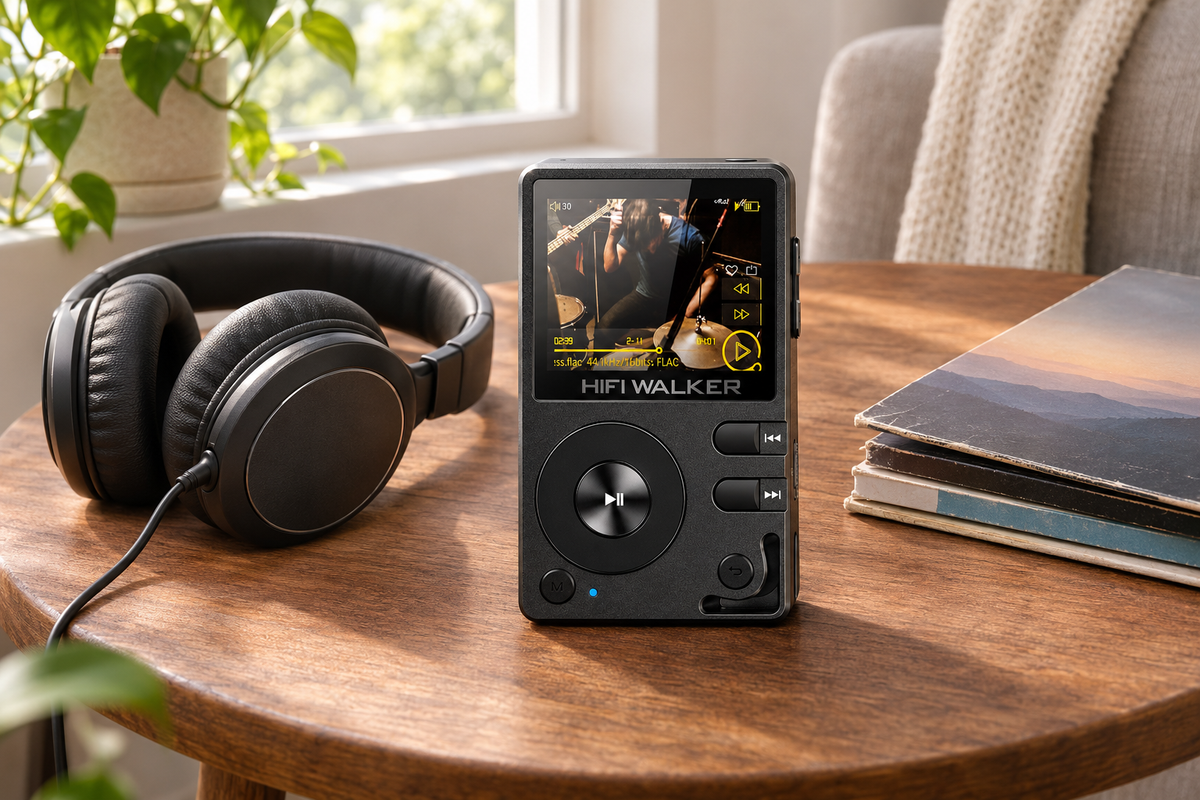
You can explore the HIFI WALKER G7 Pro while working through the setup choices below. Keep your child’s actual listening needs in mind: a playlist after school, music during a family drive, or an album they can return to without borrowing your phone.
Expert Insights: Key Takeaways
- Choose the account and first playlist before handing over the player.
- Manage device apps and Spotify content settings as separate tasks.
- Check eligible downloaded music with Wi-Fi off before a trip.
- ►1. Give kids their own way to listen to Spotify
- ►2. Start with the listening your child actually wants
- ►3. Choose the Spotify account before building the library
- ►4. Manage the player and Spotify content separately
- ►5. Prepare music for home Wi-Fi and trips
- ►6. Your final Spotify player setup checklist
- ►7. Quick answers when the setup needs attention
Start with the listening your child actually wants
Ask your child to show you what they want to play. A particular artist, a familiar album, and a playlist shared by a family member are useful starting points. These examples tell you more than a general request for a music player. You can use them later to check that the finished setup offers the experience your child expects.
Decide how much choosing should happen during listening. One family may want a short list of parent-selected albums. Another may want a child to explore music within the account settings their parent chooses. Both approaches can begin with Spotify, but they call for different conversations about browsing, changing playlists, and asking for something new.
Let your child help name the first playlist. A name such as After-School Favorites makes the starting point easy to recognize. Keep the initial library manageable enough that they can show you how they find a song. The goal is an enjoyable first experience, with room to add more music together once the basics feel familiar.

For a broader look at device options, the kids’ Spotify player guide covers the buying question. Here, the focus is preparing a player for one child’s account, music, and daily routine.
Choose the Spotify account before building the library
The account determines the listening experience inside Spotify. Start with Spotify’s current guidance on managed accounts for young listeners. Its U.S. support page describes parent-managed accounts on either a free, ad-supported plan or an eligible Premium Family membership. Available choices should be checked in your account and region.
Spotify describes separate recommendations and parental controls for explicit content, videos, and selected artists or songs. Free listening can include ads and restrictions on choosing or skipping songs. Eligible managed accounts within Premium Family include ad-free music and offline downloads. Choose the plan for how your child will listen, especially if music needs to work away from Wi-Fi.
Follow Spotify’s current consent and setup instructions as the parent or guardian. Then confirm the intended young listener’s account is active on the player before saving music. Account and app availability can change; confirm the sign-in options shown by the current app rather than assuming every account feature has been verified on this specific player.
Keep a simple note for yourself about which account belongs on the device and how you recover access. Store passwords privately, outside any note your child carries. If another adult helps with setup, agree on who manages account changes so the next playlist request does not become a search through several different logins.
Before selecting a plan, think about the moments that matter most. If your child wants one exact song during a long drive, being able to choose it and have it available offline matters more than a long list of possible features. If listening mostly happens at home, start by checking the experience on your home network.
Manage the player and Spotify content separately
There are two different decisions here: which apps your child can open, and which content is available inside Spotify. Treat them as separate parts of setup. Choosing a music app does not by itself establish your family’s rules for everything else on an Android device.
The G7 Pro official product page describes password-protected settings, blocking selected apps, and scheduling app-restricted or internet-free hours. These device tools can help you shape a music-focused setup. Spotify’s own parental settings govern supported controls within Spotify; blocking a separate video app does not filter the music service.
For example, a family might want a child to choose an after-school playlist while selected games stay unavailable. Work from the goal across the table: keep the listening app available, set the content choices in the account, then check the result on the player. You can see which part needs attention without changing unrelated settings.
Work through the current device instructions, then return to the home screen and check the result. Menu names may differ from those in an older guide, so use the instructions supplied for the player rather than following a generic Android path. If a setting is unclear, ask HIFI WALKER support about that specific control.
Talk through the arrangement with your child as you set it up. Show them what they can choose independently and how to ask for another album. That turns the player into something they understand and can enjoy. It also gives you a clear point of reference if a new app request comes up later.
↑ Back to Top
Back to Top ↑Prepare music for home Wi-Fi and trips
Without a phone does not mean without an internet connection. At home, the player can use Wi-Fi for Spotify. Away from an available network, music needs another plan. Make that choice before a trip, especially if you do not want to rely on a phone hotspot to keep the player connected.
Spotify’s official offline-listening instructions explain that Premium supports music downloads in its app. Saving a playlist to your library is different from downloading it. Wait for the completed-download indicator, then check playback with Wi-Fi turned off. Content that has not downloaded will not become available simply because it appears in the library.
Spotify also requires going online at least once every 30 days to retain downloads. Reinstalling the app can require downloading music again. These are service conditions, so prepare and check the current app before travel rather than treating a download as a permanent copy.
Think of home listening and travel as two different preparations. At home, connect to the available Wi-Fi and open the account. For a family drive without Wi-Fi, download eligible music beforehand and use the final checklist below. A scheduled internet-free period at home needs the same preparation as a trip: the app must remain accessible and the music must already be available offline.
For a weekend away, choose a few favorites your child already knows how to find. Add them before packing, rather than introducing a new library at departure time. Keep the charging cable with the travel essentials and agree on where the player goes when listening ends. Familiar music and a prepared device make that first journey easier to organize.
Your final Spotify player setup checklist
The G7 Pro combines Android 13 and a 5.2-inch touchscreen with Wi-Fi, Bluetooth 5.0, and 3.5 mm headphone connections. Those features provide a separate place to open Spotify and choose music. The practical benefit is ownership of a listening routine: your child can reach for their player while you keep your phone.
Check the player and the official app
Charge the G7 Pro, connect to your home Wi-Fi, and follow the supplied startup instructions. Open Spotify and check for available official app updates.
Confirm the listening account
Check that the intended young listener’s profile is active. Keep parent or guardian consent and account management with the responsible adult.
Review device and content settings
Check the app restrictions and schedules you selected on the player. Separately review the available Spotify account controls. Use the family-goal table above to confirm the intended result.
Prepare the first playlist
Choose familiar songs together and give the playlist a recognizable name. For listening without Wi-Fi, confirm the account’s download entitlement and wait for downloads to finish.
Try the actual listening conditions
Use the intended headphones and choose a comfortable volume together. If offline listening is planned, turn Wi-Fi off, play downloaded music, and skip to another downloaded track.
Ask your child to show you
Have your child find the playlist, play and pause a song, then put the player away. Make sure they know how to ask an adult for help instead of changing account settings.
Avoid turning this first session into a tour of every feature. Let your child complete one useful task: find a familiar playlist and listen to it. If a name or screen is confusing, simplify that part before adding more music. Keep this checklist as the one place you return to when the account, app, or listening plan changes.
Put the player and headphones where your child will normally keep them, whether that is a shelf at home or a travel bag. Decide who charges the device and where the cable belongs. These small arrangements help the player become ready for the next listening moment, rather than another device someone has to search for.

A prepared G7 Pro gives your child a clear starting point for music. They can choose from the listening you have arranged, while you keep responsibility for account changes. If a part of the walkthrough does not work as expected, use the questions below to decide what to check next.
Quick answers when the setup needs attention
A playlist problem does not always call for starting over. First identify whether the issue is the account, the available content, or the device settings. These three common questions help you check the relevant part of the setup while leaving the rest alone.
The playlist is saved. Why won’t it play away from Wi-Fi?
Check whether it is downloaded, not just saved to the library. Reconnect to Wi-Fi, confirm the active account has the necessary offline-music entitlement, and look for completed downloads in the app. Then use the offline step in the checklist above. If only some songs are unavailable, check those tracks rather than assuming the entire playlist is ready. Adding a song to a playlist is not proof that its download has finished.
Other apps are restricted. Why do I still need Spotify content settings?
Device app restrictions decide which apps can open. They do not choose every song or video offered within an allowed service. If Spotify opens as intended but the available content does not match your plan, review the young listener’s account and its supported content controls. If an unrelated app opens when you meant to block it, review the device setting instead. This distinction gives you a useful next action, rather than treating every problem as a player fault.
Why check again after changing accounts or reinstalling Spotify?
An account change can mean a different library or listening entitlement. Reinstalling Spotify can require downloading music again. Before returning the player to your child, check the intended profile and whether the relevant playlists are available. For an upcoming trip, complete the offline checklist again. Keeping the same physical player does not mean an earlier account’s listening arrangement automatically carries over.
If another adult helps with everyday listening, tell them which playlist to start, where the player charges, and whether that day’s listening needs Wi-Fi. Keep passwords private and account changes with the responsible parent or guardian. That gives a grandparent or caregiver enough information to help without asking them to rebuild the setup.
For a gift, prepare the initial account and app settings before wrapping the player, then leave the music choices for a shared first session. Check the current product listing for the package you are ordering. You can turn the setup into part of the gift: your child chooses a favorite album, finds it on the player, and starts listening.
If your question is “How can my kid listen to Spotify without a phone?” the useful answer is a player plus a prepared routine. The G7 Pro supplies a separate device for the app. Your account choices, playlists, and listening plan make it personal. See the G7 Pro and choose your setup when you are ready to give that music a place of its own.
Make the first listening session feel familiar
Start with music your child already loves, then build the routine together.
Explore a separate player that can become your child’s place for music.
Frequently Asked Questions
Q1: Can you use Spotify on an MP3 player?
Yes, on a compatible player that runs the official Spotify app. The HIFI WALKER G7 Pro has confirmed Spotify support. The MP3 player label alone does not establish app compatibility; check the specific device.
Q2: Can my child listen without taking my phone along?
The G7 Pro runs Spotify on the player itself. Use Wi-Fi for online listening, or prepare eligible in-app downloads for time away from a network. Check the account and playback before departure.
Q3: Does my child need Premium for music away from Wi-Fi?
Spotify requires an eligible Premium entitlement for offline music downloads. Its current U.S. guidance includes offline downloads for managed accounts that are Premium Family members. Check the plan attached to the child’s account.
Q4: How do I get Spotify music on an MP3 player?
Spotify does not provide a feature to export catalog tracks as MP3 or FLAC. Use it in its official app on a compatible device, or build a separate local library from DRM-free purchases and files you have the right to copy.