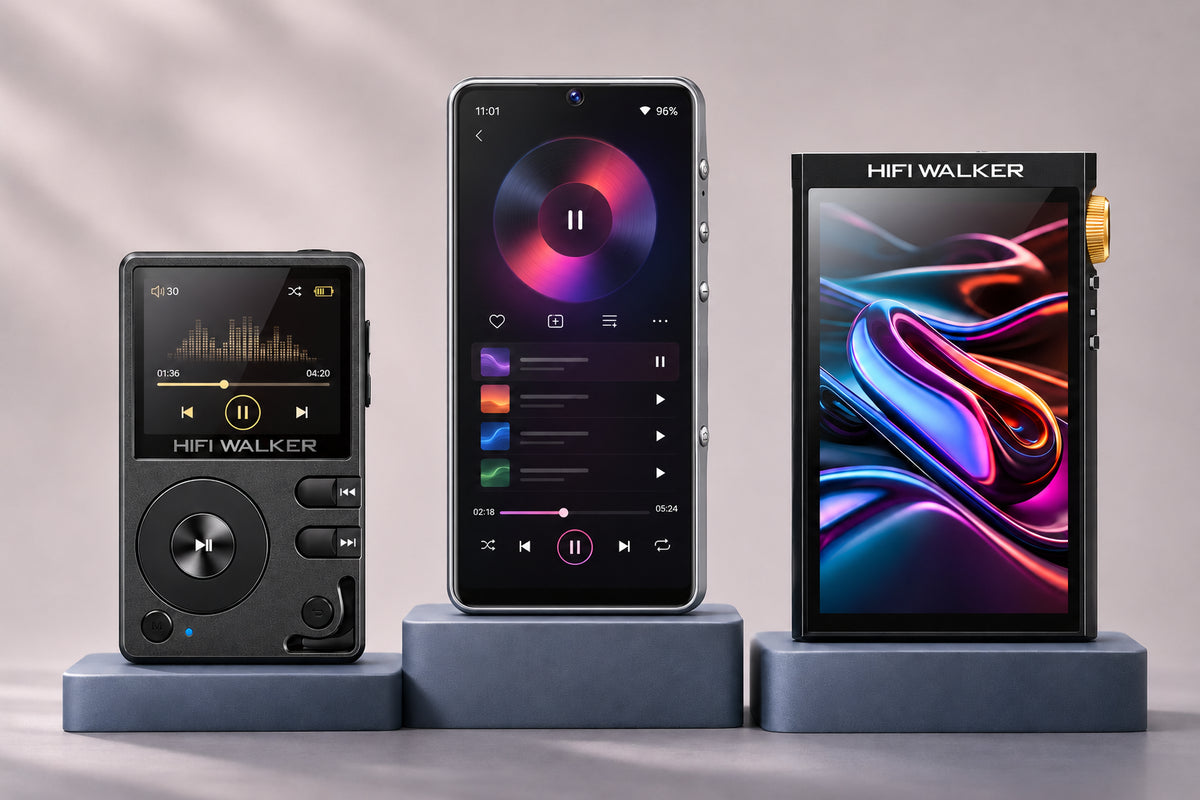



Is the H20 Ultra the best Hi-Res DAP under $250 for you?
Choose the HIFI WALKER H20 Ultra if you’re looking for the best Hi-Res DAP under $250 for a local music library and wired headphones. It gives you an ESS9038Q2M DAC, a 3.5mm single-ended output and a 4.4mm balanced output, and room to expand to a 512GB memory card. Already have albums on your computer and a pair of wired headphones you enjoy? You can build your first dedicated listening setup around those two things.
The included 128GB card gives your collection a place to start, and the touchscreen and volume knob put browsing and adjustment on the player itself. Pick an album for a quiet evening at home, or load a playlist before you leave in the morning. Either way, the music and its controls stay together on one device.
Start with the headphones you already reach for. A compatible 3.5mm pair is ready to connect, and the 4.4mm balanced port gives a compatible balanced pair its own connection. Add a few favorite albums to the included card, and you have the core of your setup.

Expert Insights: Key Takeaways
- Start with the 128GB card included with the H20 Ultra, then expand up to 512GB when your collection grows.
- Connect compatible wired headphones via 3.5mm or 4.4mm balanced, or pair Bluetooth headphones for cable-free listening.
- Use the 4-inch touchscreen to browse albums and the separate volume knob to adjust your listening level.
- ►1. Is the H20 Ultra the best Hi-Res DAP under $250 for you?
- ►2. Three everyday problems a dedicated local player can address
- ►3. Read the specifications as a connection checklist
- ►4. Plan your library around both card capacity and song count
- ►5. Choose the wired output that matches your headphones
- ►6. Listen with wired headphones or Bluetooth
- ►7. Browse albums by touch and adjust volume with a knob
- ►8. At home, on a commute and near a workout
- ►9. A simple first-day setup for a local music collection
- ►10. What you get with the H20 Ultra
- ►11. Build a library around the music you play most
- ►12. Choose the H20 Ultra for your local music library
Three everyday problems a dedicated local player can address
On a phone, choosing an album can mean opening the same screen you use for messages and everything else. On the H20 Ultra, album browsing and volume adjustment have their own place. If you like listening to a record from start to finish, having a separate player makes that routine easy to repeat.
A memory card also gives you a place to pull together albums scattered across your computer. Make folders by artist and album, then keep the collection you actually listen to on the player. You can leave the full archive at home and change the travel selection whenever you like.
The H20 Ultra has a 3000mAh battery and handles local playback independently. Charge it before a trip and load the records you want to hear along the way. If your phone usually handles navigation, messages and music on the same journey, letting a dedicated player take over the last of those gives your music its own battery.
Problems to identify
- Music scattered across folders
- A listening routine interrupted by other phone activity
- Uncertainty about headphone connections
Checks before choosing
- Prepare transferable local files
- Decide whether carrying a separate player is useful
- Match the cable to the supported output
Read the specifications as a connection checklist
The H20 Ultra uses a single ESS9038Q2M DAC to convert your digital music into an analog signal for wired listening. The two headphone outputs make that hardware practical. You can connect a compatible 3.5mm pair for everyday listening or plug a compatible balanced cable directly into the 4.4mm port.
The specifications list DSD256 support and a signal-to-noise ratio of 119dB at 1kHz. If your collection already includes compatible DSD files, those albums can sit alongside your familiar FLAC and WAV favorites. Bring the music you know first, then build out the collection in the formats you use.
Plan your library around both card capacity and song count
Start with the included 128GB card and choose which albums you want to carry. If your library grows, the H20 Ultra supports cards up to 512GB. That gives you a clear path from a starter collection to a larger library, using removable storage you can organize on your computer.
The player recognizes up to 14999 songs. Card space and song count are separate, so check both if you keep a large collection. You might dedicate the card to complete albums for home listening, then keep a smaller set of frequently played tracks easy to find within the same library.

Copy a sample album before moving the rest of the collection. Use clear artist and album folders, open the sample on the player and check that it plays, then copy the remaining albums in batches. Keep the original files on your computer so the collection is easy to reorganize later.
Start with DRM-free music files you own or have permission to copy. Good places to begin include albums you bought as downloads and music files already backed up on your computer. The guide to where to get music files for an MP3 player can help you assemble that first library.
Choose the wired output that matches your headphones
The 3.5mm output is the simplest starting point if that’s the plug on the wired headphones you already use. Choose the 4.4mm balanced output when your headphones have a compatible balanced cable. Both connections are built into the H20 Ultra, so you can set up the player around the pair you enjoy listening to.
The maximum output levels are listed as 2 Vrms for the single-ended output and 4 Vrms for the balanced output. If you’re shopping for a second pair of headphones later, these specifications give you concrete information to compare with the headphone maker’s recommendations. For your first setup, the easiest choice remains a pair with a matching connector.
If you also listen at a computer, the H20 Ultra supports USB DAC mode through USB-C. That gives you a second role for the player at your desk: it can play the albums stored on its own card or serve as the DAC for your computer. Both setups can use the wired headphone connection you’ve chosen.
For a balanced setup, use a headphone cable wired for balanced operation and fitted with a 4.4mm plug. Connect the headphones, start at low volume and adjust with the knob. That gives you a simple way to settle in with an album using the listening equipment you already own.

Listen with wired headphones or Bluetooth
Bluetooth 5.1 works in both transmit and receive modes. Transmit mode is the one to choose when sending music from the H20 Ultra to compatible Bluetooth headphones. The player supports aptX-HD and LDAC for compatible pairings, so you can look for the codec your wireless headphones support.
For a listening session at home, plug your wired pair directly into the player and keep the volume knob within reach. When you want to move around without a cable, pair Bluetooth headphones and keep the same albums on the card. Either connection gives you access to the collection you’ve already prepared.
Receive mode reverses the connection: a compatible Bluetooth source sends audio to the H20 Ultra. For everyday use, start with the direction that matches your setup. If the albums are on the player and you want to hear them through wireless headphones, transmit mode is the one you’ll use.
Browse albums by touch and adjust volume with a knob
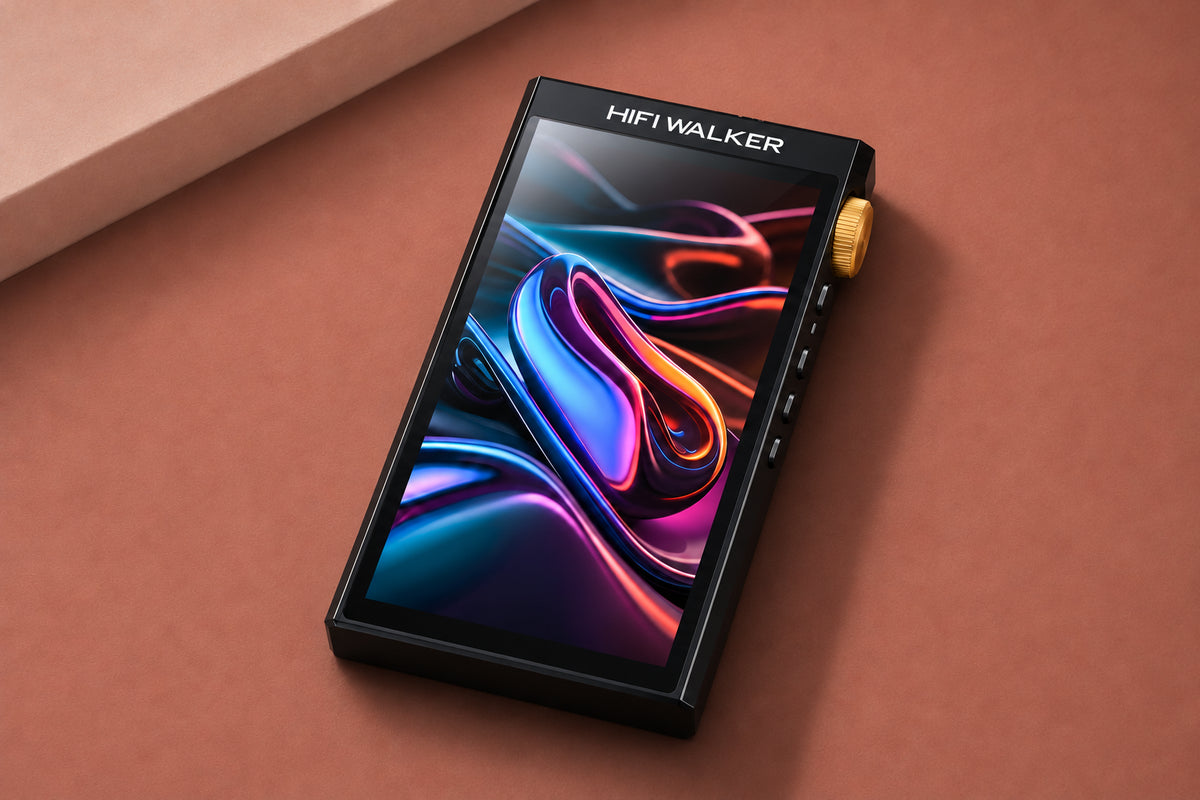
The CNC aluminum body and 9H glass back give the H20 Ultra a metal-and-glass finish. On a desk or side table, the touchscreen and separate volume knob are both within reach, so it can sit alongside the headphones you use most often.
The 4-inch touchscreen gives you a place to browse the collection and pick an album, while the rotary knob gives volume its own control. Set the player on the table where you listen most often, or choose a dedicated spot for it in your everyday bag.
The Linux-based player is built around your local files. Give the touchscreen to the task it’s good at, finding the album you want, and use the knob for small volume adjustments without reopening a menu. If you often listen to full albums, that separation of controls is especially convenient as you settle into a session.
↑ Back to Top
Back to Top ↑At home, on a commute and near a workout
At home, keep the player and your wired headphones together where you usually sit down to listen. Pick a complete album, set the volume with the knob and leave the phone across the room. That’s an easy way to give a favorite record a place in your evening routine again.

For a commute, put a few albums or a ready-made playlist on the included card before you leave. Keep the player secure in your bag or a dry pocket and select the first track while you’re stationary. Bringing the library with you makes a familiar playlist easy to start on the way out.
For a gym session, prepare the playlist before you start and keep the player in a dry, secure place away from sweat. Compatible Bluetooth headphones can keep the cable out of the way while the H20 Ultra stays tucked away.
A simple first-day setup for a local music collection
Start small enough that you can tell what works. A complete collection copied in one operation makes it harder to identify a troublesome file or an organizational mistake. Keep the original music on your computer, choose a sample album and use the included card if it fits your initial needs.
After confirming a small collection, add more albums in manageable groups. Keep the folder structure consistent and check playback again. When a file does not appear, review its format, restrictions and file count before assuming that the storage card is too small. The distinction between card capacity and recognized song count remains important as the library grows.
Keep an original copy
Retain your music on the computer and choose an album you own or have permission to copy.
Prepare the card and connection
Follow the supplied player instructions. Begin with the included card and a suitable transfer connection.
Copy a small sample
Use clearly named artist and album folders. Avoid assuming that a subscription download is a transferable file.
Connect compatible headphones
Choose the supported output that matches your cable and start at a low volume.
Confirm playback before expanding
Check that the files appear and play, then add albums gradually while keeping the recognition limit in mind.
What you get with the H20 Ultra
The included card, touchscreen controls and two wired outputs give you a practical starting setup in one player. Visit the H20 Ultra product page for the current price and package. If your first collection fits on the included card, you can start there and expand as you add albums.
For your shortlist, look for the benefits you’ll use on day one. A familiar 3.5mm connection helps you start with the wired pair you already own. A 4.4mm balanced output gives a compatible second pair another place to plug in. A card slot with room to expand gives your library somewhere to go next.
Start with the player, the included card and a compatible pair of headphones. Set aside a handful of favorite albums, connect your headphones and learn the controls as you listen. Add a larger card when your collection needs it, or a balanced cable when you have a compatible pair you want to use.
Build a library around the music you play most
Think about which music you want available away from your computer. Complete albums you return to often make a good starting shelf. Add a few live recordings or playlists for the times when you want something already picked out. An organized selection makes the player useful from the first day and leaves space to build the collection around what you actually play.
A desk library and a travel rotation can serve different purposes. At home, keep a wider mix of artists and album cuts available. For weekends away, organize a selection of longer records or live sets with consistent folder names. The same player can handle either routine, and removable storage lets you arrange the files before you leave.
When you add a new artist, copy complete album folders from your original library and check that the first album plays as expected. If you later expand to a larger card, your folder structure can move with the collection. That makes expansion a useful next step when you have more music to bring along.
Choose the H20 Ultra for your local music library
The H20 Ultra is a strong choice for a first Hi-Res player if you want a dedicated home for your music files, a touchscreen to browse them and wired outputs that fit your headphones. The included card gets your collection started, and support for up to 512GB gives you a clear upgrade path for a larger library.
It also makes sense for a listener who wants one player for quiet evenings and planned trips. Keep a favorite wired pair next to the player at home, then pair compatible Bluetooth headphones when you want a cable-free commute. The albums you chose are ready on the card.
Ready to give your own albums a dedicated player? Shop the HIFI WALKER H20 Ultra, check the current price and start with a compatible pair of headphones and the music you already own.
Three ways to begin with a local library
Choose the routine that matches the files and headphones you already have.
Pick a favorite album, connect a compatible pair of headphones and build your collection from there.
Frequently Asked Questions
Q1: Where can I check the current H20 Ultra price?
The H20 Ultra product page shows the current price and available package. Start with the included 128GB card and a compatible pair of headphones for your first setup.
Q2: What storage does the H20 Ultra support?
The package includes a 128GB card, and the H20 Ultra supports cards up to 512GB. The included card is removable storage, and the player can recognize up to 14999 songs.
Q3: Does the H20 Ultra have a balanced headphone output?
Yes. The product specifications list a 4.4mm balanced output as well as a 3.5mm output. Use headphones and cables compatible with the chosen connection.
Q4: Can I install music service apps on the H20 Ultra?
It is designed for playing compatible local files from its memory card. Load DRM-free music you own or have permission to copy, and your albums are ready to browse on the player.
Q5: Can I take it to the gym?
Yes, for a dry listening setup. Load the playlist before your session and keep the H20 Ultra away from sweat in a dry, secure place.