


Last updated: July 8, 2026
Expert Insights: Ford Sync Audio in 2026
- USB connections outperform Bluetooth for Ford Sync audio quality because they transmit a digital signal without codec compression — the difference is clearly audible on lossless FLAC tracks above 16-bit/44.1kHz.
- Ford Sync can only store 10 Bluetooth devices. If your phone won't pair, a full device list is the single most overlooked cause — always check and clear old pairings first.
- Firmware updates at owner.ford.com often add new Bluetooth codec support and fix phone-specific compatibility bugs. Running outdated Sync software is a common source of persistent audio dropouts.
- A dedicated DAP like the HIFI WALKER H20Ultra eliminates the fundamental limitation of smartphone car audio: the phone's cost-reduced DAC. Running DSD256 files through a premium ESS Sabre chip into your Ford's amplifier reveals detail that compressed streaming simply cannot reproduce.
How to Connect Phone to Ford Sync to Play Music: Your 2026 Overview
Knowing exactly how to connect your phone to Ford Sync to play music is the first thing every new Ford owner wants to figure out. Ford's Sync platform supports two main methods — Bluetooth and USB — and each has real trade-offs for audio quality, convenience, and reliability. This guide covers both step-by-step, fixes the most frustrating connection problems, and shows you why serious listeners are increasingly pairing a dedicated hi-res audio player with their Ford instead of a smartphone.
Standard Phone Connection
- Bluetooth streaming (compressed audio — AAC or SBC codec)
- USB cable (better digital signal integrity)
- Limited by phone's built-in DAC quality
- Subject to call/notification interruptions
- Battery drain during long drives
Audiophile DAP Alternative
- Dedicated ESS Sabre DAC chip for studio-grade output
- Native FLAC, WAV, and DSD256 support
- Long battery life optimized for audio — not multitasking
- Zero interruptions from calls or apps
- Connects via USB or Bluetooth LDAC to Ford Sync

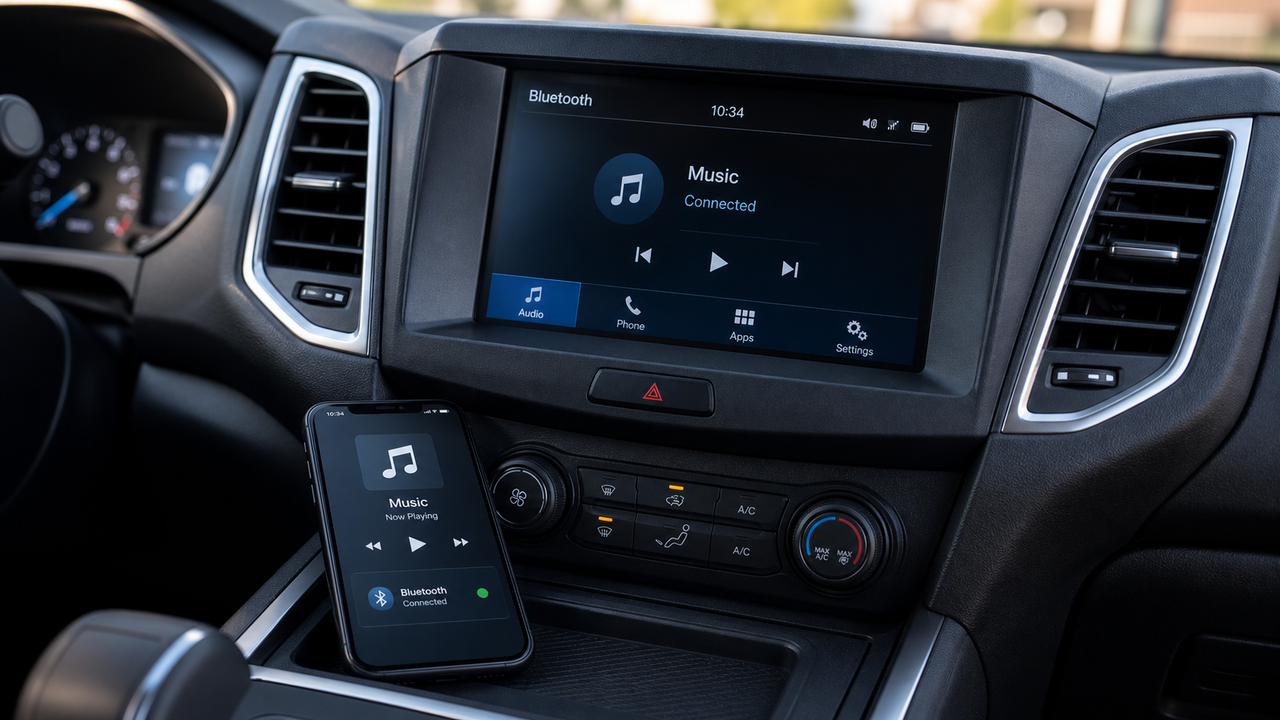
Ford Sync dashboard ready for Bluetooth device pairing
- ►1. How to Connect Phone to Ford Sync to Play Music: Your 2026 Overview
- ►2. Step-by-Step: Connect Phone to Ford Sync via Bluetooth
- ►3. USB Connection to Ford Sync: Better Audio, Step by Step
- ►4. Troubleshooting Ford Sync Connection Problems
- ►5. Voice Commands for Hands-Free Music Control in Your Ford
- ►6. Optimizing Audio Quality: Beyond Basic Ford Sync Setup
- ►7. Advanced Ford Sync Settings and Software Updates
- ►8. Best DAPs to Connect to Ford Sync: Audiophile Alternatives in 2026
Step-by-Step: Connect Phone to Ford Sync via Bluetooth
Bluetooth is the fastest way to connect your phone to Ford Sync to play music wirelessly. The pairing process takes under two minutes once you know the steps. Keep in mind that Bluetooth audio applies compression — typically SBC or AAC codec — which reduces dynamic range compared to a direct USB or lossless connection.
Enable Ford Sync Bluetooth Discovery
Press the Phone button on your steering wheel or tap 'Phone' on the Sync touchscreen. Navigate to Bluetooth > Add Device. The system will become discoverable for 3 minutes.
Open Bluetooth Settings on Your Phone
Go to Settings > Bluetooth on your iPhone or Android. Make sure Bluetooth is toggled ON. Wait for 'SYNC' to appear in your list of available devices — this usually takes 10–20 seconds.
Confirm the 6-Digit PIN
Both your phone and the Ford Sync display will show a matching 6-digit PIN. Confirm on both screens. If the codes don't match, cancel and restart the process.
Set Bluetooth Audio as Your Active Source
Once paired, press Media on the Sync panel and select 'Bluetooth Audio' from the source list. Launch your music app and your phone's audio will stream through the car speakers immediately.
Enable Auto-Connect (Optional but Recommended)
In Sync Settings, enable 'Auto-Connect' for your device so it reconnects automatically each time you start the car — no manual re-pairing needed.
Audio quality note: Bluetooth compression is audible on high-resolution tracks. If you listen to FLAC files or DSD recordings, consider USB connection or a dedicated DAP with LDAC support to preserve the full frequency range through your Ford's sound system.
USB Connection to Ford Sync: Better Audio, Step by Step
USB is the superior method when you want to connect your phone to Ford Sync to play music with maximum fidelity. The digital signal bypasses Bluetooth compression entirely, and Ford Sync can read your device's music library directly — browsing by artist, album, or folder from the touchscreen. Your device also charges while connected, which matters on long road trips.
Use a Quality USB Cable
Connect your phone using a certified USB-A to Lightning (iPhone) or USB-A to USB-C (Android) cable. Avoid cheap third-party cables — poor cable quality causes dropouts and recognition failures. Plug into the labeled USB port in your Ford's center console.
Select USB as Your Audio Source
Press Media on the Sync system and choose 'USB' or 'USB 1' from the source menu. Your phone should appear as a recognized media device within a few seconds.
Choose Media Transfer on Your Phone
When your phone displays the USB connection prompt, select 'File Transfer' or 'Media Transfer Protocol (MTP)'. This gives Sync access to your local music library — not just charging.
Browse and Play from the Sync Display
Use the Sync touchscreen to navigate your music by Artists, Albums, Songs, or Folders. You can also use voice commands (covered below) to jump to specific tracks hands-free.

USB connection delivers better audio quality and charges your device simultaneously
Pro tip: If you have a large music library stored on a dedicated player rather than your phone, you can connect it via USB the same way. The HIFI WALKER H2 and similar DAPs are recognized by Ford Sync as USB media devices and offer dramatically better DAC performance than any smartphone.
Troubleshooting Ford Sync Connection Problems
Even after successful initial pairing, Ford Sync connections can fail unexpectedly. Before assuming hardware damage, work through these targeted fixes — most connection issues resolve with a software or cache reset.
Common Symptoms
- Phone not appearing in Sync device list
- Audio cutting out or dropping mid-song
- Sync shows connected but no audio plays
- Steering wheel controls not responding
- USB device not recognized after plugging in
Proven Fixes
- Delete old Sync pairings — it stores max 10 devices
- Clear Bluetooth cache on your phone (Android: Settings > Apps > Bluetooth)
- Perform a Sync master reset (hold Power + Seek for 10 seconds)
- Check for Ford Sync software updates at owner.ford.com
- Try a certified USB cable — avoid charge-only cables for audio
If problems persist after all troubleshooting steps, it often indicates a fundamental incompatibility between your phone's Bluetooth stack and the Sync firmware version. At this point, many audiophiles choose to sidestep the issue entirely by using a dedicated audio player — which connects more reliably and sounds significantly better.

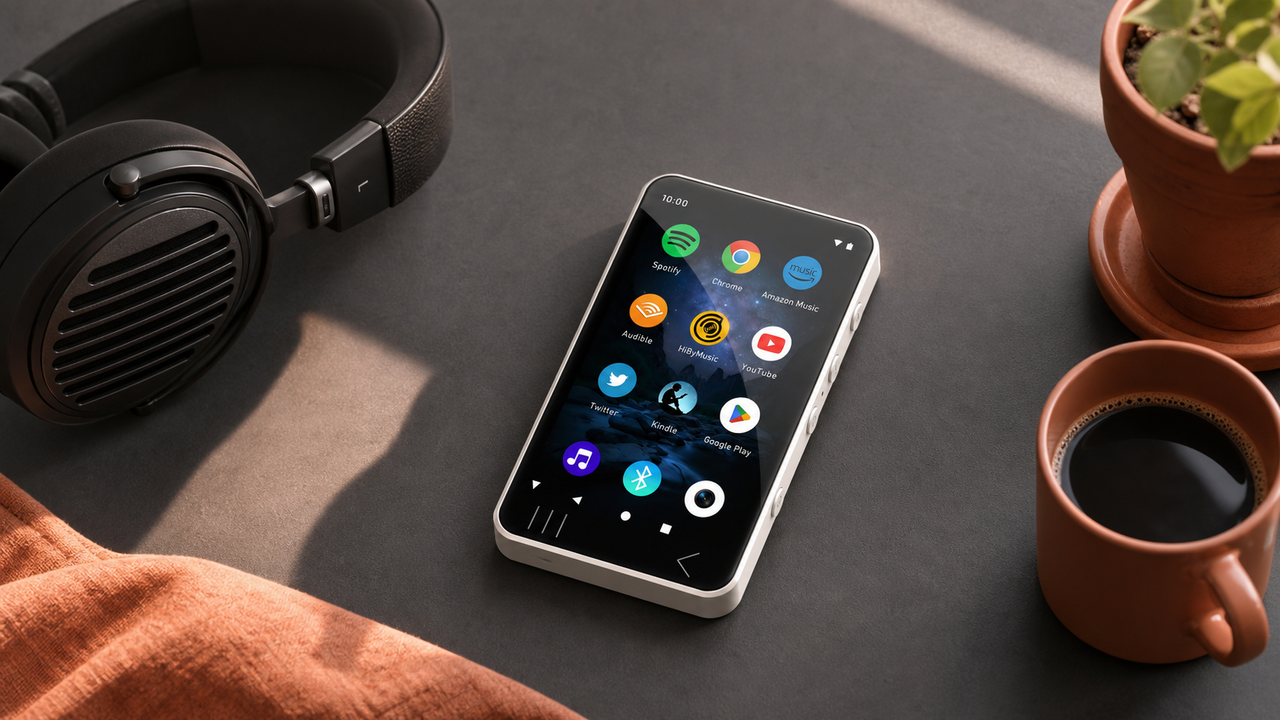
HIFI WALKER H20Ultra — a reliable, high-fidelity alternative to smartphone-based Ford Sync audio
Voice Commands for Hands-Free Music Control in Your Ford
Once your phone is connected to Ford Sync to play music, voice commands let you control playback without taking your hands off the wheel. Press the voice button on your steering wheel, wait for the tone, then speak your command clearly. Background road noise can cause misrecognition — lower the windows and speak toward the headliner microphone for best results.

Voice commands let you control Ford Sync music playback safely without distraction
Voice recognition accuracy improves with Sync software updates. Sync 3 and Sync 4 both support natural language phrases beyond simple commands — you can say "I want to hear something upbeat" and Sync will attempt to match your mood. Check for firmware updates at owner.ford.com to unlock the latest voice recognition improvements.
↑ Back to Top
Back to Top ↑Optimizing Audio Quality: Beyond Basic Ford Sync Setup
Connecting your phone to Ford Sync to play music is straightforward — but the default setup doesn't give you the best possible sound. The real bottleneck is almost always the source quality, not the Ford speakers. Here's what's actually limiting your car audio in 2026, and how to fix it.
Smartphone Audio Limitations
- Built-in DAC optimized for calls, not audiophile playback
- Bluetooth outputs compressed AAC or SBC (lossy) by default
- Battery management throttles audio processing under load
- Interruptions from calls, notifications, and OS updates
- Streaming apps add further lossy compression on top of codec
Dedicated DAP Advantages
- Premium ESS Sabre or AKM DAC chips purpose-built for audio
- LDAC Bluetooth (up to 990kbps) or lossless USB output
- DSD256, FLAC 32-bit/384kHz native support without transcoding
- Isolated audio circuit — no RF interference from cellular radio
- Uninterrupted playback regardless of incoming calls on your phone

Dialing in Ford Sync EQ and audio settings to match your source quality
Within the Sync audio settings, navigate to Settings > Sound to adjust bass, treble, midrange, and speaker balance. Enabling any available DSP or surround processing helps, but the single biggest upgrade you can make is improving the source — your smartphone's audio output simply cannot match what a dedicated player delivers through the same Ford speakers.

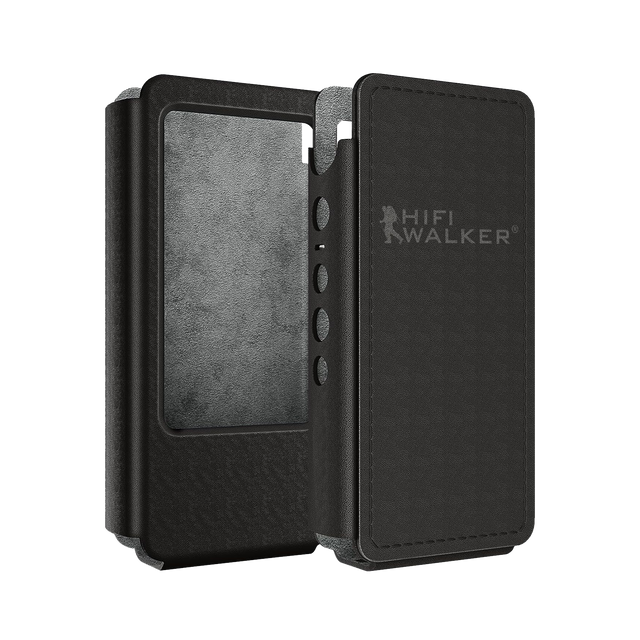
HIFI WALKER H2 Touch — lossless audio in a pocketable form factor, perfect for car use
Advanced Ford Sync Settings and Software Updates
Most Ford owners never explore Sync beyond basic pairing, but the system has advanced configuration options that meaningfully improve music playback. Regular software updates also expand codec support and fix compatibility bugs with newer phones and audio devices.
Update Your Sync Firmware
Visit owner.ford.com, log in, select your vehicle, and check for available Sync updates. Download to a USB drive (FAT32 formatted) and install via your car's USB port. Updates often add support for newer audio codecs and fix Bluetooth stack bugs that cause dropouts.
Configure EQ and Sound Settings
Access Settings > Sound in Sync. Adjust bass (+3 to +5 for most stock Ford speakers), treble (neutral or +1), and balance/fade to your listening position. Some Sync 4 models include a graphic EQ — dial in your preferred preset.
Set Device Priority for Multiple Paired Devices
Sync remembers up to 10 paired devices. Go to Phone > Bluetooth > Manage Devices to set connection priority. Put your primary music device first so it connects automatically when you start the car, overriding other paired phones.
Program Steering Wheel Shortcuts
Customize the steering wheel's seek/skip buttons and voice command trigger for hands-free music navigation. Reducing the number of screen taps while driving significantly improves safety and ease of use.
Key insight: Sync 4 (available on 2021+ Ford models) introduced improved Bluetooth codec negotiation, meaning it can now auto-select higher-quality codecs when your phone supports them. If you're on Sync 3 or older and experiencing persistent quality issues, an update — or switching to USB — is your best path forward.
Best DAPs to Connect to Ford Sync: Audiophile Alternatives in 2026
If you've maxed out your Ford Sync setup with a smartphone and still find the audio lacking, a dedicated hi-res audio player is the logical next step. DAPs connect to Ford Sync the same way a phone does — via USB or Bluetooth — but they output dramatically better audio thanks to purpose-built DAC hardware and lossless file format support.

A HIFI WALKER DAP connected to a Ford vehicle via USB — pure lossless audio through your car's speakers
The H20 Pro ($1,506) and H20Ultra ($1,882) represent the top end — both connect to Ford Sync via USB for bit-perfect lossless playback, or via LDAC Bluetooth for high-resolution wireless audio. For listeners who want an outstanding DAP at a more accessible price point, the H2 Touch ($1,123) delivers exceptional performance through any Ford audio system.

Frequently Asked Questions
Q1: Why won't my phone connect to Ford Sync to play music?
The most common causes are a full device list (Sync stores a maximum of 10 paired devices), outdated Sync firmware, or a corrupted Bluetooth cache on your phone. Fix: delete old pairings in Sync, clear your phone's Bluetooth cache, update Sync firmware at owner.ford.com, and re-pair. If using USB, ensure you select 'File Transfer' or 'MTP' mode — not 'Charge Only.'
Q2: Does USB give better audio quality than Bluetooth when connected to Ford Sync?
Yes. USB maintains digital signal integrity without the lossy compression applied by Bluetooth codecs like SBC or AAC. Ford Sync reads your device's music library directly over USB and routes the audio digitally, resulting in cleaner, more detailed sound — especially noticeable on high-resolution FLAC or lossless tracks.
Q3: Can I control music with voice commands after connecting my phone to Ford Sync?
Absolutely. Press the voice button on your steering wheel, wait for the confirmation tone, then say commands like 'Play [Artist Name],' 'Next Track,' 'Volume 7,' or 'Bluetooth Audio.' Sync 3 and Sync 4 support natural language in addition to fixed commands. Speak clearly toward the ceiling microphone for best recognition accuracy.
Q4: What's the difference between using a phone vs. a dedicated DAP with Ford Sync?
A dedicated audio player like the HIFI WALKER H2 Touch or H20Ultra uses purpose-built ESS Sabre DAC chips rather than a smartphone's cost-reduced mobile DAC. This means native FLAC, DSD256, and 32-bit/384kHz support without software transcoding, LDAC Bluetooth output up to 990kbps, and no interruptions from calls or notifications — resulting in clearly audible improvements through any Ford speaker system.
Q5: How many Bluetooth devices can Ford Sync remember at once?
Ford Sync can store up to 10 paired Bluetooth devices, but only one device can actively stream audio at a time. You can switch between stored devices through the Sync interface without re-pairing. If you hit the 10-device limit, delete older or unused pairings from the Sync device management menu.
Q6: Does Ford Sync support LDAC or aptX HD Bluetooth for higher quality audio?
Sync 4 (2021+ Ford models) has improved Bluetooth codec negotiation, but LDAC and aptX HD support varies by model year and firmware version. For guaranteed LDAC output, connect a HIFI WALKER DAP like the H20Ultra or H2 Touch via USB for bit-perfect lossless audio — this bypasses Bluetooth codec limitations entirely.