



Update the firmware only when the Download Center recommends an update. If your player is working normally, we do not recommend updating the firmware.
Download the compatible firmware
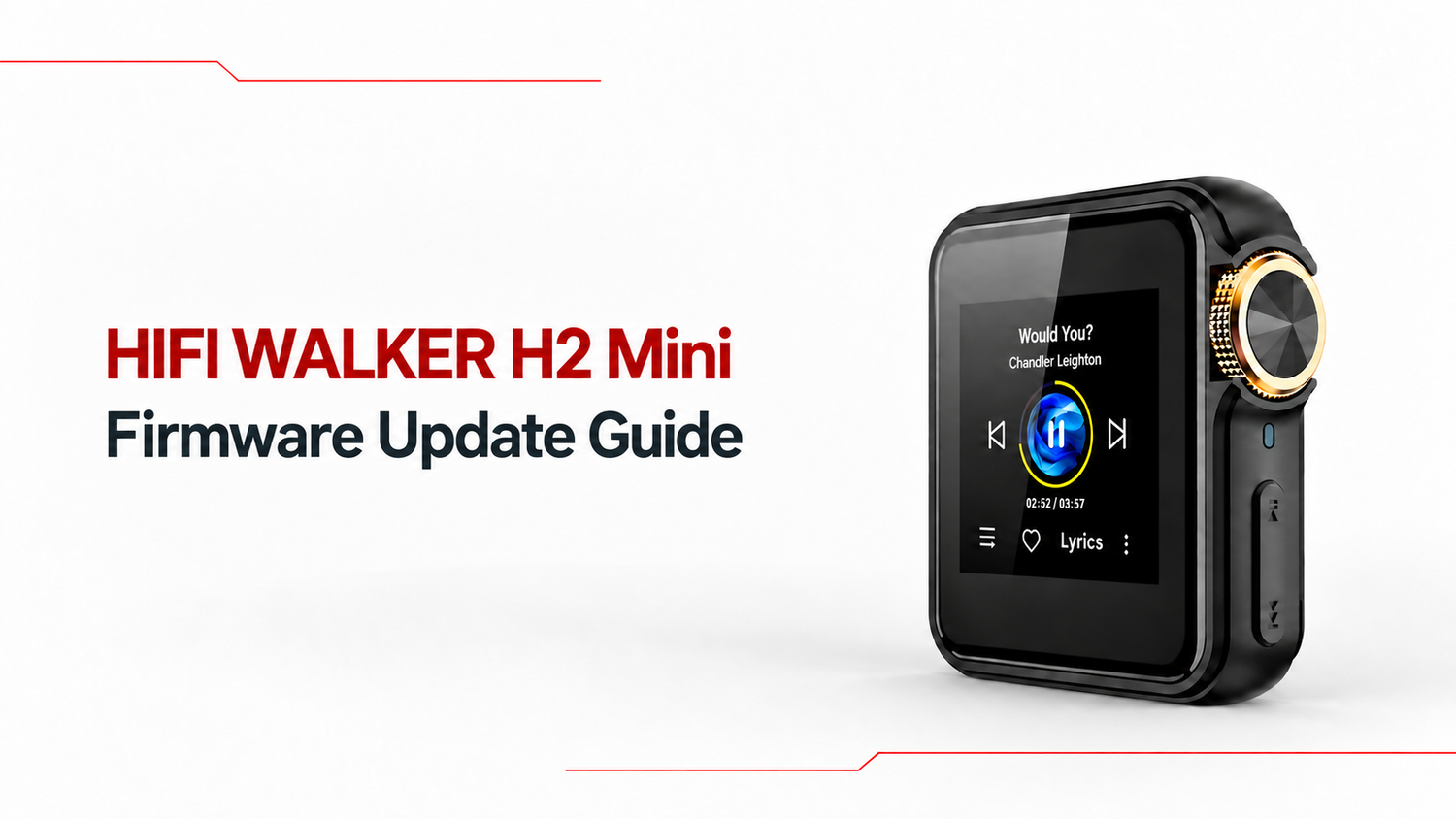
Open the Download Center, select H2 Mini, and choose Firmware. Enter the version shown under System Settings → About This Device, then select Check. Download a firmware file only when the checker recommends one.
Rename the firmware file
After downloading the file, turn on file name extensions. Then rename the file and enter only update. The final filename should display as update.upt.


Connect H2 Mini to your computer
On the H2 Mini, open System Settings → USB Mode → Storage. Connect the player to your computer with a USB data cable and wait for it to appear as a storage device.
Copy the file to H2 Mini
Copy the update.upt file to the root directory of the H2 Mini storage. Do not place it inside Music, Download, or another folder. Wait for copying to finish, then safely eject the player and disconnect the cable.
Start the firmware update
On the H2 Mini, open System Settings → System Upgrade and start the update. Keep the player powered on and do not operate it until the update and restart are complete.
Check the firmware version
After the H2 Mini restarts, open System Settings → About This Device and confirm the installed firmware version. If the firmware version has not changed, repeat the complete update process.
Need help?
If you need assistance, contact us before trying another firmware file: sales@hifiwalker.com