


Want Music on Its Own Device? Meet the G7 Pro
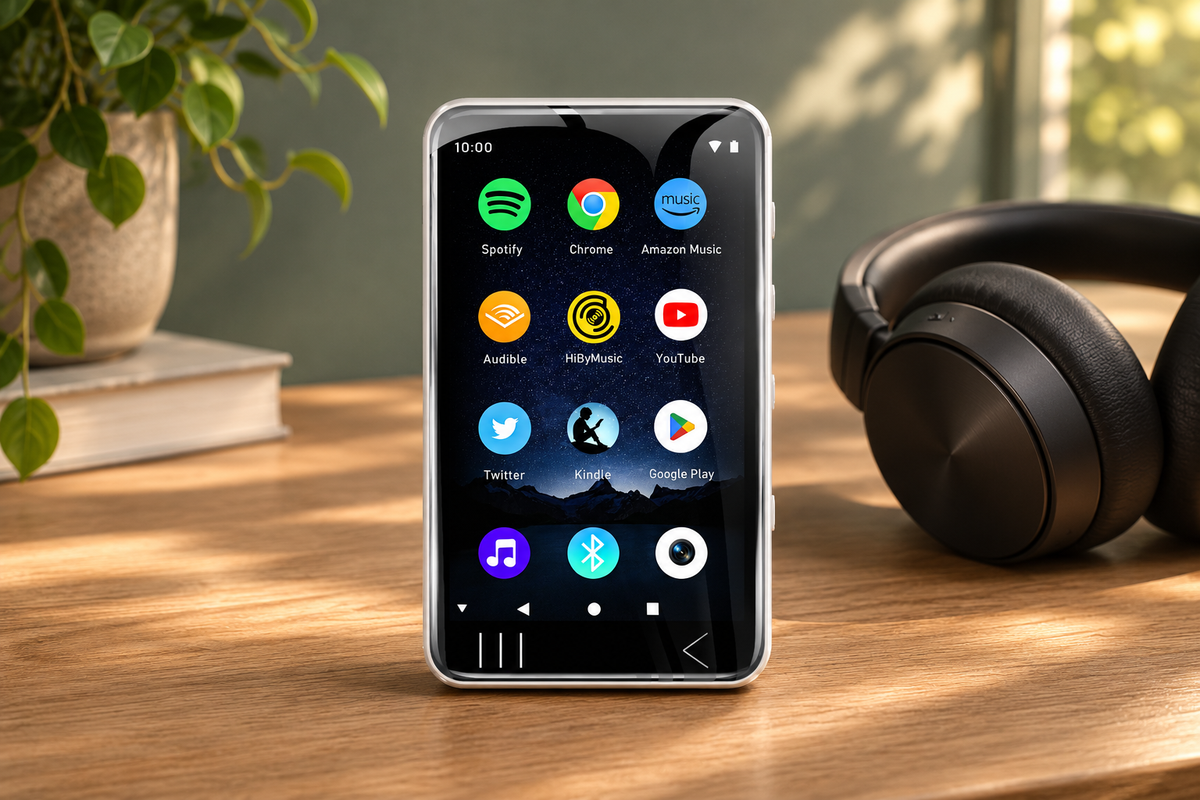
The HIFI WALKER G7 Pro is worth considering if you use an iPhone but want a separate device for your music apps and local songs. It runs Android 13 and has a 5.2-inch touchscreen, Wi-Fi, Bluetooth, and wired headphone connections. Your iPhone can stay your everyday phone while the G7 Pro becomes the device you pick up to choose music.
Searching for the best iPhone music player? You might be looking for an app to install on your phone. This guide takes the other direction: an independent player for an iPhone owner who wants listening on another device. The G7 Pro has its own system and screen. You select music on the player itself, rather than using it as an extra screen attached to your iPhone.
That distinction makes the purchase easier to picture. You may enjoy your current music service and have no wish to replace your phone. What you want is somewhere else to open a playlist, choose an album, and adjust playback. A dedicated Android player lets you build that arrangement around music you already care about.
The question is what you would like the new device to take over. Perhaps most of your listening happens through an app. Perhaps you also keep albums on a computer. The G7 Pro offers a place for both approaches. This guide focuses on bringing a separate player into an existing iPhone routine, from choosing the first app to preparing the music and headphones you want to use.

Start with a small, specific plan: the service you use most, the headphones you enjoy, and the first album you want ready. You do not need to redesign your whole digital life. A clear job for the player makes it easier to see why you would buy it and how you would begin using it.
Expert Insights: Key Takeaways
- The G7 Pro is a separate Android music player for an iPhone owner, rather than an iPhone app or a screen accessory.
- Start with your main music service, prepare music on the player, and check your headphone connection.
- Choose the G7 Pro for its documented screen, Android platform, and listening connections.
Keep the Music You Enjoy, Choose It on Another Screen
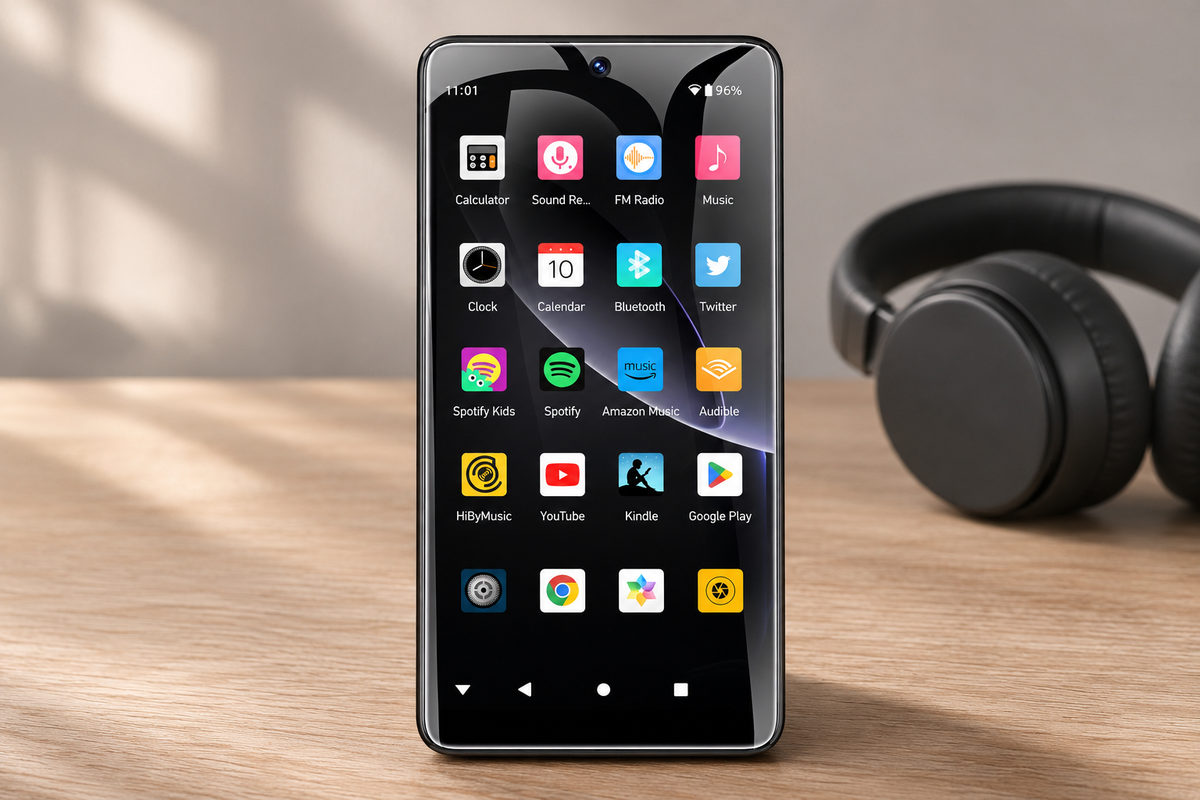
Choosing an Android music player does not have to mean choosing an unfamiliar music service. HIFI WALKER's official G7 Pro page lists compatible apps including Apple Music and Spotify through the pre-installed Google Play Store. Start with the service you already enjoy, then check its current account and device requirements.
For an iPhone owner, this can be more appealing than starting a collection from scratch. Think about the music you return to: a playlist you have been adding to, an artist you follow, or an album you know by heart. Those preferences can guide your first app choice on the G7 Pro. You are choosing another place to listen, rather than another reason to search for everything again.
Sign in through the official application using the account you intend to use. What appears afterward depends on the service, the account, and its library settings. Saved selections and downloaded selections are different things: seeing a familiar playlist does not mean all of its music is already stored on this player. Keep that distinction in mind when you prepare your first listening session.
You also do not have to bring every app you use on your iPhone onto the player. Start with music. Open the service you want, find a favorite selection, and get comfortable with the playback controls. A short list of apps gives the device a straightforward purpose and makes its home screen easier to organize around the things you actually want to hear.
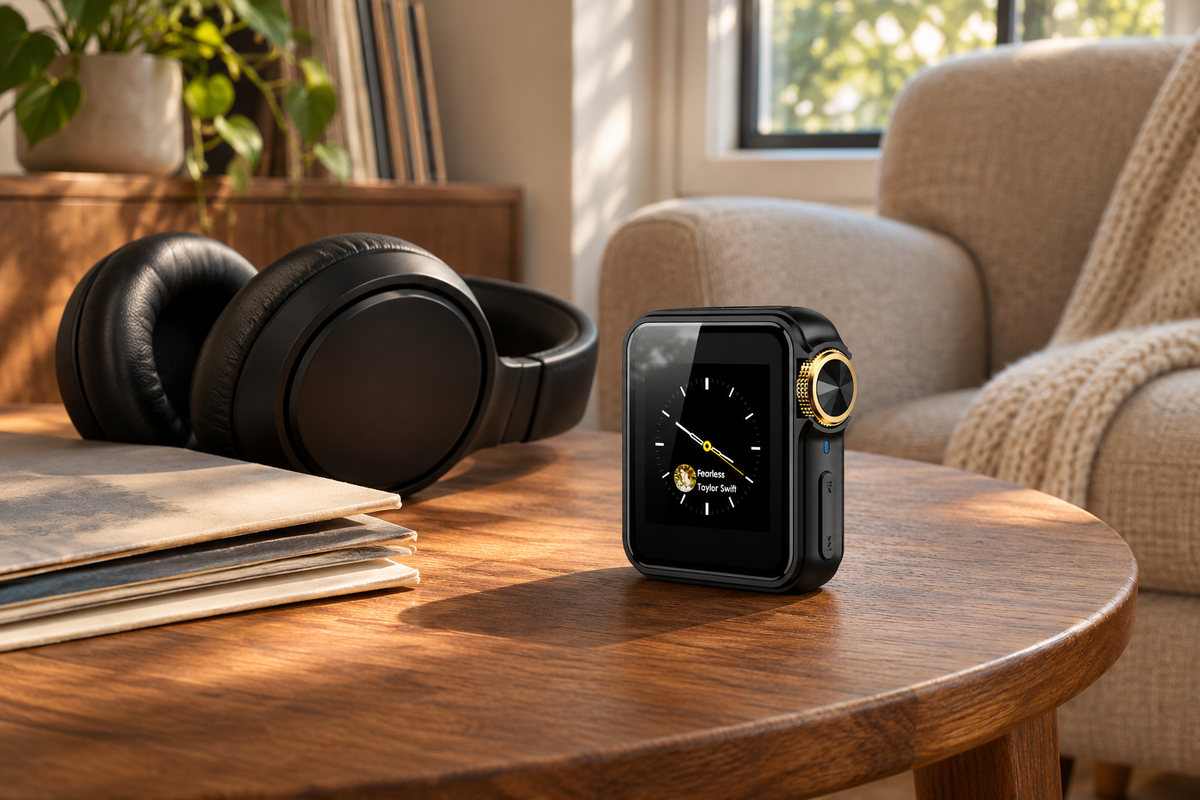
An Android player has its own interface, so there will be a little getting used to. You will open Android versions of supported apps rather than install iPhone apps from the App Store. The familiar part is the music and the service you choose; the new part is the device you use to reach them. Looking at the official product images helps you picture that change before ordering.
If Apple Music is your starting point, our guide to an MP3 player that works with Apple Music covers that service and its device choices in more detail. Here, the next question is practical: what should be ready on your separate player before you start relying on it for music?

Get Your First Listening Session Ready on the Player
Prepare music on the G7 Pro itself, even when you already listen to the same selection on your iPhone. This is a separate device with its own app installation and storage. A little preparation at the beginning lets you move from unpacking to an album you actually want to hear, without turning setup into a project that takes over the evening.
Begin where you have usable Wi-Fi. The G7 Pro supports 2.4 GHz and 5 GHz Wi-Fi, giving you a way to connect at home or another suitable network. Use the network available where you plan to set it up. Buying a player is not a mobile-data subscription; for this listening arrangement, plan around Wi-Fi access and music prepared in advance.
Choose your starting app
Open the official application for the service you plan to use and sign in to the appropriate account. Keep any required account-verification method available during setup.
Find one familiar selection
Choose an album or playlist you already enjoy. Check that you can find it and start playback on this player before adding more apps or organizing a larger collection.
Connect your headphones
Pair compatible Bluetooth headphones with the G7 Pro, or use headphones with a suitable 3.5 mm connection. Begin at a comfortable volume and check the playback controls.
Prepare for the network you will have
If you want service downloads, follow that app's subscription and offline-use requirements on the G7 Pro. If you use your own files, prepare compatible copies from a source you have the right to use.
For service-based listening away from Wi-Fi, follow the official app's download instructions and confirm its current requirements. Downloads already on an iPhone should not be treated as files that automatically move to an Android player. Prepare any eligible selection within the service on the device you will take, then check playback without Wi-Fi before relying on it.
You can keep that preparation modest. A few albums or a playlist for the time you expect to listen may be enough. Pick something familiar for the first session, so you can concentrate on finding the controls rather than deciding what to play. Once that feels comfortable, add other selections as you need them.
If you already own compatible music files, keep the originals backed up on your computer and prepare copies for the player. A local collection gives you another way to choose music alongside supported apps. Keep purchased or authorized audio files separate from subscription-app downloads, which follow the service's own rules rather than acting as a transferable MP3 collection.
For your first week, notice where preparation matters most. Do you usually begin listening at home with Wi-Fi available, or do you want music ready before heading somewhere else? That answer helps you decide what to organize first. The goal is a player you are ready to enjoy, with the music you want already easy to find.
↑ Back to Top
Back to Top ↑What Makes the G7 Pro Worth a Closer Look?
The G7 Pro brings a touchscreen, Android app access, and headphone choices together in one separate listening device. Its 5.2-inch display has a 720 × 1440 resolution. If choosing an album is something you enjoy, a dedicated screen gives that part of listening its own place, without asking you to replace the phone you already use.
The G7 Pro pairs Android 13 with 4GB of RAM. Those are useful hardware details when choosing an Android player for supported music apps. RAM is working memory for running applications; it is different from the space used to keep songs. Review the current purchase configuration on the product page for storage and package contents rather than treating a memory figure as the whole package.
Headphones are another part of making the purchase feel familiar. The G7 Pro supports Bluetooth 5.0 and 3.5 mm wired listening. If you already have a pair you love wearing, start by checking its connection. A compatible wired pair gives you a direct connection to the player; compatible Bluetooth headphones give you a wireless option.
For wireless headphones you currently use with an iPhone, check the headphone maker's instructions for pairing with another device. Features and automatic switching behavior can depend on the headphones and platform. The useful buying question is simple: can this pair connect to the player in the way you intend to use it? Confirming that one detail helps you keep a familiar part of your setup.
Choose this model because those details fit the music setup you want. You may care most about having apps on an independent screen, or about keeping both wired and wireless listening available. Put your main reason first. A feature is more persuasive when you know what you will do with it than when it is just another item in a list.

Choose the Listening Job You Want the G7 Pro to Take Over
The G7 Pro makes the most sense when you can name a music task you want off your iPhone. It could be choosing albums, managing your everyday playlist, or keeping prepared music on a device you take specifically for listening. That is a clear reason to explore it while your iPhone continues handling the rest of your day.
Be specific about that division. You might keep your iPhone nearby for calls while using the G7 Pro for playback. You might prefer to leave the phone charging and take the player to another room. The useful change is where you choose and control the music. An Android player can still run apps, so make the setup match the purpose you bought it for.
If you are still deciding whether you want an accessory for the iPhone or an independent player, our iPhone music setup guide explains that broader choice. This guide is for the next decision: adding a separate Android device for the music apps and songs you want close by.
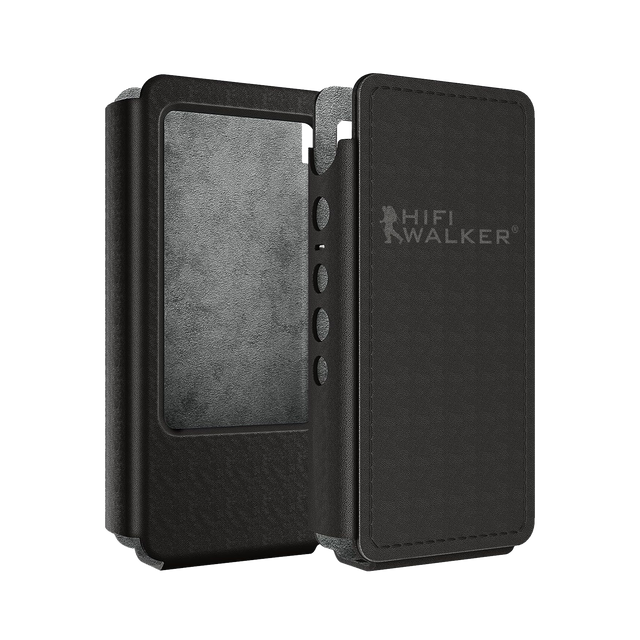
Before ordering, open the G7 Pro product page, look through the actual device photographs, and review the selected package. Have the name of your main music app and your headphone model handy if you want help confirming the setup. A specific question about the equipment you intend to use is easier to resolve than asking whether a player does everything an iPhone does.
You can also plan a place to charge the player and a first selection to load. Those are small details, but they make the purchase concrete: a device with a purpose and music you are looking forward to hearing. Begin with that, then expand your setup when you know what you enjoy using.
For someone looking for the best iPhone music player alternative, the G7 Pro offers a straightforward next step: keep your phone, give music its own Android screen, and choose a listening setup around your existing preferences. Explore the HIFI WALKER G7 Pro and review the current purchase options. Start with the album you would like to hear first.
Keep your iPhone. Give the music its own screen.
Picture the first app, album, and headphones you would use with the G7 Pro.
Explore the current G7 Pro configuration and get ready for your first listening session.
Frequently Asked Questions
Q1: Is the G7 Pro an iPhone music player app?
No. The HIFI WALKER G7 Pro is a separate Android device. This guide addresses iPhone owners who want music on another device rather than another app installed on their phone.
Q2: Do I need to replace my iPhone to use the G7 Pro?
No. Keep your iPhone and use the G7 Pro independently for supported music apps and compatible local songs. Choose which part of listening you want the player to handle.
Q3: Will music downloaded on my iPhone already be on the G7 Pro?
Treat the G7 Pro as a separate device that needs its own preparation. Use your music service's official app instructions for eligible downloads and subscription requirements. Subscription downloads are different from transferable audio files you own.
Q4: Can I use the headphones I already own?
The G7 Pro supports Bluetooth 5.0 and a 3.5 mm wired connection. Check the connection and pairing instructions for your particular headphones, including any features that depend on the phone or platform.