


Última actualización: 6 de julio de 2026
Perspectivas de Nuestros Expertos: Spotify en un Reproductor Portátil en 2026
- El DRM ha sido el mecanismo central de protección de archivos de Spotify desde 2011: ningún conversor legítimo lo ha eludido nunca, y cualquier herramienta que afirme lo contrario es ilegal o roza el malware.
- Los reproductores de música Android que ejecutan la app oficial de Spotify a través de Google Play siguen las propias normas de Spotify sobre la app, la cuenta y las descargas Premium.
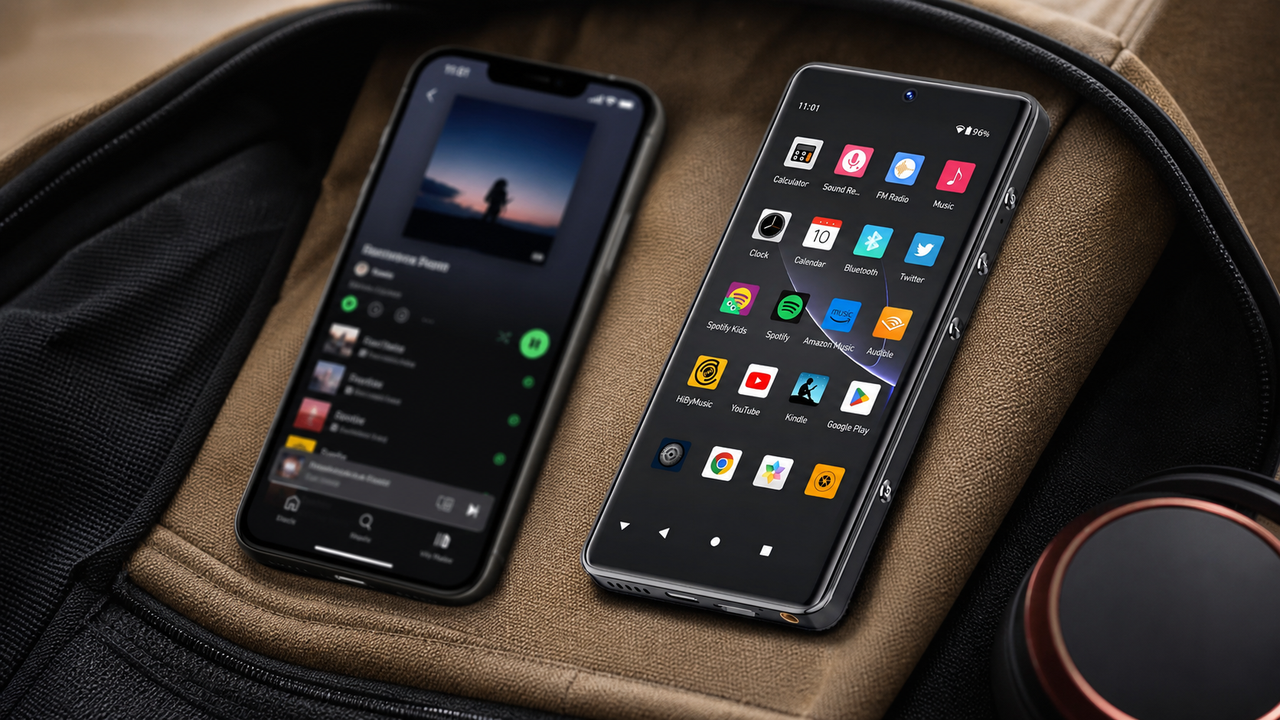
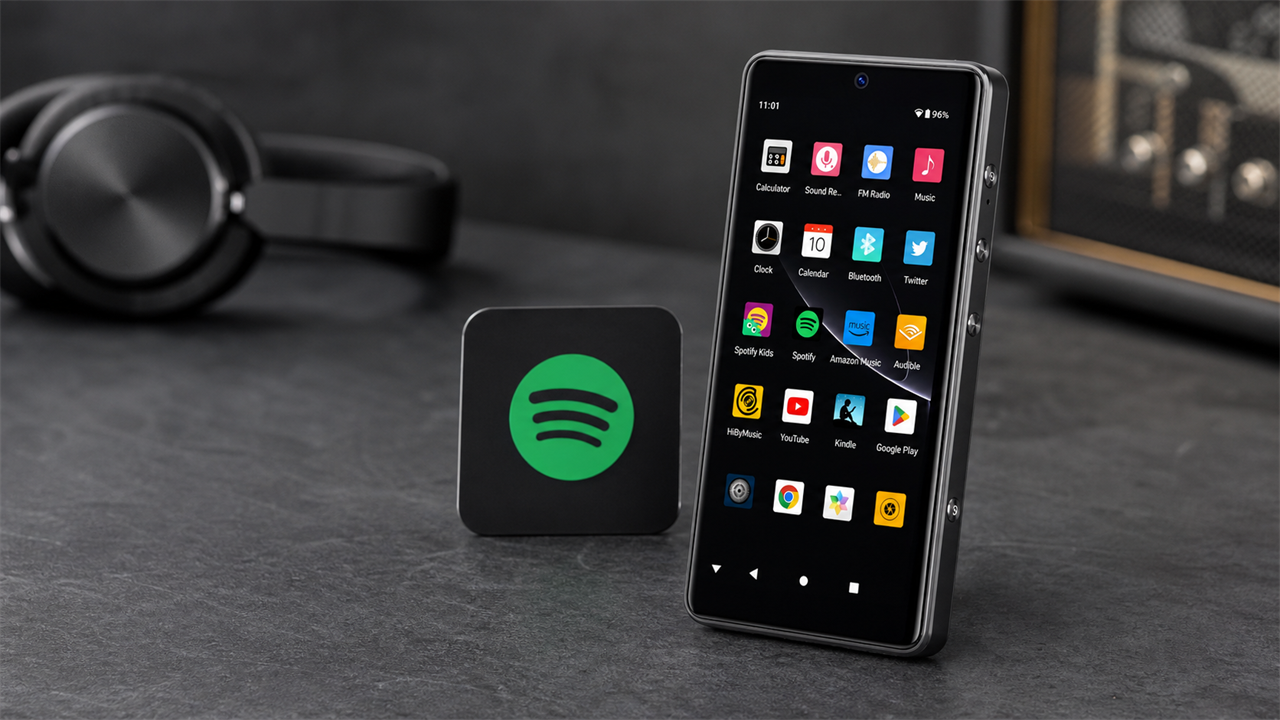
- El G7 Pro ejecuta Spotify en Android 13 y mantiene la reproducción, las descargas y los archivos locales en un dispositivo separado de tu teléfono.
- Para quienes se desplazan a diario, el G7 Pro mantiene la escucha de música en un dispositivo separado y está clasificado hasta unas 62 horas de reproducción de música / 8 horas de reproducción de vídeo.
Por Qué No Puedes Simplemente Transferir Música de Spotify a un Reproductor MP3
Es una de las preguntas sobre audio más buscadas en Google en 2026: ¿se puede transferir música de Spotify a un reproductor MP3? Si ya lo has intentado, ya conoces la frustrante respuesta. Las pistas de Spotify no son archivos de audio normales: son transmisiones cifradas protegidas por DRM (gestión de derechos digitales). No puedes arrastrarlas a una carpeta, convertirlas ni copiarlas a ningún dispositivo. Punto.
Piensa en Spotify como un servicio de alquiler de películas. Esa película solo se reproduce dentro de la app: no puedes copiarla a una memoria USB. Los acuerdos de licencia de Spotify funcionan igual. Según las propias Condiciones de Servicio de Spotify, copiar, redistribuir o convertir pistas está explícitamente prohibido. Cualquier herramienta de terceros que afirme lo contrario es ilegal, insegura, o ambas cosas.
Por Qué Falla la Conversión de Archivos
- Las transmisiones de Spotify están cifradas con DRM, no son audio sin procesar
- Los conversores de terceros infringen las Condiciones de Servicio de Spotify
- Los archivos convertidos suelen ser de baja calidad o estar dañados
- Riesgo de malware por software de conversión sospechoso
- Las listas de reproducción se vuelven estáticas: sin actualizaciones automáticas ni novedades
Lo Que Realmente Funciona en 2026
- Los reproductores de música Android ejecutan la app oficial de Spotify de forma nativa
- 100 % legal: usa la propia infraestructura de Spotify
- Transmisión completa a 320 kbps y descargas sin conexión
- Las listas de reproducción se sincronizan automáticamente al conectarse al Wi-Fi
- El reproductor Android dedicado mantiene Spotify alejado de las distracciones del teléfono
- ►1. Por Qué No Puedes Simplemente Transferir Música de Spotify a un Reproductor MP3
- ►2. La Solución Real: un Reproductor Android Que Ejecuta Spotify de Forma Nativa
- ►3. Reproductor Android frente a Reproductor MP3 Tradicional: Comparación Directa
- ►4. Cómo Configurar Spotify en el HIFI WALKER G7 Pro (Paso a Paso)
- ►5. Por Qué el G7 Pro Suena Mejor Que el Streaming en Tu Teléfono
- ►6. ¿Qué Reproductor HIFI WALKER es el Adecuado para Ti?
La Solución Real: un Reproductor Android Que Ejecuta Spotify de Forma Nativa
La respuesta para tener Spotify en un reproductor portátil no consiste en transferir archivos, sino en elegir la plataforma de hardware adecuada. Los modernos reproductores de audio digital Android (reproductores de música) ejecutan un sistema Android completo, igual que un teléfono, pero sin las distracciones. Eso significa que puedes instalar la app oficial de Spotify directamente desde Google Play y transmitir o descargar tus listas de reproducción de forma nativa.
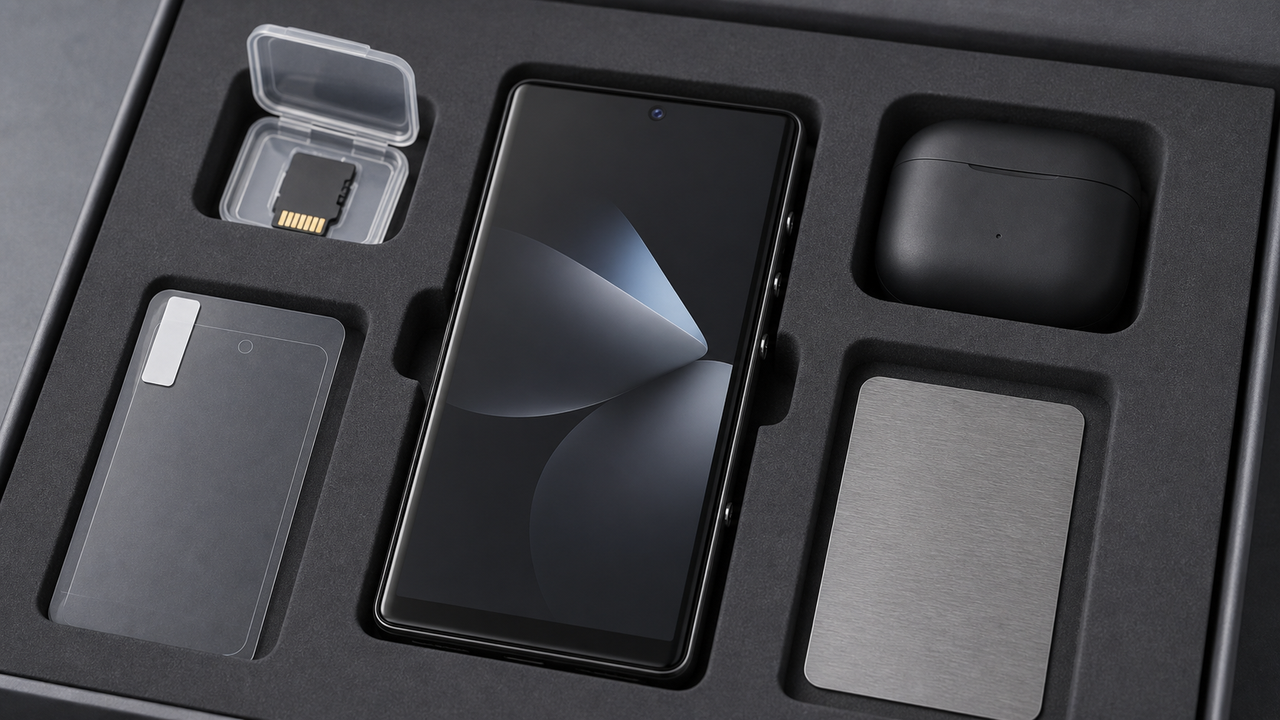
Aquí es donde el Reproductor Android HIFI WALKER G7 Pro cambia las reglas del juego. Ejecuta Android 13, es compatible con Google Play y combina esa capacidad de transmisión con una plataforma Android 13 dedicada, de modo que cada transmisión de Spotify se reproduce a través de hardware enfocado en música, y no del circuito de audio limitado de un teléfono.

HIFI WALKER G7 Pro: Android 13, Google Play, plataforma Android 13 y soporte nativo de Spotify.

Reproductor Android frente a Reproductor MP3 Tradicional: Comparación Directa
¿Aún te preguntas si un reproductor Android realmente merece la pena frente a un reproductor MP3 tradicional? Aquí tienes una comparación directa y sin rodeos de todos los factores que importan a quien escucha Spotify en 2026.
El veredicto es claro: el viejo método de transferencia de archivos es un callejón sin salida. Un reproductor Android como el G7 Pro no solo resuelve el problema de Spotify, sino que ofrece una experiencia de escucha fundamentalmente superior en todos los aspectos medibles.
Cómo Configurar Spotify en el HIFI WALKER G7 Pro (Paso a Paso)
Configurar Spotify en el HIFI WALKER G7 Pro es realmente sencillo: si alguna vez has instalado una app en cualquier dispositivo Android, esto te resultará totalmente familiar. Aquí tienes el proceso completo, desde desembalar el dispositivo hasta la reproducción sin conexión.
Enciende el Dispositivo y Conéctate al Wi-Fi
Enciende tu G7 Pro y ve a Ajustes > Wi-Fi. Conéctate a tu red doméstica. La interfaz de Android 13 es idéntica a la de cualquier dispositivo Android moderno: solo sigue las indicaciones en pantalla.
Inicia Sesión en Google Play Store
Toca el icono de Google Play Store en la pantalla de inicio. Inicia sesión con tu cuenta de Google (o crea una; es gratis). Esto te da acceso a más de 3 millones de apps, incluidos todos los grandes servicios de streaming de música.
Busca e Instala Spotify
Escribe «Spotify» en la barra de búsqueda de la Play Store. Toca la app oficial de Spotify (icono verde) y pulsa Instalar. La app se descarga en menos de un minuto con una conexión de banda ancha estándar.
Inicia Sesión en Tu Cuenta de Spotify
Abre Spotify e inicia sesión con tus credenciales habituales. Todas tus listas de reproducción, canciones que te gustan y pódcasts aparecen al instante, exactamente igual que en cualquier otro dispositivo.
Descarga Listas de Reproducción para Escuchar sin Conexión
Con Spotify Premium, activa el interruptor de descarga en cualquier lista de reproducción o álbum. Una vez descargadas, esas pistas se reproducen a través de la plataforma Android 13 del G7 Pro incluso sin conexión Wi-Fi, perfecto para desplazamientos, vuelos o entrenamientos.

La pantalla táctil, ágil y precisa, del G7 Pro hace que navegar por Spotify sea tan fluido como en cualquier smartphone Android de gama alta.
↑ Volver Arriba
Volver Arriba ↑Por Qué el G7 Pro Suena Mejor Que el Streaming en Tu Teléfono
Esto es lo que la mayoría de las guías de streaming pasan por alto: el hardware que hace la decodificación importa tanto como la tasa de bits. Tu teléfono está diseñado para llamadas, cámaras y redes sociales. El audio es un añadido secundario. El G7 Pro está diseñado exclusivamente para el audio, y ese enfoque único se nota desde la primera nota.
Streaming en un Smartphone
- Un diseño compartido gestiona el audio junto con la red móvil, el GPS y las notificaciones
- El circuito de audio está junto a componentes con ruido de RF, lo que introduce interferencias
- La batería se agota por apps en segundo plano que compiten con la reproducción de audio
- Sin amplificador de auriculares dedicado: solo auriculares de baja impedancia
- Las transmisiones de Spotify a 320 kbps quedan limitadas por una etapa de salida comprimida
Streaming en el HIFI WALKER G7 Pro
- La plataforma Android 13 dedicada procesa solo audio: cero interferencias
- Un reproductor separado mantiene la música alejada de las llamadas y las notificaciones del teléfono
- Batería de 2.500 mAh, clasificada para hasta unas 62 h de música / 8 h de vídeo
- Salida de auriculares estándar para la escucha diaria con cable
- La calidad de reproducción de Spotify depende de la app, el archivo, los auriculares y las condiciones de escucha
Más allá de Spotify, el G7 Pro es compatible con archivos locales MP3, WAV, APE, FLAC y AAC, así que puedes mantener las apps de streaming y tu propia biblioteca en el mismo reproductor Android. El sonido final depende del archivo, la app, los auriculares y las condiciones de escucha.

Explora todo el ecosistema HIFI WALKER: cada dispositivo está diseñado en torno a una prioridad, un sonido excepcional.
¿Qué Reproductor HIFI WALKER es el Adecuado para Ti?
Si el acceso a Spotify es tu objetivo principal, la gama de reproductores Android de HIFI WALKER es la opción clara. Tanto el G7 como el G7 Pro ejecutan Android completo con Google Play, pero sirven a perfiles de oyente ligeramente distintos. Así es como decidir.
Preguntas Frecuentes
P1: ¿Se puede transferir música de Spotify a un reproductor MP3?
No, no a un reproductor MP3 tradicional. Spotify usa cifrado DRM que impide exportar o copiar los archivos. La solución legítima es un reproductor Android como el HIFI WALKER G7 Pro, que ejecuta la app oficial de Spotify de forma nativa para que puedas transmitir y descargar listas de reproducción sin ninguna transferencia de archivos.
P2: ¿Necesito Spotify Premium para usar la reproducción sin conexión en el G7 Pro?
Sí. Se necesita Spotify Premium para descargar listas de reproducción y escucharlas sin conexión en cualquier dispositivo, incluidos los reproductores Android. Con Premium activo, solo tienes que activar el interruptor de descarga en cualquier lista dentro de la app en tu G7 Pro, y se guarda para la reproducción sin conexión.
P3: ¿La calidad de audio es realmente mejor en un reproductor Android que en mi teléfono?
No por sí sola. El principal beneficio es la separación de tu teléfono: Spotify, las descargas, los archivos locales y los controles de reproducción se quedan en un reproductor Android dedicado. El sonido final depende de la app, el archivo, los auriculares, el volumen y el entorno de escucha.
P4: ¿Puedo usar otras apps de música además de Spotify en el G7 Pro?
Por supuesto. Como el G7 Pro ejecuta Android 13 con acceso completo a Google Play, puedes instalar Tidal, YouTube Music, Amazon Music, Qobuz y cualquier otro servicio de streaming compatible con Android. Es una plataforma totalmente abierta.
P5: ¿Por qué usar un reproductor de música dedicado en lugar de simplemente el teléfono para Spotify?
Tres razones principales: duración de la batería, almacenamiento y concentración. Un dispositivo dedicado mantiene la música alejada de las llamadas y las notificaciones, y puede almacenar descargas de Spotify y archivos locales sin llenar tu teléfono.
P6: ¿Qué formatos locales admite el G7 Pro además de Spotify?
El G7 Pro admite MP3, WAV, APE, FLAC y AAC para la reproducción local. Junto con el streaming de Spotify, puedes mantener tus propios archivos en el dispositivo o en una tarjeta TF/microSD.