

Last updated: March 19, 2026
Expert Insights: 2026 Music Transfer Best Practices
- USB 3.0 ports transfer large FLAC libraries 5x faster than USB 2.0 connections
- MicroSD Class 10 cards prevent audio dropouts during high-resolution playback
- HIFI WALKER's automatic library indexing eliminates manual database rebuilding
- Balanced 4.4mm outputs require proper cable matching for optimal sound quality
What You Need to Get Started (Quick Setup)
Before we dive into how to put music on mp3 player devices, let's quickly gather everything you need for a smooth transfer:
Essential Items:
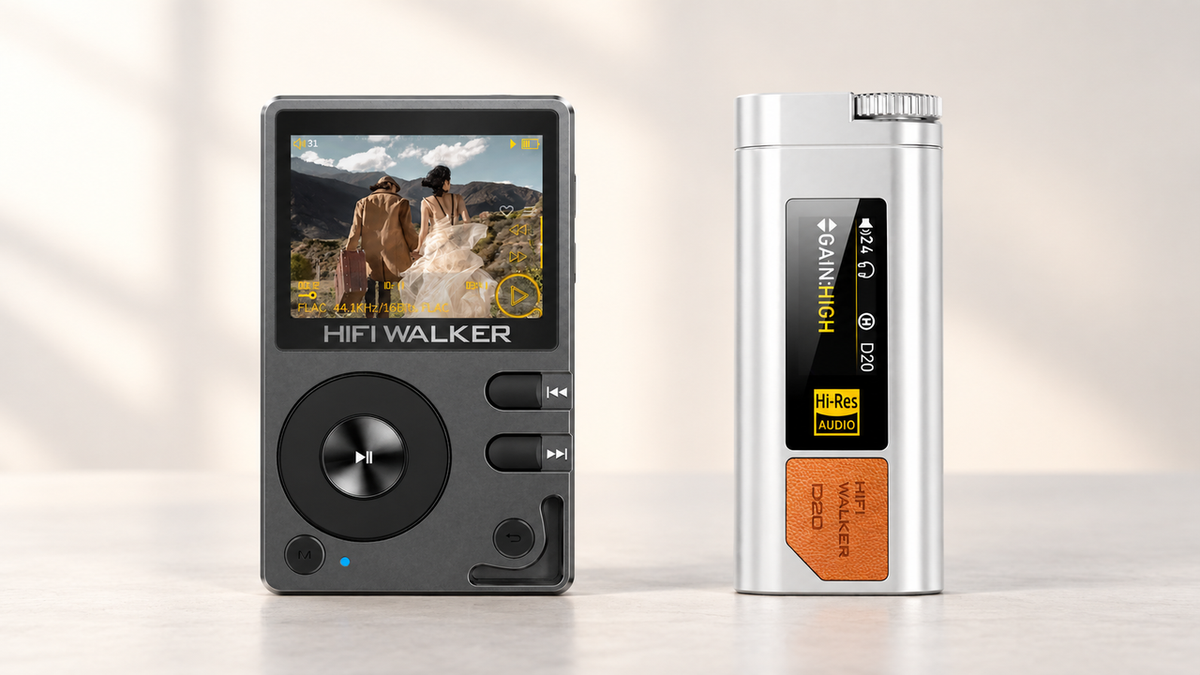
- Your MP3 Player or DAP: Any device will work, including premium options like the HIFI WALKER H2 ($119.20 - studio-grade clarity with DSD128), the touchscreen-enabled H2 Touch ($134.25 - WiFi streaming capable), or the flagship H20 PRO ($180.00 - LDAC support with DSD256).
- Your Music Files: Locate songs stored on your computer. Common formats include MP3, FLAC, WAV, and high-resolution DSD files that HIFI WALKER players handle perfectly.
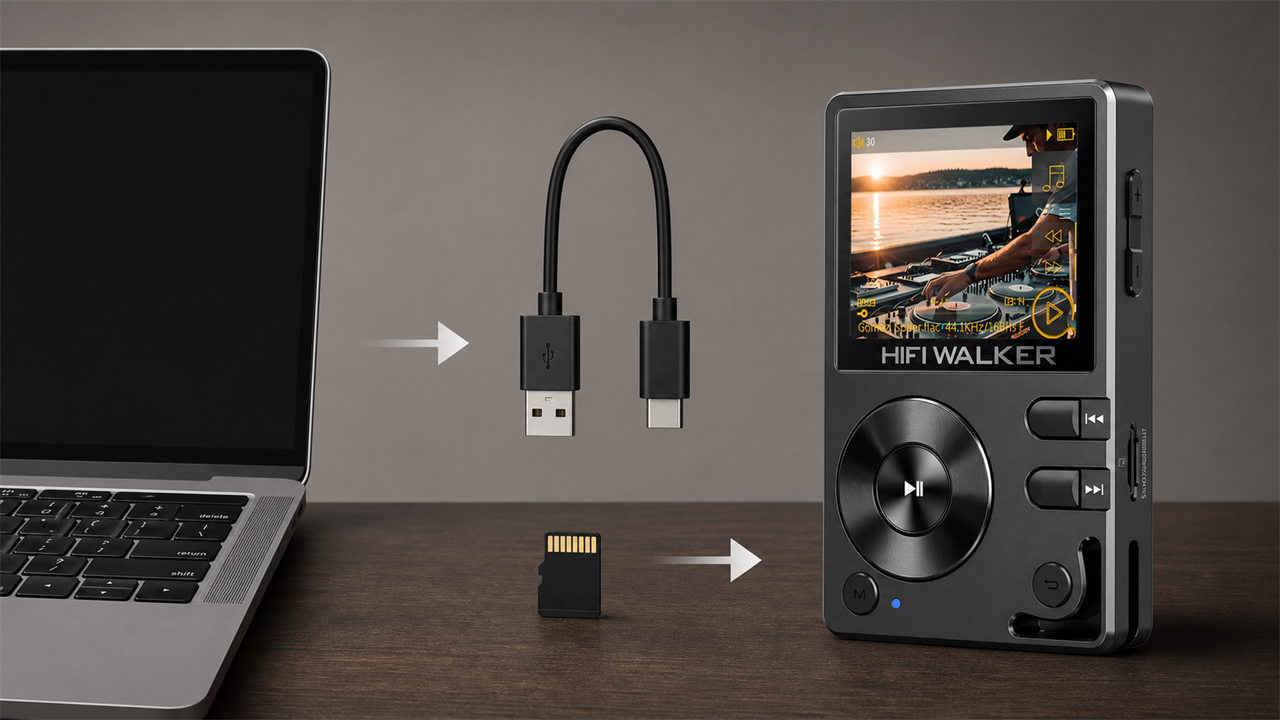
- USB Data Cable: Critical! Use the original cable included with your player. It must support data transfer, not just charging. Charge-only cables won't work for file transfers.
- Computer: Windows PC or Mac - both work identically with modern DAPs.
- (Optional) MicroSD Card: Expand storage dramatically. The H2 Touch and H20 PRO support up to 512GB cards, letting you carry 15,000+ lossless songs.
Modern players like HIFI WALKER's lineup are designed for plug-and-play simplicity - no complicated software needed!

USB Drag-and-Drop Method (Easiest Way)
This is the most straightforward method for how to transfer music to mp3 player devices in 2026. Your computer treats the player like a standard USB flash drive, making transfers incredibly simple.
For Windows Users:
- Connect your player to your PC using the USB data cable. Within seconds, Windows should recognize it.
- Open "This PC" or "My Computer" - your player appears as a new removable drive (often labeled with the device name).
- Double-click the player's drive icon. Look for a "Music" folder. If none exists, create one by right-clicking and selecting "New Folder."
- Open a second File Explorer window (Windows key + E) and navigate to your music files on your computer.
- Select the songs or folders you want to transfer. You can select multiple files by holding Ctrl while clicking.
- Drag the selected files into the player's "Music" folder. For large libraries, this process might take 10-15 minutes.
- Critical: Always "Safely Remove" the device by right-clicking the drive icon and selecting "Eject" before unplugging.
For Mac Users:
- Connect your player via USB cable. The device should appear as a drive icon on your Desktop or in Finder's sidebar.
- Double-click the player's drive to open it. Locate or create the "Music" folder.
- Open Finder and navigate to your music collection.
- Select desired files or folders, then drag them directly into the player's "Music" directory.
- Wait for the copy process to complete - you'll see a progress indicator.
- Important: Drag the player's drive icon to the Trash (it becomes an Eject icon) before disconnecting.

Pro tip: HIFI WALKER players automatically organize and index new music, so your songs appear in the library immediately after safe ejection.
Getting lost in the details?
Back to Top ↑MicroSD Card Transfer (Best for Large Libraries)
Using a MicroSD card is an excellent way how to put music on a mp3 player without a computer directly attached. This method is perfect for managing massive music collections, especially with high-capacity players.
Why Choose SD Card Transfer:
- Massive Capacity: Store up to 512GB of music on supported players like the H2 Touch and H20 PRO
- Faster Transfer: Often quicker than USB for large file batches
- Offline Organization: Organize your library on computer before inserting into player
Step-by-Step Process:
- Power off your MP3 player safely and carefully remove the MicroSD card from its slot.
- Insert the MicroSD card into your computer's SD card slot, or use a USB card reader if your computer lacks built-in support.
- Your computer recognizes the SD card as a removable drive. Open it in File Explorer (Windows) or Finder (Mac).
- Create organized folder structure: "Artist Name > Album Name" or by genre for easy navigation on your player.
- Navigate to your computer's music library and select the files you want to transfer.
- Copy and paste or drag-drop the music files onto the SD card. For lossless files, expect longer transfer times.
- Safely eject the SD card using your operating system's proper eject function.
- Reinsert the card into your HIFI WALKER player and power on. Most models automatically detect new music and update the library.

The H20 PRO with dual DAC particularly shines with high-resolution files stored on fast SD cards, delivering exceptional LDAC wireless quality alongside local playback.
Troubleshooting Common Transfer Issues
Having problems with music transfer? These solutions resolve the most frequent issues users encounter when learning how to put music on mp3 player devices:
Device Not Recognized:
- Verify you're using a data-capable USB cable, not charging-only
- Try different USB ports - some older ports may have power limitations
- Check if your player requires specific USB mode selection (MTP, MSC, or File Transfer)
- Restart both your computer and MP3 player
Files Won't Play After Transfer:
- Confirm file formats are supported - HIFI WALKER players handle MP3, FLAC, WAV, APE, and DSD formats
- Ensure files are placed in the correct "Music" folder
- Use the player's "Scan Library" or "Update Database" function
- Check for corrupted files by testing playback on your computer first
Transfer Speed Issues:
- USB 3.0 ports provide faster transfer than USB 2.0
- Close unnecessary programs during large transfers
- For MicroSD transfers, use Class 10 or higher speed cards
Space and Organization Problems:
- Check available storage before transferring large libraries
- Create logical folder structures that match your player's navigation system
- Consider using lossless compression (FLAC) instead of uncompressed WAV for space efficiency
HIFI WALKER's customer support team provides excellent technical assistance if these steps don't resolve your specific issue.
Getting lost in the details?
Back to Top ↑Wireless and Computer-Free Transfer Methods
Modern 2026 players offer innovative ways how to put music on a mp3 player without a computer. These methods are perfect for users who want maximum convenience and flexibility.
WiFi Streaming and Download (H2 Touch):
The HIFI WALKER H2 Touch supports direct WiFi connectivity, allowing you to:
- Stream music directly from cloud services with supported apps
- Download music files directly to internal storage via browser
- Access network-attached storage (NAS) systems for home audio libraries
- Update firmware and software without computer connection
Bluetooth File Transfer:
Some advanced players support Bluetooth file transfer protocols:
- Pair your smartphone with compatible HIFI WALKER models
- Transfer music files directly from phone storage to player
- Useful for sharing favorite tracks between devices
Direct Recording from External Sources:
- Connect analog audio sources using line-in capabilities
- Record directly to internal storage or SD card
- Perfect for digitizing vinyl records or cassette tapes
Cloud Storage Integration:
Advanced models with WiFi can integrate with cloud storage:
- Access Google Drive, Dropbox, or OneDrive music folders
- Stream without permanently storing files locally
- Automatically sync new additions to your cloud music library
These modern transfer methods make high-quality portable audio more accessible than ever, especially when combined with HIFI WALKER's superior DAC technology for pristine sound reproduction.
Why Choose Dedicated Audio Players Over Smartphones
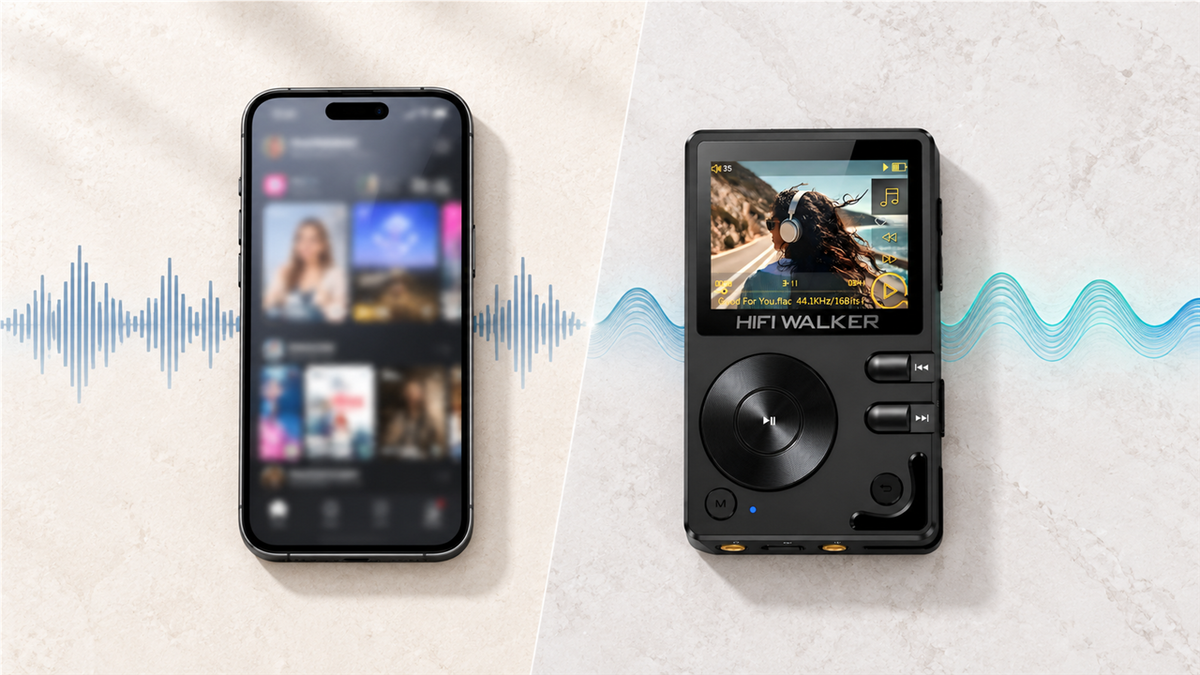
Now that you know how to transfer music to mp3 player devices, you might wonder why use a dedicated player instead of your smartphone. The audio quality difference is genuinely remarkable.
Superior Audio Hardware:
- Dedicated DACs: The HIFI WALKER H20 PRO features dual DAC architecture for exceptional stereo separation
- Balanced Output: 4.4mm balanced connections reduce noise and increase dynamic range
- Clean Power Supply: Purpose-built for audio without smartphone interference from cellular radios
Format Support Excellence:
- Lossless Playback: Full FLAC, WAV, and DSD256 support on premium models
- High-Resolution Audio: 32-bit/384kHz capability far exceeds smartphone limitations
- LDAC Wireless: Sony's high-quality Bluetooth codec for wireless audiophile listening
Practical Advantages:
- Massive Storage: 512GB SD card support means 15,000+ lossless songs portable
- Extended Battery: 50+ hours playback without draining your phone battery
- Zero Distractions: Pure music experience without calls, notifications, or apps
- Audiophile Controls: Precise EQ, gain settings, and audio filters
Professional Build Quality:
HIFI WALKER players feature CNC aluminum construction and audiophile-grade components. The H2 series delivers studio monitor clarity at an accessible $119-180 price point, while the H20 PRO provides reference-grade performance rivaling players costing twice as much.
For serious listeners, the difference is immediately audible - deeper soundstage, better instrument separation, and emotional connection to music that smartphones simply cannot match.
Q1: Can I transfer music from Spotify to my MP3 player?
No, streaming services like Spotify use DRM protection that prevents direct transfer. You need owned music files (MP3, FLAC, WAV) that you've purchased or ripped from CDs. HIFI WALKER players excel with high-quality owned music files.
Q2: What's the best music format for HIFI WALKER players?
For audiophile quality, use FLAC or WAV lossless formats. The H5 supports DSD256 for ultimate fidelity, while the H2 handles DSD128. MP3 320kbps works well for space-conscious users. All HIFI WALKER models support multiple formats.
Q3: How much music can I store on my MP3 player?
Storage varies by model and SD card. The H2 Touch and H5 support 512GB SD cards, storing 15,000+ lossless songs. Internal storage ranges from 32GB (H2, H2 Touch) to 64GB (H5), plus expandable SD card slots.
Q4: Do I need special software to transfer music to HIFI WALKER players?
No special software required! All HIFI WALKER players support simple drag-and-drop transfer via USB cable. They appear as standard USB drives on Windows and Mac, making music transfer incredibly straightforward.
Q5: Can I put music on my MP3 player without a computer?
Yes! The H2 Touch supports WiFi for direct downloads and streaming. You can also use MicroSD cards to transfer music between devices, or record directly from external audio sources on compatible models.