

Expert Insights
- USB connections consistently outperform Bluetooth for audio quality due to reduced compression and stable digital signal transmission
- Dedicated audio players eliminate smartphone limitations while providing studio-grade DAC performance through car audio systems
- Regular Sync software updates significantly improve device compatibility and add support for newer audio codecs and features
Understanding Ford Sync Music Connection Methods
Learning how to connect phone to Ford Sync to play music is essential for modern drivers who want seamless audio entertainment. Ford's Sync system offers multiple connection methods, each with distinct advantages for different use cases and audio quality preferences.
Standard Phone Connection
- Bluetooth streaming (compressed audio)
- USB cable connection (better quality)
- Limited to phone's built-in DAC
- Dependent on phone battery
Audiophile Alternative
- Dedicated DAP with superior DAC chips
- Lossless FLAC/DSD format support
- Extended battery for long drives
- Independent from phone calls

- ►1. Understanding Ford Sync Music Connection Methods
- ►2. Step-by-Step Bluetooth Connection Guide
- ►3. USB Connection for Superior Audio Quality
- ►4. Troubleshooting Common Ford Sync Connection Issues
- ►5. Voice Commands and Hands-Free Music Control
- ►6. Optimizing Audio Quality in Your Ford Vehicle
- ►7. Advanced Ford Sync Features and Updates
- ►8. Professional Audio Alternatives for Car Enthusiasts
Step-by-Step Bluetooth Connection Guide
Bluetooth remains the most popular method to connect phone to Ford Sync for music. This wireless approach offers convenience but comes with audio compression trade-offs that serious listeners should consider.
Enable Ford Sync Bluetooth
Press the Phone button on your steering wheel or touch 'Phone' on the Sync display. Select 'Bluetooth' then 'Add Device' to make your Ford discoverable.
Activate Phone Pairing Mode
On your smartphone, go to Settings > Bluetooth and ensure it's enabled. Look for 'SYNC' in the available devices list and select it.
Confirm PIN Codes
Both devices will display a 6-digit PIN. Verify they match and confirm on both your phone and the Ford Sync screen.
Set Audio Source
Once paired, press the Media button and select 'Bluetooth Audio' as your source. Your phone's music will now play through the car speakers.
While Bluetooth works well for casual listening, the compressed audio codec limits sound quality. For reference-grade car audio, consider a dedicated hi-res audio player that maintains full dynamic range.
USB Connection for Superior Audio Quality
USB connections provide better audio quality than Bluetooth by maintaining digital signal integrity. This method also charges your device while playing music, making it ideal for long road trips.
Use Compatible USB Cable
Connect your phone using a high-quality USB-A to Lightning (iOS) or USB-C (Android) cable to the designated USB port in your Ford vehicle.
Select USB Source
Press Media on your Sync system and choose 'USB' or 'USB 1' from the source menu. Your phone should appear as a connected device.
Enable USB Audio Mode
On your phone, select 'File Transfer' or 'Media Transfer' when the USB connection prompt appears. This allows Sync to access your music library.
Navigate Your Music
Use the Sync touchscreen or voice commands to browse folders, artists, or playlists directly from your connected phone's storage.

Troubleshooting Common Ford Sync Connection Issues
Even with proper setup, Ford Sync connections can encounter problems. Here are the most common issues and their solutions to ensure uninterrupted music playback.
Common Problems
- Device won't pair or connect
- Poor audio quality or dropouts
- Sync system not recognizing phone
- Controls not responding properly
Solutions
- Clear Bluetooth cache and re-pair
- Check for Sync software updates
- Reset network settings on phone
- Perform master reset on Sync system
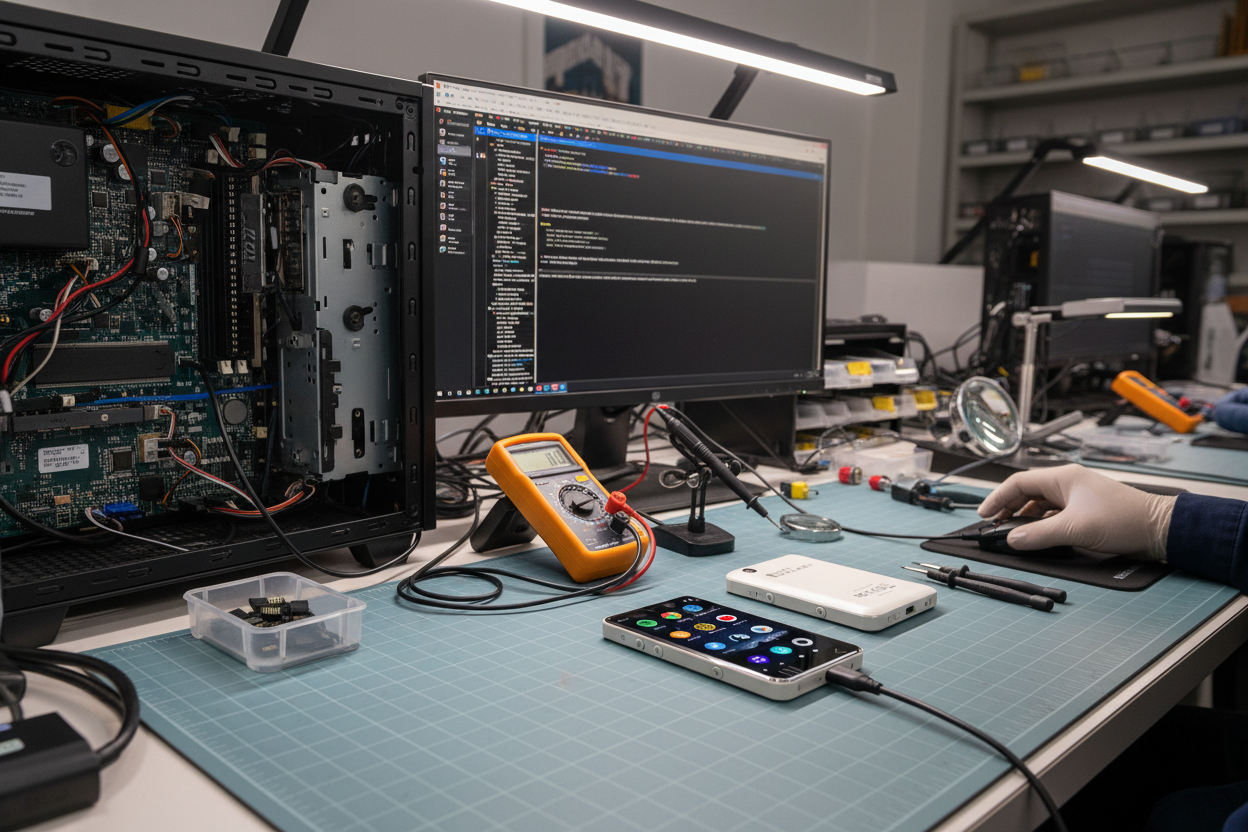
If persistent issues continue, consider upgrading to a dedicated audio player that bypasses smartphone limitations entirely. Professional-grade DAPs eliminate connection inconsistencies while delivering superior sound quality.

Voice Commands and Hands-Free Music Control
Ford Sync's voice recognition allows safe, hands-free music control while driving. Mastering these commands enhances both convenience and road safety during your commute.
For optimal voice recognition, speak clearly and wait for the beep confirmation. Background noise can interfere with command accuracy, so consider upgrading your audio setup for better clarity.

Optimizing Audio Quality in Your Ford Vehicle
While Ford Sync handles basic connectivity, serious audio enthusiasts know that source quality matters more than the connection method. Here's how to maximize your car's audio potential.
Smartphone Limitations
- Compressed streaming codecs (AAC/SBC)
- Limited DAC quality in mobile devices
- Battery drain affects performance
- Interruptions from calls/notifications
Audiophile Solutions
- Dedicated DAP with high-end DAC chips
- Native DSD and MQA file support
- Isolated audio processing
- Uninterrupted music experience

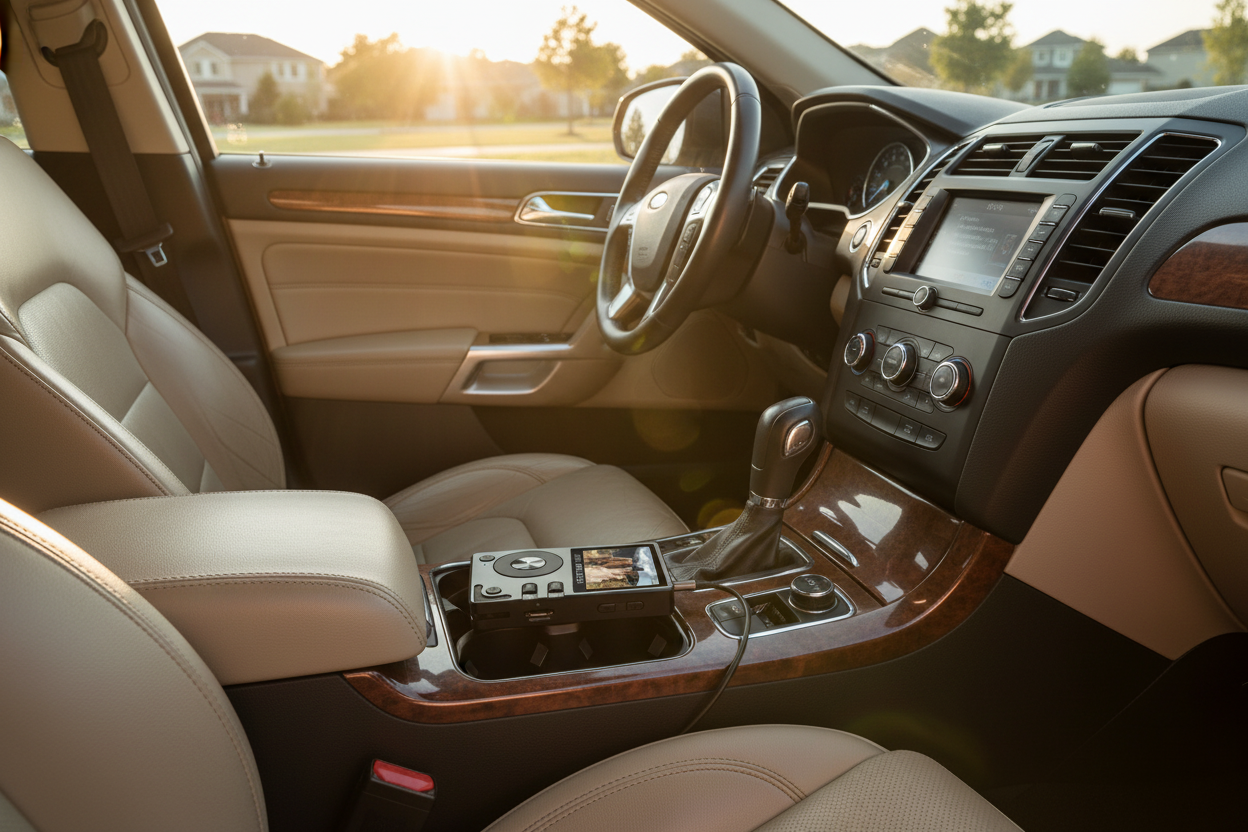
Professional audio players like the H2 Touch eliminate the compromise between convenience and quality, providing studio-grade sound reproduction through your Ford's sound system.
Advanced Ford Sync Features and Updates
Modern Ford Sync systems include advanced features that enhance the music listening experience. Understanding these capabilities helps you get the most from your connected audio setup.
Update Sync Software
Visit Ford's owner website to check for the latest Sync updates. These often include improved codec support and bug fixes for better phone compatibility.
Configure Audio Settings
Access Settings > Sound to adjust bass, treble, and balance. Enable any available audio enhancement features like surround sound processing.
Set Up Multiple Devices
Sync can remember multiple paired devices. Prioritize your primary music device while keeping backup connections for passengers or family members.
Customize Quick Access
Program steering wheel buttons and voice shortcuts for frequently used music functions. This reduces distraction while driving.

Professional Audio Alternatives for Car Enthusiasts
While Ford Sync provides adequate smartphone integration, discerning listeners often seek reference-quality audio that exceeds mobile device limitations. Dedicated audio players represent the pinnacle of portable sound reproduction.
For audiophiles who refuse to compromise on car audio quality, professional DAPs like the H20 Pro deliver studio-reference sound through any car stereo system, transforming your daily commute into a concert hall experience.

Frequently Asked Questions
Q1: Why won't my phone connect to Ford Sync for music playback?
Common causes include outdated Sync software, full device memory (Sync can only remember 10 devices), or Bluetooth cache issues. Try deleting old pairings, clearing your phone's Bluetooth cache, and ensuring both devices have the latest software updates.
Q2: Does connecting via USB provide better audio quality than Bluetooth?
Yes, USB connections typically offer superior audio quality because they maintain digital signal integrity without Bluetooth compression. USB also charges your device while playing music, making it ideal for long drives.
Q3: Can I use voice commands to control music from my connected phone?
Absolutely. Ford Sync supports voice commands like 'Play [Artist Name],' 'Next Track,' and 'Volume [1-10].' Press the voice button on your steering wheel and speak clearly for best recognition results.
Q4: What's the difference between using a phone vs. a dedicated audio player in my Ford?
Dedicated audio players like HIFI WALKER DAPs offer superior DAC chips, support for lossless formats (FLAC, DSD), longer battery life, and no interruptions from calls or notifications. They provide reference-quality sound that smartphones cannot match.
Q5: How many devices can I pair with Ford Sync simultaneously?
Ford Sync can remember up to 10 paired devices, but only one can be actively connected for audio playback at a time. You can switch between paired devices through the Sync interface without re-pairing.