


Expert Insights
- Modern MP3 players support multiple formats beyond MP3 - consider FLAC for critical listening and archival purposes
- USB 3.0 connections reduce transfer times significantly compared to USB 2.0, especially for large music libraries
- Maintaining 10-15% free storage space on your MP3 player ensures optimal performance and prevents database corruption
Getting Started: Understanding MP3 Downloads and Players
Learning how to download MP3 music to your MP3 player is essential for building your personal digital music library. Whether you're using a dedicated DAP (Digital Audio Player) or a basic MP3 device, the process involves understanding file formats, storage options, and transfer methods that preserve audio quality.

Why Download MP3s?
- Offline listening without internet
- Personal music ownership
- No monthly subscription fees
- Custom playlists and organization
Modern MP3 Player Benefits
- Superior battery life vs smartphones
- Dedicated audio processing
- Expandable storage options
- No interruptions from calls or notifications
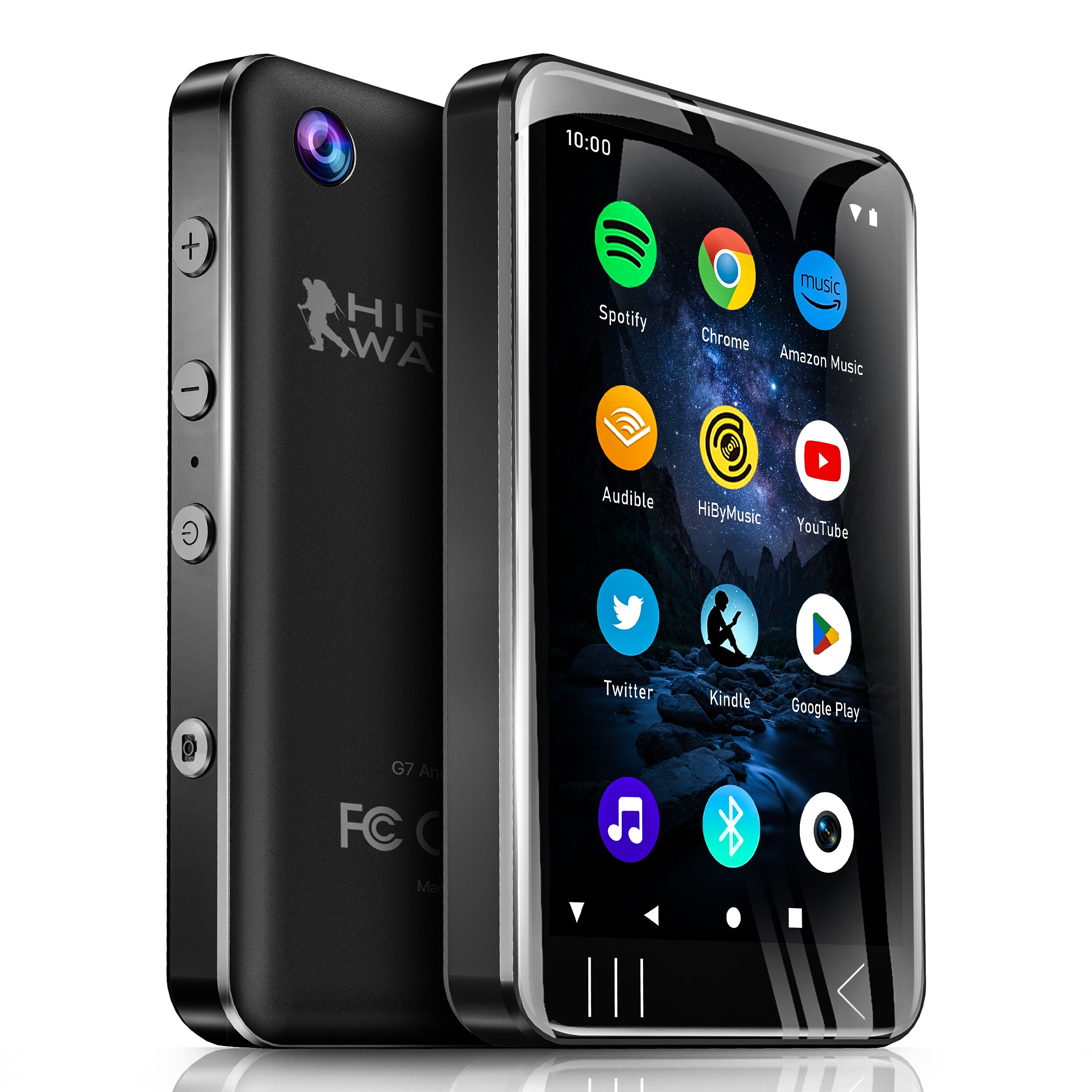
Today's high-resolution audio players support multiple formats beyond MP3, including FLAC, WAV, and DSD. Understanding your device's capabilities helps you make informed decisions about which files to download and how to optimize your listening experience.
- ►1. Getting Started: Understanding MP3 Downloads and Players
- ►2. Legal Sources for MP3 Music Downloads
- ►3. Choosing the Right Audio Format and Quality
- ►4. Step-by-Step: Downloading MP3 Music to Your Computer
- ►5. Transferring Music Files to Your MP3 Player
- ►6. Optimizing Your MP3 Player for Best Performance
- ►7. Troubleshooting Common Download and Transfer Issues
- ►8. Advanced Tips for Managing Your Digital Music Collection
Legal Sources for MP3 Music Downloads
Before diving into the technical aspects of transferring music, it's crucial to source your MP3 files legally. Legitimate platforms ensure high-quality downloads while supporting artists and avoiding copyright issues.
Premium Music Stores
Amazon Music, iTunes, and Bandcamp offer high-quality MP3 downloads with proper metadata and album artwork.
Streaming Service Downloads
Spotify Premium, Apple Music, and Tidal allow offline downloads for subscribers, though files are encrypted and platform-specific.
Free Legal Sources
Internet Archive, Jamendo, and Creative Commons offer royalty-free music downloads in various formats.
CD Ripping
Convert your physical CD collection to digital files using software like Exact Audio Copy or dBpoweramp.
Always verify that your download source is legitimate. Legal downloads typically include proper ID3 tags, album artwork, and come from recognized music distributors or directly from artists.
Choosing the Right Audio Format and Quality
While this guide focuses on MP3 downloads, understanding format options helps you make better choices for your specific MP3 player and listening preferences.
MP3 320kbps Benefits
- Excellent quality-to-size ratio
- Universal compatibility
- Reasonable storage requirements
- Good for portable listening
When to Choose Lossless
- High-end audio equipment
- Archival purposes
- Critical listening sessions
- Future-proofing your collection

For most portable listening scenarios, MP3 files encoded at 320kbps provide excellent quality while maintaining reasonable file sizes. This bitrate strikes the perfect balance between audio fidelity and storage efficiency.
Step-by-Step: Downloading MP3 Music to Your Computer
The first step in getting music onto your MP3 player involves downloading files to your computer. This process varies depending on your chosen source and desired quality settings.
Create a Music Folder
Organize downloads in a dedicated folder like 'Music Downloads' with subfolders for artists and albums.
Configure Download Settings
Set your preferred audio quality (recommend 320kbps MP3) and choose download location in your music store's settings.
Purchase and Download
Buy individual tracks or albums, then click download. Files typically save with proper metadata and album art.
Verify File Quality
Check downloaded files using audio software like VLC or Windows Media Player to ensure proper playback and quality.
Organize Your Library
Use music management software like MusicBee or MediaMonkey to organize tags, artwork, and create playlists.

Proper organization at this stage saves significant time later. Consistent folder structures and complete metadata make it easier to navigate your music library both on your computer and MP3 player.
Transferring Music Files to Your MP3 Player
Once you've downloaded your MP3 files, the next crucial step is transferring them to your MP3 player. Modern devices offer multiple transfer methods, each with specific advantages.
USB Cable Transfer
- Direct drag-and-drop method
- Fastest transfer speeds
- Works with all computers
- No additional software required
MicroSD Card Method
- Expandable storage option
- Easy library swapping
- Backup and organization flexibility
- Compatible with card readers
Connect Your Device
Use the included USB cable to connect your MP3 player to your computer. Most devices appear as external storage drives.
Navigate to Music Folder
Open your MP3 player's storage and locate the 'Music' folder. Create one if it doesn't exist.
Copy Music Files
Select your downloaded MP3 files and drag them into the player's music folder. Maintain folder structure for organization.
Safely Eject Device
Use your operating system's 'Safely Remove Hardware' option before disconnecting the USB cable.
Refresh Player Library
Some players require a library refresh or database update to recognize newly added files.

Transfer speeds vary depending on your USB connection type and file sizes. USB 3.0 connections significantly reduce transfer times compared to older USB 2.0 ports, especially when moving large music libraries.
↑ Back to Top
Back to Top ↑Optimizing Your MP3 Player for Best Performance
After successfully transferring your music, several optimization steps ensure the best possible listening experience and efficient device operation.

Update Firmware
Check manufacturer website for latest firmware updates that improve compatibility and add features.
Organize Music Library
Use playlist creation and folder organization features to categorize music by genre, artist, or mood.
Configure Audio Settings
Adjust equalizer settings, gain levels, and output options to match your headphones or speakers.
Manage Storage Space
Regularly review and remove unused files to maintain optimal performance and leave space for new music.
Backup Your Library
Create backup copies of your music library on your computer or external storage device.
Performance Tips
- Keep 10-15% storage free
- Update firmware regularly
- Use high-quality microSD cards
- Clean cache periodically
Battery Optimization
- Lower screen brightness
- Use gapless playback wisely
- Turn off unused wireless features
- Enable sleep timer functions

Troubleshooting Common Download and Transfer Issues
Even experienced users encounter occasional issues when downloading MP3 music to their players. Understanding common problems and solutions saves time and prevents frustration.
File Format Issues
- Unsupported file extensions
- Corrupted download files
- Missing codec support
- Incorrect bitrate encoding
Transfer Problems
- USB connection failures
- Insufficient storage space
- File system compatibility
- Driver-related issues
Verify File Compatibility
Check your MP3 player's manual for supported file formats and maximum file sizes before downloading.
Test Files on Computer
Play downloaded files on your computer first to ensure they're not corrupted or damaged.
Update Device Drivers
Install latest USB drivers for your MP3 player, especially on Windows systems.
Check Available Storage
Ensure sufficient free space on your device before attempting large transfers.
Try Alternative Methods
If USB transfer fails, try using a microSD card reader or different computer port.

Most transfer issues stem from simple compatibility or connection problems. When in doubt, consult your device manual or visit our comprehensive DAP guides and reviews for device-specific solutions.
Advanced Tips for Managing Your Digital Music Collection
Once you've mastered the basics of downloading MP3 music to your MP3 player, these advanced strategies help you build and maintain a professional-quality digital music library.
Implement Naming Conventions
Use consistent file and folder naming: 'Artist - Album (Year)' for easy sorting and identification.
Enhance Metadata Quality
Use tools like Mp3tag or MusicBrainz Picard to ensure complete, accurate ID3 tags and embedded artwork.
Create Smart Playlists
Build playlists based on criteria like genre, year, or play count for dynamic listening experiences.
Monitor Audio Quality
Use spectrum analysis tools to verify bitrates and identify potential audio quality issues.
Automate Library Updates
Set up sync software to automatically transfer new downloads to your MP3 player.

Building a well-organized digital music library takes time but pays dividends in listening pleasure. Consider exploring our complete range of hi-fi MP3 players to find devices that complement your expanding music collection.
Frequently Asked Questions
Q1: What's the best MP3 quality for portable listening?
320kbps MP3 files provide excellent quality for portable use while maintaining reasonable file sizes. This bitrate is virtually indistinguishable from CD quality in most listening scenarios.
Q2: Can I download music directly to my MP3 player?
Some advanced MP3 players with WiFi support allow direct downloads, but most require transferring files from a computer first. USB transfer remains the most reliable method.
Q3: How much music can I store on my MP3 player?
Storage capacity depends on your device and file sizes. A 32GB player typically holds about 8,000 songs in 320kbps MP3 format, while higher-capacity devices or microSD expansion allow for much larger libraries.
Q4: Why won't my MP3 player recognize transferred files?
Common causes include unsupported file formats, corrupted transfers, or full storage. Ensure files are in supported formats (usually MP3, FLAC, WAV) and try refreshing your player's database.
Q5: Is it legal to download MP3 music for free?
Only from legitimate sources offering royalty-free or Creative Commons music. Purchasing from recognized music stores or ripping your own CDs ensures legal compliance and supports artists.


