


G7 / G7 Pro setup guide
How to Transfer Music to G7 and G7 Pro
Choose the method that matches your computer. You can transfer music with a Mac, use a Windows PC, or move files directly to the microSD card if USB transfer does not work.
Start here
Choose the right tutorial
Check your computer first, then make sure you have the tools listed on the matching card.
For Mac
macOS 14 or later
Use the official video guide and a USB data connection.
- Mac running macOS 14+
- G7 Pro
- Original charging/data cable
- DroidMac for macOS
- Your music files
For Windows
Windows computer
Enable File Transfer on the player, then open its storage in File Explorer.
- Windows computer
- G7 or G7 Pro
- Original charging/data cable
- Your music files
Universal fallback
Transfer by microSD card
Choose this method if the Mac and Windows USB methods do not work.
- Mac or Windows computer
- microSD card
- Compatible card reader
- Your music files
Before you start
- Use the original cableWe recommend the charging cable supplied with your player—it also supports data transfer.
- Keep the player awakeUnlock the G7/G7 Pro while setting the USB connection mode.
- Eject safelyWait until copying is complete before disconnecting the player or card reader.
Mac tutorial
Transfer music from a Mac
This DroidMac method is for a G7 Pro and a Mac running macOS 14 or later.
- Download DroidMac. On your Mac, open a browser, go to droidmac.com, and download the macOS version.
- Install DroidMac. Drag DroidMac into your Applications folder, then open the application.
- Connect the G7 Pro. Use the original charging/data cable supplied with the player whenever possible. Connect the G7 Pro to your Mac and keep the player unlocked.
- Select the player. When DroidMac detects the G7 Pro, choose it from the USB device list.
- Open the Music folder. Open Internal storage, then open the Music folder.
- Transfer your songs. Find the music files on your Mac and drag them into the Music folder. Wait until the transfer is complete.
- Check the G7 Pro library. Open the Music app on the G7 Pro. The transferred songs should appear in the library, ready to play.
Windows tutorial
Transfer music from a Windows computer
Connect the player, enable File Transfer, and open the storage in File Explorer.
Step 1
Connect the player
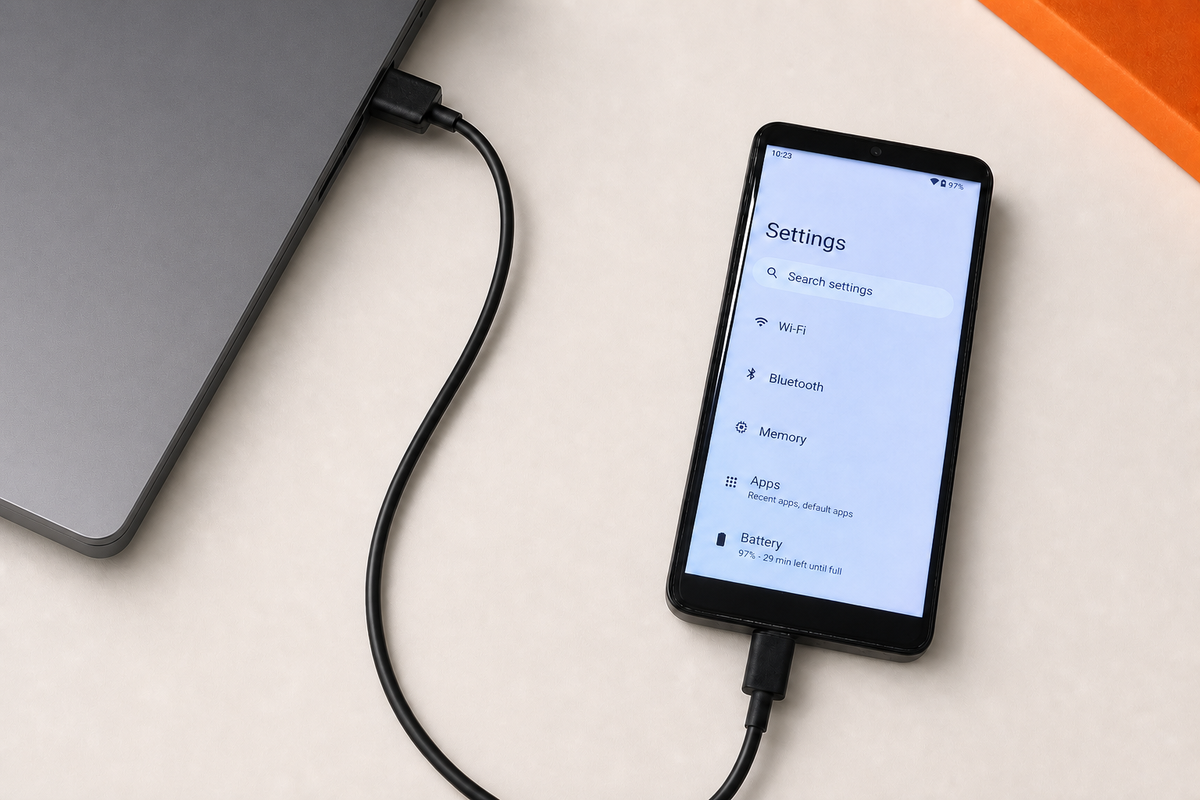
Connect the G7/G7 Pro to your Windows computer. We recommend using the original charging/data cable supplied with the player. Keep the player unlocked.

Step 2
Open Settings search
Open Settings on the player and tap the search field at the top of the screen.

Step 3
Search for USB settings
Search for USB, then open USB Preferences.

Step 4
Choose File Transfer
Select This device under USB controlled by, then choose File Transfer under Use USB for.

Step 5
Open the storage and copy music
Open File Explorer on the computer. Choose G7 Pro (SD Card Storage) or Internal shared storage, then copy your music files to the selected location.

If Windows only charges the player: reconnect it with the original charging/data cable, try another USB port, then repeat Steps 2–4 and confirm that File Transfer is selected.
Universal fallback
Transfer music with a microSD card
Use this method when USB transfer from a Mac or Windows computer does not work.
Step 1
Power off the player
Turn off the G7/G7 Pro completely before removing the microSD card.

Step 2
Insert the card into a reader
Place the microSD card into a compatible card reader or adapter.

Step 3
Connect the reader and copy music
Connect the card reader to your Mac or Windows computer. Open the card and copy your music files to it.

Step 4
Eject and reinstall the card
Wait for copying to finish, safely eject the card reader, reinstall the microSD card in the player, and then turn the player on.

Troubleshooting
Frequently asked questions
Which USB cable should I use?
Use the original charging cable supplied with your G7/G7 Pro whenever possible. It is also a data cable. If you use another cable, make sure it supports file transfer and is not charge-only.
Can I use the Mac method on macOS 13 or earlier?
No. DroidMac requires macOS 14 or later. If your Mac runs an earlier version, use a Windows computer or transfer the files directly to the microSD card with a compatible card reader.
Why does my computer charge the player but not show its storage?
Unlock the player and confirm that This device and File Transfer are selected in USB Preferences. Reconnect it with the original charging/data cable and try another USB port if necessary.
Should I copy music to internal storage or the microSD card?
On Windows, you can choose either G7 Pro (SD Card Storage) or Internal shared storage. On Mac, the DroidMac video method copies songs to the Music folder in internal storage.
Why do my transferred songs not appear in the Music app?
First confirm that the transfer finished and that the files were copied into the intended Music folder or storage location. Then close and reopen the Music app on the player.
What should I do before removing the microSD card?
Power off the G7/G7 Pro before removing the card. After copying files on the computer, safely eject the card reader before removing and reinstalling the microSD card.