


Expert Insights
- Android music players offer a practical balance between streaming convenience, app access, and phone-free listening for Spotify users.
- The key to smoother Spotify use on Android music players is proper configuration, including app settings, Wi-Fi, storage, and battery management.
- While Spotify's 320 kbps streaming isn't lossless, the superior audio processing in dedicated Android music players can reveal details and nuances that remain hidden on conventional devices.
Introduction: Elevating Your Spotify Experience
When you want to play music on Spotify, your smartphone might be the obvious choice, but it's far from the best. Android-based Digital Audio Players (DAPs) offer superior sound quality, dedicated audio processing, and longer battery life specifically designed for music enthusiasts.
Smartphone Limitations
- Compressed audio output
- Background app interference
- Battery drain from notifications
- Generic audio chipsets
Android music player Advantages
- Dedicated audio processing
- High-quality DAC chips
- Optimized for music playback
- Extended battery life

This comprehensive tutorial will guide you through setting up Spotify on Android music players, optimizing audio quality, and troubleshooting common issues. Whether you're using a budget-friendly or more capable Android music player, these steps help keep Spotify setup simple and reliable.
- ►1. Introduction: Elevating Your Spotify Experience
- ►2. Understanding Android music players for Spotify Streaming
- ►3. Step-by-Step Setup: Installing Spotify on Your Android music player
- ►4. Optimizing Audio Quality Settings
- ►5. Connectivity and Streaming Optimization
- ►6. Troubleshooting Common Spotify Issues on Android music players
- ►7. Maximizing Battery Life During Spotify Sessions
- ►8. Advanced Tips for Audiophile-Grade Spotify Streaming
Understanding Android music players for Spotify Streaming
Android-based Digital Audio Players run modified versions of Android OS, specifically optimized for audio playback. Unlike regular smartphones, these devices prioritize sound quality over general computing tasks.

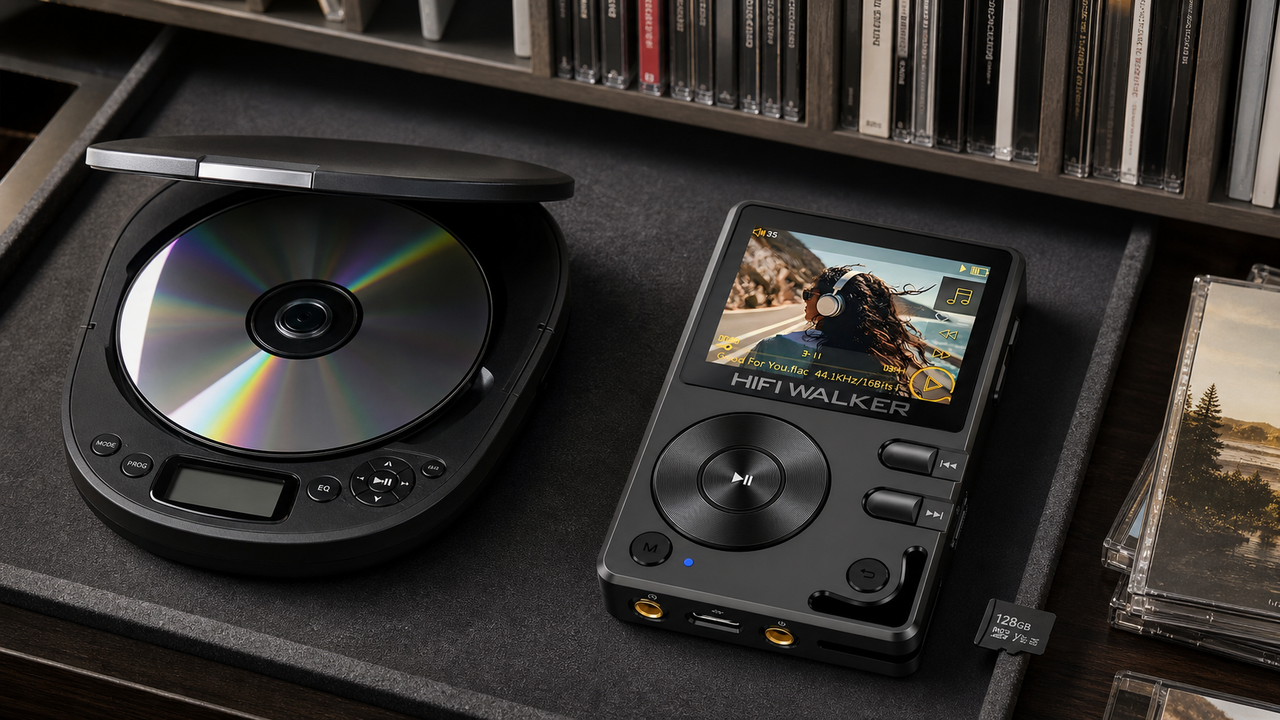
The key advantage is app flexibility. Android music players like the HIFI WALKER G7 Pro let you run Spotify on a separate player with a large screen, Bluetooth, local files, and 3.5mm headphone listening without tying up your phone.
Step-by-Step Setup: Installing Spotify on Your Android music player
Setting up Spotify on your Android music player requires a few specific steps due to the modified Android environment. Here's the complete process to get you streaming quickly.
Enable Developer Options
Navigate to Settings > About Device and tap 'Build Number' seven times. This unlocks developer options necessary for app installation.
Allow Unknown Sources
Go to Settings > Security and enable 'Unknown Sources' to allow APK installation from outside Google Play Store.
Download Spotify APK
Visit Spotify's official website or use APKMirror to download the latest Spotify APK file. Ensure you're downloading from trusted sources only.
Install the Application
Use a file manager to locate your downloaded APK and tap to install. Follow the on-screen prompts to complete installation.
Sign In and Optimize
Launch Spotify, sign into your account, and adjust audio quality settings to 'Very High' for optimal streaming quality.

Some Android music players come with Google Play Store access, making installation even simpler. However, the APK method ensures you get the latest version optimized for your specific device architecture.
Optimizing Audio Quality Settings
To reliably play music on Spotify, proper configuration is essential. Your Android music player's app setup, Wi-Fi connection, storage, and power settings all matter for daily use.
Spotify App Settings
- Audio Quality: Very High (320 kbps)
- Equalizer: Disabled (use DAP's)
- Crossfade: Off
- Volume Level: Normal
Android music player Settings
- Hi-Res Audio: Enabled
- USB Audio: Exclusive mode
- Sample Rate: Match source
- Digital Filter: Slow roll-off

The audio quality setting within Spotify directly impacts your listening experience. Premium subscribers can access 320 kbps streaming, which significantly improves upon the standard 160 kbps rate.
Remember to disable Spotify's built-in equalizer and use your DAP's audio processing instead. High-end Android players like those in our HIFI WALKER collection feature superior digital signal processing that shouldn't be interfered with by software EQ.
Connectivity and Streaming Optimization
Stable internet connectivity is crucial for uninterrupted Spotify streaming. Android music players offer several connectivity options, each with specific optimization requirements.
Wi-Fi Connection Setup
Connect to your strongest 5GHz network for optimal bandwidth. Avoid 2.4GHz networks in crowded areas to prevent audio dropouts.
Download for Offline Play
Use Spotify's offline download feature for your favorite playlists. This reduces battery drain and ensures consistent playback quality.
Manage Background Apps
Close unnecessary background applications to prioritize bandwidth and processing power for Spotify streaming.
Enable Data Saver (if needed)
For limited data plans, enable Spotify's data saver mode, though this reduces audio quality to 96 kbps.

The offline download capability becomes particularly valuable when using Android music players. You can download entire playlists in maximum quality, then listen without depending on a live network connection.
↑ Back to Top
Back to Top ↑Troubleshooting Common Spotify Issues on Android music players
Even with proper setup, you might encounter specific challenges when trying to play music on Spotify through Android music players. Here are solutions to the most common issues.
Authentication Problems
- Clear Spotify app cache
- Re-login to your account
- Check system date/time
- Update Android security patch
Playback Issues
- Restart the Spotify service
- Check internet connectivity
- Clear audio buffer
- Disable power saving mode

If Spotify continues to malfunction, consider performing a factory reset on your Android music player. This resolves deeper system conflicts that might interfere with streaming applications. Always backup your music library and settings before attempting major troubleshooting steps.
For persistent issues, check our comprehensive DAP troubleshooting guides which cover device-specific solutions and advanced optimization techniques.
Maximizing Battery Life During Spotify Sessions
Extended Spotify streaming sessions can drain even the most efficient Android music player batteries. Strategic power management ensures uninterrupted music enjoyment throughout your day.
Adjust Screen Settings
Reduce screen brightness and enable auto-sleep after 30 seconds. The display consumes significant power during active use.
Optimize Wireless Connections
Disable Bluetooth when using wired headphones. Turn off Wi-Fi when using offline playlists to extend battery life significantly.
Manage Background Processes
Close unused applications and disable auto-sync features. Focus system resources on audio playback only.
Use Offline Mode Strategically
Download playlists during charging periods, then switch to airplane mode with Wi-Fi disabled for maximum battery conservation.
Modern Android music players like the HIFI WALKER series incorporate intelligent power management that automatically optimizes performance based on your usage patterns, ensuring you can enjoy your Spotify playlists for extended periods without interruption.
Advanced Tips for Audiophile-Grade Spotify Streaming
Make your Spotify setup more reliable and comfortable with these practical techniques for Android music player users.
Audio Enhancement
- Enable exclusive USB mode
- Use the available headphone output that matches your device and earphones
- Select appropriate digital filters
- Bypass Android audio mixer
Environmental Optimization
- Use high-quality streaming codecs
- Minimize electromagnetic interference
- Choose optimal listening environment
- Match impedance with headphones

If you need a specialist DAC/amp setup, use a device that is clearly designed for that purpose. For G7 Pro, keep the promise focused on Spotify app use, Bluetooth, local files, and 3.5mm headphone listening.
Remember that Spotify's 320 kbps Ogg Vorbis compression, while excellent, still represents a compromise. For local-library listening, consider supplementing Spotify with locally stored audio files on your Android music player's storage.
Frequently Asked Questions
Q1: Can I play music on Spotify offline using an Android music player?
Yes, Spotify Premium subscribers can download playlists, albums, and podcasts for offline playback. This feature works excellently on Android music players and helps conserve battery life while maintaining audio quality.
Q2: Why use an Android music player instead of a smartphone for Spotify?
The main benefit is separation from your phone: a dedicated screen, local storage, Bluetooth, 3.5mm headphone listening, and fewer phone notifications during music or podcast sessions.
Q3: What's the maximum audio quality I can get from Spotify on an Android music player?
Spotify Premium streams at 320 kbps Ogg Vorbis quality, which represents the platform's highest tier. While not lossless, this quality level benefits significantly from the superior audio processing in dedicated Android music players.
Q4: Will using Spotify drain my Android music player battery faster than local music?
Yes, streaming requires Wi-Fi connectivity and continuous data processing, which consumes more power than playing local files. However, using offline downloads minimizes this difference significantly.
Q5: Can I use Spotify Connect to control my Android music player remotely?
Most Android music players support Spotify Connect, allowing you to control playback from your smartphone, tablet, or computer. This feature requires both devices to be on the same Wi-Fi network.