

Expert Insights
- Professional streamers often use dedicated audio interfaces to maintain separation between voice communication and music streaming, ensuring optimal quality for both.
- The rise and fall of popular Discord music bots like Groovy and Rythm highlight the importance of understanding copyright implications and having backup streaming methods ready.
- Discord's audio compression algorithms work best with source material that's already optimized - meaning high-quality FLAC files will sound better than low-bitrate MP3s even after Discord's processing.
Understanding Discord Music Capabilities
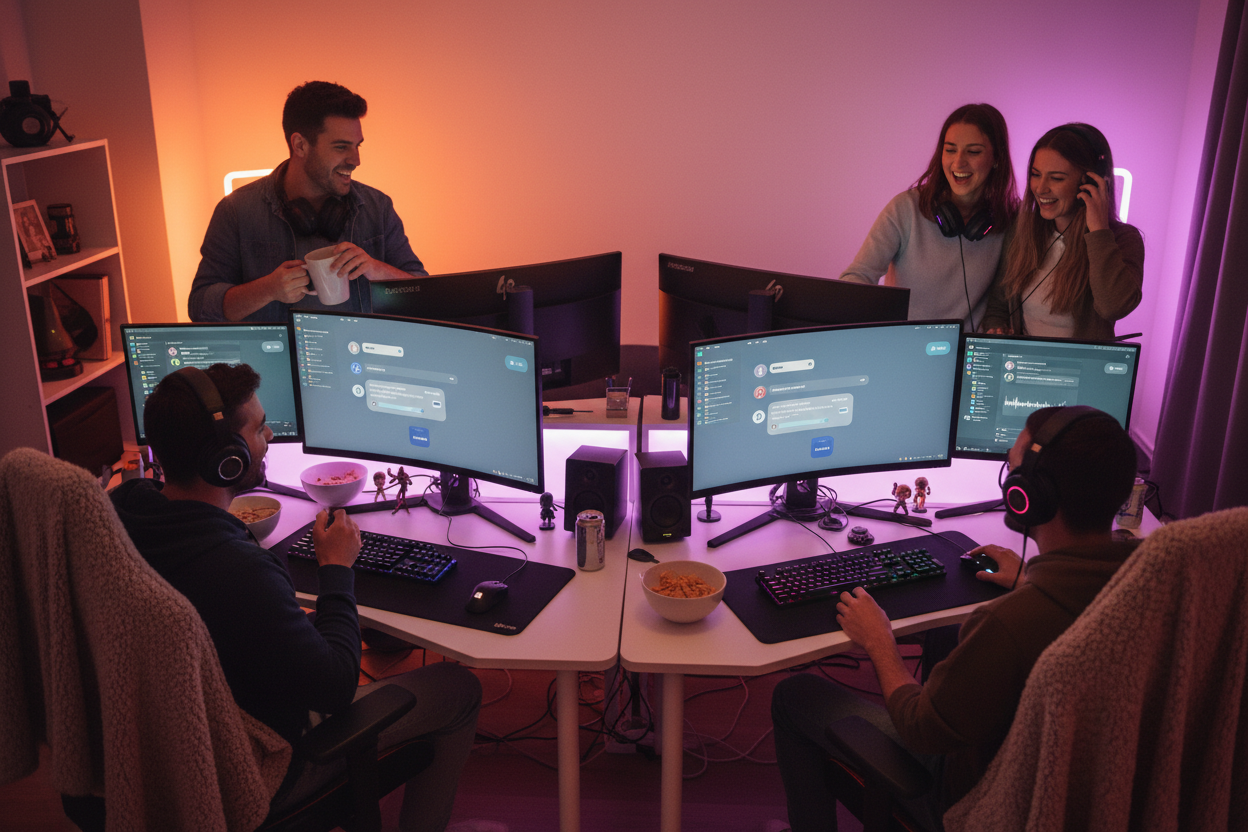
Learning how to play music in Discord opens up a world of shared listening experiences with friends and communities. Discord's voice channels provide the perfect platform for streaming high-quality audio, whether you're hosting a gaming session, study group, or virtual party.
Built-in Limitations
- No native music streaming
- Limited audio codec support
- Compressed voice quality
- Bandwidth restrictions
Enhanced Solutions
- Third-party music bots
- High-quality audio sources
- Optimized streaming settings
- Professional audio equipment

The key to exceptional Discord music streaming lies in understanding both the platform's capabilities and the tools that can enhance your audio experience. While Discord excels at voice communication, music streaming requires additional consideration for audio quality and source material.
Popular Music Bots for Discord
Music bots serve as the primary method for how to play music in Discord channels. These automated assistants connect to various streaming platforms and deliver audio directly to your voice channels with simple text commands.
Choose Your Bot
Research popular options like Groovy alternatives, Rythm successors, or newer bots like MEE6 Music, FredBoat, or Hydra Bot based on your server's needs.
Server Authorization
Visit the bot's official website and click 'Add to Server,' ensuring you have administrator permissions for your Discord server.
Configure Permissions
Grant necessary permissions including 'Connect to Voice Channels,' 'Speak in Voice Channels,' and 'Read Messages' for proper functionality.
Test Basic Commands
Join a voice channel and use commands like '!play [song name]' or '!queue' to verify the bot is working correctly.
Step-by-Step Music Streaming Setup
Setting up music streaming in Discord requires proper configuration of both your audio source and Discord settings. This comprehensive approach ensures optimal sound quality for all listeners in your voice channel.
Optimize Discord Audio Settings
Navigate to Settings > Voice & Video, enable 'High Quality' audio processing, set bitrate to maximum (128kbps for servers with boosts), and disable automatic volume adjustment.
Prepare Your Audio Source
Whether using a music bot or direct streaming, ensure your source audio is high-quality. For direct streaming, use lossless formats like FLAC or high-bitrate MP3 files.
Configure Voice Channel Settings
Create or modify a voice channel with appropriate permissions, set the channel bitrate to maximum available, and consider enabling 'Go Live' features for screen sharing capabilities.
Test Audio Quality
Invite friends to test the audio quality, adjust volume levels, check for audio lag or compression artifacts, and fine-tune settings based on feedback.

Advanced Audio Quality Optimization
Achieving studio-quality sound when you play music in Discord requires understanding both Discord's audio processing and external hardware optimization. Professional streamers and audiophiles employ specific techniques to maximize audio fidelity.

The secret to exceptional Discord audio lies in treating your streaming setup like a professional broadcast. This means investing in quality source equipment and understanding how Discord processes audio signals.
↑ Back to Top
Back to Top ↑Direct Audio Streaming Methods
Beyond music bots, advanced users can stream audio directly from their computer's audio output to Discord. This method provides greater control over audio quality and eliminates third-party service dependencies.
Software Solutions
- Virtual Audio Cable (VAC)
- VoiceMeeter Banana
- OBS Audio Routing
- Windows Stereo Mix
Hardware Solutions
- Audio interface routing
- Dedicated streaming DAC
- Monitor controller
- Professional mixing console
Install Virtual Audio Software
Download and install VoiceMeeter or Virtual Audio Cable to create virtual audio devices that can route audio between applications.
Configure Audio Routing
Set your music player output to the virtual audio device, then configure Discord to use the same virtual device as its microphone input.
Adjust Levels and EQ
Use the virtual audio software's built-in EQ and level controls to optimize the sound before it reaches Discord's voice channel.
Monitor and Fine-tune
Test with friends to ensure proper audio levels, no feedback loops, and that your voice can still be heard clearly alongside the music.

Troubleshooting Common Discord Music Issues
Even with proper setup, Discord music streaming can encounter various technical challenges. Understanding common issues and their solutions ensures smooth, uninterrupted listening sessions for your community.
Common Problems
- Audio cutting out or robotic voice
- Bot not responding to commands
- Poor sound quality or compression
- Lag between audio and video
Quick Solutions
- Check server region and latency
- Verify bot permissions and status
- Adjust Discord audio settings
- Update audio drivers and restart

Most Discord music issues stem from network connectivity, audio driver conflicts, or improper Discord settings. Systematic troubleshooting approaches help identify and resolve problems quickly, ensuring your high-quality audio equipment performs optimally within Discord's environment.
Best Practices for Discord Music Sessions
Creating memorable Discord music experiences requires more than just technical setup. Successful music sessions combine proper etiquette, community engagement, and thoughtful curation to build lasting connections through shared audio experiences.
Establish Clear Guidelines
Create channel rules for music requests, volume levels, and appropriate content. Consider implementing a queue system for fair participation.
Curate Diverse Playlists
Prepare varied music selections that appeal to your community's tastes while introducing new genres and artists for discovery.
Monitor Audio Levels
Regularly check that music doesn't overpower conversation and adjust levels based on the session's primary purpose - whether focused listening or background ambiance.
Engage Your Audience
Encourage discussion about the music, share interesting facts about artists or songs, and create interactive elements like voting on next tracks.

Remember that great Discord music experiences focus on community building rather than just audio quality. While technical excellence matters, the social aspects of shared listening create the most memorable moments. Consider exploring our audio equipment reviews to enhance your setup further.
Frequently Asked Questions
Q1: Can I play music in Discord without a bot?
Yes, you can stream audio directly using virtual audio cable software or by sharing your screen with audio enabled. However, music bots provide easier control and don't require complex audio routing setup.
Q2: What's the maximum audio quality Discord supports?
Discord supports up to 128kbps audio in voice channels with Nitro server boosts. The standard quality is 64kbps. While this isn't audiophile-grade, proper source material and settings optimization can still provide enjoyable listening experiences.
Q3: Why does my music sound robotic or cut out in Discord?
Robotic or choppy audio typically indicates network latency issues, incorrect audio drivers, or Discord server problems. Try changing server regions, updating audio drivers, and checking your internet connection stability.
Q4: Can I use copyrighted music in Discord?
Discord's Terms of Service generally allow personal use of copyrighted music in private servers. However, large public servers or commercial use may face restrictions. Many music bots have been discontinued due to copyright concerns, so always check current policies.
Q5: How do I prevent Discord from lowering game audio when music plays?
Disable 'Automatically adjust microphone sensitivity' and turn off audio ducking in Discord's Voice & Video settings. You can also adjust individual application volumes in Windows Sound Mixer for better balance between Discord, games, and music.