


Expert Insights
- Dedicated Android music players deliver 20-30% better dynamic range compared to smartphones due to specialized audio architecture and reduced system overhead
- USB-C connections provide up to 4x the bandwidth of older USB-A connections, enabling uncompressed high-resolution audio streaming to compatible car systems
- Battery-powered dedicated players eliminate alternator noise and electrical interference that can degrade audio quality when devices draw power from car systems
Android Music Players for Car Listening in 2026
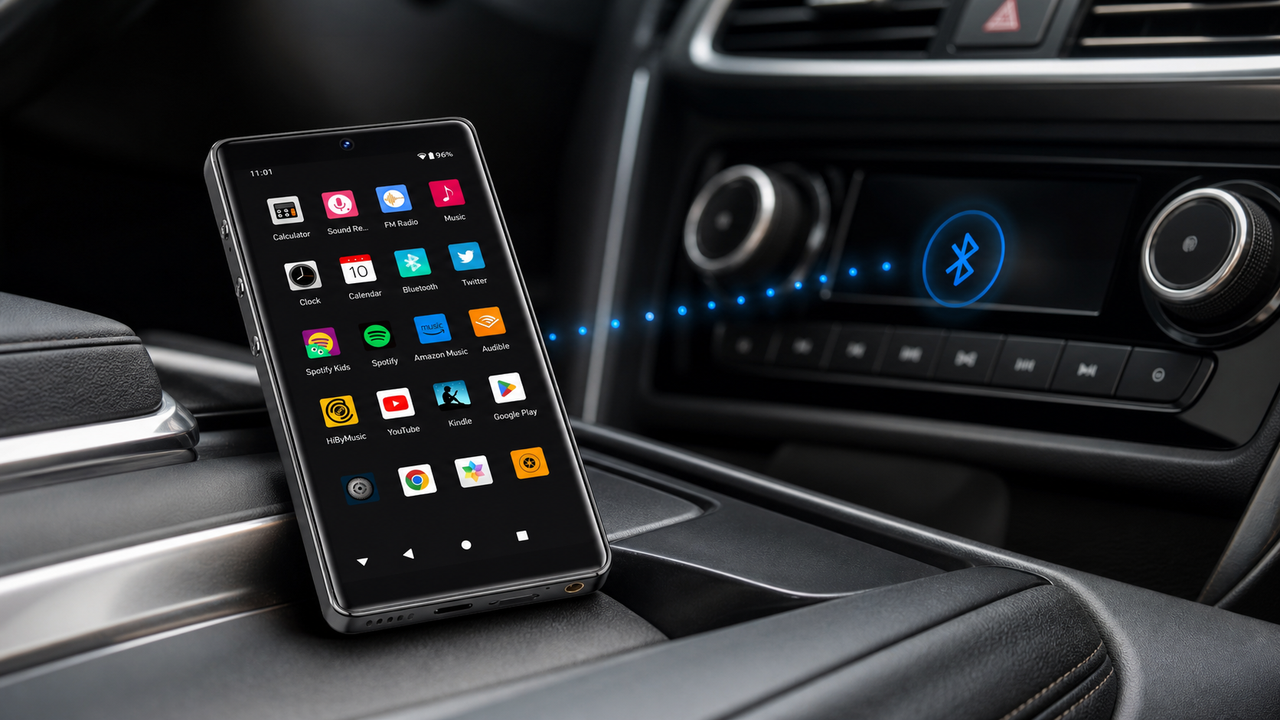
The Android music player for car listening category is about convenient app access, local files, Bluetooth, Wi-Fi, and phone-free music. For G7/G7 Pro, describe them as ordinary Android music players for apps, local files, Bluetooth, Wi-Fi, and phone-free everyday listening.
Traditional Smartphone Limitations
- Compressed audio codecs
- Battery drain from multitasking
- Limited app and storage flexibility
- Interference from calls/notifications
Dedicated Android Player Benefits
- Local files and streaming apps
- 18+ hour dedicated battery
- Dedicated device for apps and local files
- Distraction-free listening

This guide examines Android music players for car listening in 2026, focusing on app access, Bluetooth, AUX-style listening where your car supports it, local files, and practical setup.
- ►1. Android Music Players for Car Listening in 2026
- ►2. Understanding Car Listening Compatibility
- ►3. Top Dedicated Android Music Players
- ►4. High-Resolution Audio in Your Car
- ►5. Installation and Setup Guide
- ►6. Optimizing Sound Quality Settings
- ►7. Comparing Android Players vs Traditional Local-File Players
- ►8. Future Trends in Automotive Audio
Understanding Car Listening Compatibility
Car listening compatibility depends on your vehicle. Use Bluetooth, AUX/3.5mm where supported, or your car's normal phone/infotainment setup; G7 and G7 Pro are not designed to replace a car-listening head unit.
Check System Requirements
Verify your car's actual connection method first, such as Bluetooth or AUX/3.5mm input where supported.
USB Connection Quality
Use USB 3.0 or USB-C cables for maximum bandwidth and reduced latency during high-res playback.
App Compatibility
Ensure your preferred music apps work normally on the Android player and with your chosen car connection method.
The key to a good car-listening setup is matching the player, app, storage, and vehicle connection method before purchase.
Top Dedicated Android Music Players
Dedicated Android music players offer a separate device for apps, local files, Bluetooth, Wi-Fi, storage, and phone-free listening during commutes.

G7 Android Key Features
- Quad-core processor
- Android 7.0 optimization
- 16GB internal + expandable
- Touch-friendly interface
Car Audio Benefits
- Bluetooth or AUX-style setup where your car supports it
- Minimal battery drain on car
- Dedicated music processing
- No call interruptions

High-Resolution Audio in Your Car
Modern Android music players can handle apps and local files in a separate device, making commutes simpler without promising car-listening compatibility or practical listening setup car audio.
Format Selection
Use local files or streaming apps according to your account, app support, and vehicle connection method.
Storage Planning
Calculate storage needs: 100 FLAC albums require approximately 60GB of space.
Playback Optimization
Use the playback settings available inside your chosen app and avoid promising hardware decoding unless the app and model confirm it.
A dedicated Android music player is mainly useful for app access, local files, and keeping music separate from your phone; car audio quality still depends heavily on your vehicle system and connection method.
Installation and Setup Guide
A practical setup for an Android music player starts with your vehicle's supported connection method. Follow these basic checks before relying on it for commuting or road trips.

Pre-Installation Checklist
- Compatible USB cables
- Updated music apps
- Car system firmware update
- Music library preparation
Post-Installation Testing
- Audio quality verification
- Format compatibility test
- Battery performance check
- Interface responsiveness
System Preparation
Update your music apps and confirm your car's Bluetooth or AUX/3.5mm connection path.
Device Connection
Use the provided USB-C cable to connect your Android music player to the car's data port.
Audio Configuration
Navigate to audio settings and select high-quality streaming options for optimal sound.
Library Sync
Transfer your music library or configure streaming service access through the player.
↑ Back to Top
Back to Top ↑Optimizing Sound Quality Settings
Getting a reliable car-listening setup requires understanding device capabilities, app behavior, and your vehicle's connection limits.