


How to download music to an MP3 player
Download the songs to your computer, unzip the album if needed, then copy the music files to your player by USB or microSD card. Wait for copying to finish, eject the storage, and play a song on the player. Already have the files? Skip to the USB or card-reader steps below.
Start with purchased audio downloads, an artist's authorized files, or music you own and have permission to copy.
H2 is the main example. H2 Mini and H20 Ultra also support USB storage and memory cards; follow only the menu instructions labelled for your model.
Expert Insights: Key Takeaways
- Start with actual audio files on your computer; extract an album archive before copying.
- For H2, use USB Mode set to USB for file copying, with a microSD card inserted.
- Use the model-specific library or scanning controls if copied files do not appear.
- ►1. How to download music to an MP3 player
- ►2. Where to download music files for your player
- ►3. Prepare the files, card and cable
- ►4. Copy music to your player using USB
- ►5. Copy music with a microSD card reader
- ►6. What differs between H2, H2 Mini and H20 Ultra?
- ►7. Find the songs after copying
- ►8. Fix the problem at the stage where it happens
- ►9. Your next album: a short checklist
Where to download music files for your player
Bandcamp is one starting point for purchased downloadable songs or albums. Use the website download option to save files to your computer; this route does not require a store app on the player.
Find your purchased download
On Bandcamp, use the download link after checkout, the link in your receipt email, or the download option in your web Collection or desktop Purchases page. Choose the purchase you want before selecting a format.
Choose a format your player supports
Use the format selector on the download page. Start with a supported format rather than choosing the largest download. Check the exact model's format limits in its manual; different encodings can share a file extension.
Save the download somewhere you can find
Save it to a computer folder such as Downloads. If the browser saved it automatically, open its downloads list and use the option to show the file in its folder.
Unzip an album when necessary
If the downloaded album is a ZIP file, extract it before transferring the songs. On Windows, right-click the ZIP file and choose Extract All. Open the extracted folder to locate the audio files.
Check the files you will copy
You should now have individual audio files or an album folder containing them. Open a song on the computer to check that the download is complete, and keep that computer copy as your original.
See Bandcamp’s download-location instructions. If an archive will not open, retry the purchased download before troubleshooting the player.
On an artist's site, check that the offer includes a download and permission to copy it. A webpage play button is not enough. For your own CDs, make compatible audio files on the computer before starting the transfer.
Prepare the files, card and cable
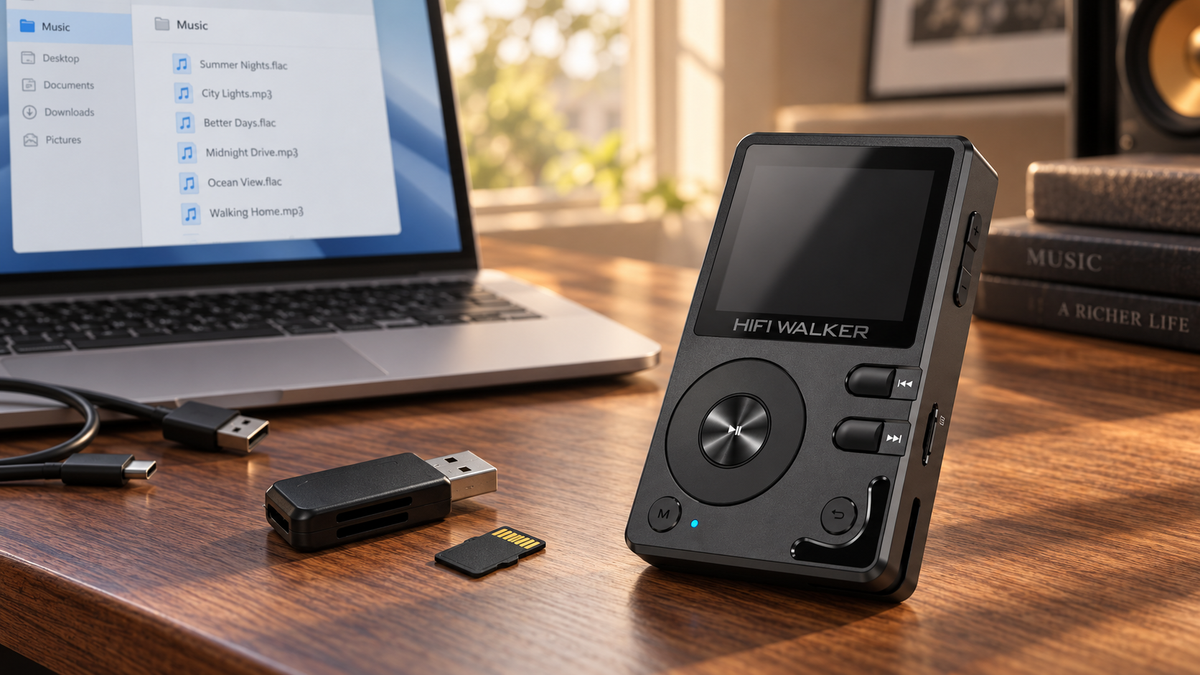
Have a computer, your player and a data-capable USB cable ready. For the card route, use a reader that supports microSD and fits your computer's USB port.
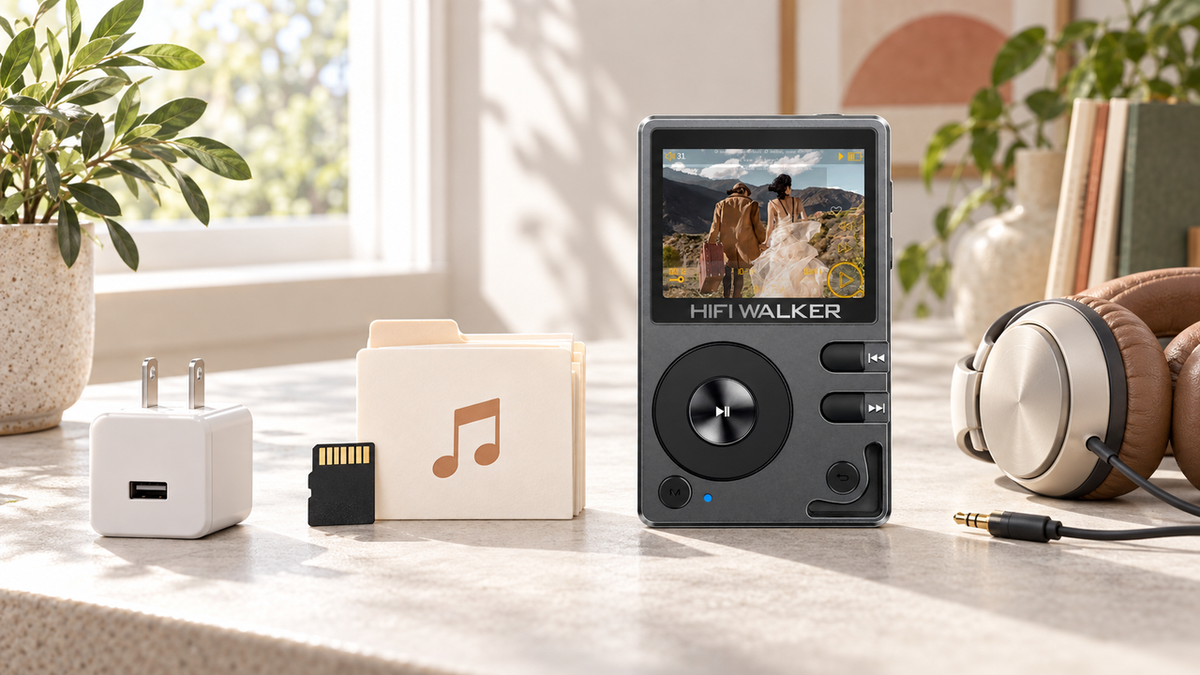
Insert a compatible microSD card in H2 before connecting USB; its official guide warns that the computer may not recognize storage without it. USB copying and card-reader copying can write to the same card.
Check space on the destination
Identify the player's card or the card in your reader. Check its free space before copying a large album collection. Drive names can vary, so check the contents as well as the label.
Choose an easy folder name
Use a simple album folder or artist-and-album structure. For example, keep an album together instead of copying its tracks into several unrelated locations.
Keep the originals
Use Copy rather than Cut when transferring from the computer. This leaves a source copy available if you need to retry a transfer or replace a card.

Copy music to your player using USB
For the H2, open System Setting → USB Mode → USB. Do not select DAC for file copying. Then connect the player to the computer with a data-capable cable. This menu path comes from the official H2 transfer guide; it is not a shared menu instruction for every HIFI WALKER model.
H2 Mini and H20 Ultra also support USB mass storage, but use their own instructions. The H2 Mini manual describes USB version choices under USB Mode, so do not assume a setting with the same name works like H2's.
Find the player storage
On Windows, press Windows + E, then check This PC in File Explorer for the connected storage. On a Mac, open Finder and look under Locations. Select the device only after checking that it is the player's intended storage.
Open a destination folder
For H2, you can create a folder on the card for your music; the official guide gives Music 1 as an example. A simple Music or album folder makes copied files easier to locate. Do not delete unfamiliar system files.
Copy an album on Windows
Open the computer's album folder, select the songs or album folder, and press Ctrl + C. Open the destination folder on the player storage and press Ctrl + V. Use Copy and Paste instead of Cut so your originals stay on the computer.
Copy an album on a Mac
In Finder, select the source songs or album folder and choose Copy. Open the intended destination on the mounted player storage and choose Paste Item. If the storage does not mount, check the cable, card and model's USB instructions first.
Wait for the transfer to finish
Leave the cable connected until the computer's copying progress has ended. If a duplicate-file prompt appears, compare the names and locations before choosing to replace anything.
Eject, disconnect and open the songs
Close files opened from the player. Use Eject or the computer's safe-removal control before unplugging. For H2, allow the library update to finish, then open Category to find the music.
The official H2 music-transfer guide includes the USB and memory-card methods. For the other models, open the HIFI WALKER Download Center and select the matching user manual. Use the model name on the device rather than the closest-looking product.
MSC means mass storage class: the function used to access storage for copying. USB DAC handles audio instead. The connector can be the same while the selected function differs; charging alone does not prove a data connection.

Copy music with a microSD card reader
A reader connects the memory card to your computer. After copying, put the card back in the player. The reader does not connect to the player for this method.
Stop playback and remove the card
Follow the model's removal instructions and power off where required. Do not pull the card out while the player is reading or writing. Handle the card by its edges.
Connect the card to the computer
Put the microSD card into the reader's microSD slot, then connect the reader to the computer. A reader with only a full-size SD slot needs a suitable microSD-to-SD adapter; do not force a small card into the wrong slot.
Open the card storage
Use File Explorer on Windows or Finder on a Mac. Check the card's contents and free space so you do not copy to a different drive.
Copy the album folder
Copy the extracted audio files or album folder onto the card. Use the same Copy and Paste approach described above. Wait for the copying task to finish.
Eject the card and return it to the player
Eject the card storage on the computer before removing the reader or card. Insert the card back into the player and turn it on as directed.
Find and play the copied album
For H2, wait for the library update, then check Category and TF Card. On another model, use its documented folder or library view; see the scanning notes below if the album is missing.
If the computer asks to format the card, cancel the prompt until you have checked what is on it and backed up anything important. Formatting can erase the contents. A format request does not tell you whether the problem is card compatibility, a damaged card or the current file system.

↑ Back to Top
Back to Top ↑What differs between H2, H2 Mini and H20 Ultra?
This table compares transfer and storage limits, not sound quality or copying speed. If you own one of these players, use its supported route; transferring files does not require a new player.
The card-capacity limit and the recognized-song limit are separate. A collection can exceed the song limit even if the card has free space. Likewise, a card within the supported capacity does not make every audio encoding playable. Check compatibility when choosing downloads, especially if one album plays and another does not.


Find the songs after copying
Check the folder view before the organized library. A file missing from both may not have copied; a file visible in storage but absent from the library may need scanning.
For H2, check Settings → Music Scan. In Automatic mode, inserting the microSD card triggers a scan. In Manual mode, start the scan yourself with the Menu button. Wait for any scan to finish, then open Category to browse the updated library. To check the copied files directly, open Explorer → TF Card.
For H2 Mini, the official user manual describes System Settings → Scan Mode. When Scan Mode is set to Automatic, inserting the card or disconnecting the player from the computer triggers a scan. In Manual mode, these actions do not trigger an automatic scan. The manual also lists Song Scan for a manual scan. These labels are for H2 Mini, not a menu map for H20 Ultra.
Play a copied song and another track from the album. If both work, continue with more albums; there is no need to re-download those files or format the card.
If an album appears under an unexpected artist name, inspect the file's artist and album information on the computer. Folder names and music tags are different: changing a folder name alone may not change a library category. Start by correcting or testing a single affected album rather than reorganizing the entire collection.
Fix the problem at the stage where it happens
If USB copying fails but the same card works in a reader, focus on the player-to-computer connection and selected USB function. If neither route reads the card, check the card itself and its compatibility. This comparison narrows the problem without assuming the whole player is broken.
For a playback error, test the original file on the computer and compare it with a track that works on the player. A complete download can still use an unsupported encoding. Changing the filename from one extension to another does not convert the audio; return to the seller's download options or use a format already documented for your model.
For an interrupted copy, check the destination folder before trying again. Some files may have finished while another is incomplete. Recopy the affected album from the retained original and review any replacement prompt. Avoid repeatedly copying the same folder under new names, which can leave confusing duplicates.
If you need support, include the model, computer system, transfer route, exact error and whether the original file plays on the computer. Never send passwords.
Your next album: a short checklist
For the next album: download, extract, copy, eject and check playback. Use the same source folder to avoid hunting through old downloads.

Choose your next transfer step
Start with the equipment and files you already have.
A successful small transfer gives you a repeatable process for the rest of your music.
Frequently Asked Questions
Q1: How do you put music on an MP3 player?
Download compatible audio files to the computer, extract any album archive, and copy the songs by USB storage or a memory card reader. Eject the storage safely, then locate and play the songs on the player.
Q2: Where can I get music files to copy?
A purchased Bandcamp web download, an artist's authorized file download, or files you own and have permission to copy are starting points. Use actual audio files rather than an offline download stored only inside a subscription app.
Q3: Should I copy the ZIP album onto the player?
Extract the ZIP on the computer first, then copy the individual audio files or extracted album folder. On Windows, right-click the ZIP and choose Extract All.
Q4: Which USB mode should I choose on H2?
The official H2 transfer guide specifies System Setting, then USB Mode, then USB. Do not choose DAC for copying. Other models can use different menus; follow the matching manual.
Q5: Why does my card have space but some songs are missing?
Storage capacity, supported file encoding and library recognition are separate checks. H2, H2 Mini and H20 Ultra support cards up to 512GB and recognize up to 14,999 songs.