


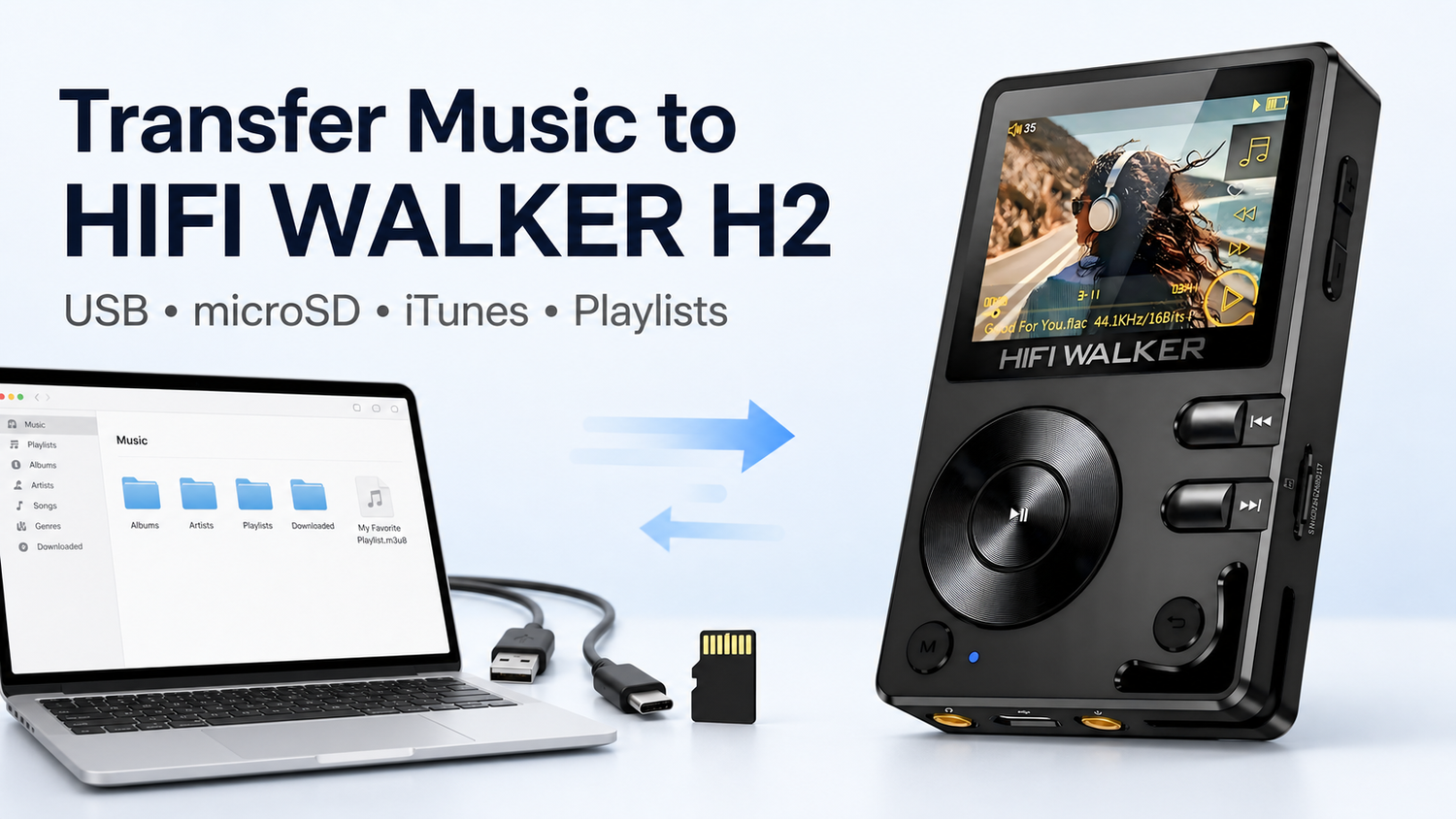
Want to transfer music to your HIFI WALKER H2? You can connect the player to a computer with its USB cable, or copy songs directly to the microSD card with a card reader. This guide explains both methods, plus iTunes, Apple Music, CD files and playlists.
Before you begin: make sure a microSD card is correctly inserted in the H2. Without a card, your computer may not recognize the player as a storage drive.
What you need

with a microSD card inserted
Mac or Windows PC
H2 USB data cable
microSD card reader
Method 1: Transfer music to H2 by USB cable
Watch the Method 1 video tutorial: Computer to H2

- On the H2, open System Setting and set USB Mode to USB. Do not choose DAC.
- Connect the H2 to your computer with the H2 USB data cable.
- Open the H2 drive when it appears in Finder on Mac or File Explorer on Windows.
- Create a folder such as Music 1.
- Drag your music files from the computer into that folder.
- For large music libraries, copy files in smaller batches. Copying everything at once may slow down or freeze the transfer.
- Safely eject the H2 drive before disconnecting the cable.
- Wait for the music library to update, then open Category on the H2 to play your songs.
Method 2: Transfer music with a microSD card reader
Watch the Method 2 video tutorial: Computer to microSD card

- Remove the microSD card from the H2 and insert it into your computer or a card reader.
- Open the card drive in Finder or File Explorer.
- Drag your music files or folders onto the card.
- For large music libraries, copy files in smaller batches. Copying everything at once may slow down or freeze the transfer.
- Safely eject the card drive, then remove the card.
- Insert the card back into the H2, wait for the library update, and open Category.
Can you transfer iTunes or Apple Music songs to H2?
| Music source | Transfer to H2? | What to do |
|---|---|---|
| Owned music files on your computer | Yes | Use Method 1 or 2. |
| Eligible iTunes Store purchases | Yes | Download the file to your computer first, then copy it. |
| Apple Music subscription downloads | No | These downloads are protected for playback inside the Apple Music app. |
| Music stored only on an iPad or iPhone | Not directly | Move an unprotected copy to a computer first. |
The H2 does not sync directly with an iTunes or Apple Music library. It plays compatible audio files copied to its microSD card.
CD music and playlists
Copy music from a CD
Rip the CD to your computer first, then use Method 1 or 2. Choose WAV if you want a lossless copy. See the CD ripping tutorial for the computer steps.
Add playlists
HIFI WALKER H2 supports .m3u and .m3u8 playlist files.
- Windows: create the playlist with foobar2000.
- Mac: create the playlist with VLC.
- Keep the songs on the microSD card.
- Save the .m3u or .m3u8 file in the card's root directory, then open Category → TF Card.
Troubleshooting and FAQ
The computer does not recognize the H2
Confirm that a microSD card is inserted, USB Mode is set to USB rather than DAC, and the cable supports data transfer. You can also try another USB port.
The songs do not appear on the H2
Reinsert the card, wait for the library update to finish, then check Category and TF Card. Confirm that the files are in a supported audio format.
Can I use the H2 like a USB stick on a DJ station?
Only if the DJ equipment can read the H2's storage and the audio file system. Compatibility depends on the DJ station, so test before relying on it for a live set.
Where should I put the music files?
You can create your own folders on the microSD card. Simple names such as Music, Albums or Playlists make the library easier to manage.
Need help? Email sales@hifiwalker.com with your order number and a clear description of the problem.