


Yes, You Can Do This Without a Computer

Yes — you can put music on an MP3 player without a computer, and it usually takes less than ten minutes once you know which cable to grab. The short version: most modern MP3 players show up as a removable drive on your phone, and you drag files across the same way you would on a desktop. No iTunes, no Windows Explorer, no laptop required.
We get why this question comes up so often. A lot of people buy a dedicated player specifically because their laptop is old, shared, or just not around — a work computer, a family desktop, or no computer at all. The good news is that the file-transfer part of owning an MP3 player has almost nothing to do with having a computer nearby.
What You Might Assume You Need
- A laptop with iTunes or file manager
- USB cable that connects to a PC
- Software installed ahead of time
- Wi-Fi sync account setup
What You Actually Need
- Your phone (Android or iPhone)
- A USB-C or USB-OTG cable/adapter
- Music files already saved on your phone
- 5-10 minutes
Expert Insights: Key Takeaways
- The single most common transfer failure is a phone left in charging-only USB mode rather than file transfer mode — check this before troubleshooting anything else.
- iPhone transfers without a computer are limited by DRM, not by cable quality — streamed subscription tracks simply won't move as files regardless of adapter used.
- A microSD card swap is often faster than a direct cable transfer for large libraries, since it skips the phone-to-player handshake entirely.
- ►1. Yes, You Can Do This Without a Computer
- ►2. Phone to MP3 Player: The Cable Method (No Computer)
- ►3. iPhone Users: A Slightly Different Path
- ►4. Using an SD Card Instead of a Cable
- ►5. Bluetooth: What It Can and Cannot Do Here
- ►6. How to Download Music to Your Player Without a Computer
- ►7. Common Snags and How to Get Past Them
- ►8. If You're Still Deciding Between Phone and a Dedicated Player
Phone to MP3 Player: The Cable Method (No Computer)
The most reliable way to transfer music from phone to MP3 player without a computer is a direct cable connection. This works for how to add music to mp3 player without computer scenarios where you just want the files moved once, right now, without setting up any accounts.

Find the right cable
Most Android phones use USB-C, and most current MP3 players (including HIFI WALKER models) also use USB-C. If your phone has a different port, you may need a USB-OTG adapter — check what came in the box before assuming you need to buy something.
Connect phone to player
Plug one end into your phone, the other into the player's charging/data port. On many Android phones, a notification pops up asking how you want to use the connection.
Select file transfer mode
Tap the notification and choose file transfer or MTP mode, not charging only. This is the step people miss — if you skip it, the phone just charges and no files show up on either end.
Open your file manager app
On Android, open Files or My Files. The MP3 player should appear as an external drive, separate from your phone's internal storage.
Drag and drop your music folder
Select the songs or folders you want, copy, then paste into the player's Music folder. Larger libraries just take longer — there is no file limit beyond your player's storage capacity.
Safely disconnect
Wait until the transfer bar finishes before unplugging. Pulling the cable mid-copy is the most common cause of a corrupted file or a track that shows up but won't play.

Moving a phone's worth of music without ever opening a laptop lid
We went through this exact process ourselves while setting up a player for a trip, mostly because the household laptop was already packed away in a suitcase.
What surprised us was how little this had to do with owning a computer at all — the actual sticking point was one overlooked settings prompt on the phone, not a lack of hardware.
iPhone Users: A Slightly Different Path
If you're wondering how to add music to an mp3 player from a mac or how to transfer music from iphone to mp3 player without computer, the honest answer is that iPhones make this harder than Android does. Apple's file system does not expose a simple drag-and-drop folder the way Android does.
The most workable route without a computer is a Lightning-to-USB or USB-C-to-USB adapter combined with the Files app. You'll need your music saved as actual files on the phone first — not just streamed through an app — since Apple Music subscriptions and DRM-protected tracks won't transfer this way at all.
Works Without a Computer
- MP3/FLAC/WAV files saved in the Files app
- Voice memos or recordings you made yourself
- Music purchased and downloaded as files
Will Not Transfer This Way
- Apple Music streaming tracks (DRM)
- Spotify or other streaming app content
- Anything not already saved as a local file
This is also worth knowing if you're separately trying to figure out how to put music on iphone without computer — the logic runs both directions, and it's the file format and DRM status that decides whether a transfer is even possible, not which cable you own.
Using an SD Card Instead of a Cable
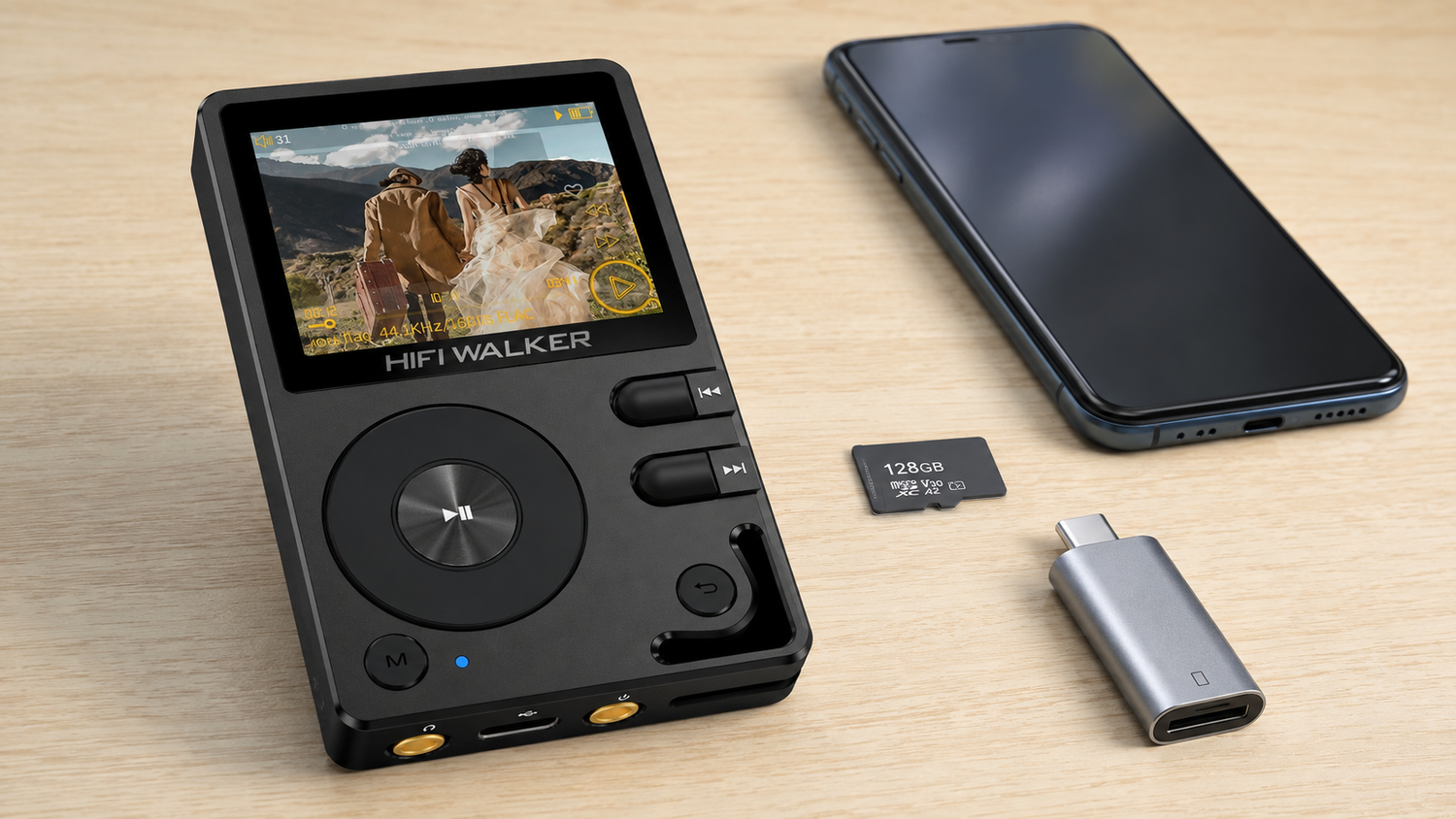
If your player has a microSD slot, there's a second no-computer method: load music onto an SD card using your phone's built-in slot (if it has one) or a small USB card reader, then move the card straight into the player.

This approach is handy if you already have a card reader lying around, or if you're moving a large library and don't want to wait through a slow direct-cable transfer. It sidesteps the phone-to-player handshake entirely — the card just gets recognized on insert, the same way it would in a camera.

Bluetooth: What It Can and Cannot Do Here
A quick note before you go looking for a Bluetooth workaround: pairing your phone to your MP3 player over Bluetooth lets you stream audio, but it does not copy files onto the player's storage. Streaming and transferring are two different jobs. If your player doesn't have its own Wi-Fi sync feature, Bluetooth alone won't get music permanently onto the device — you'll still need the cable or SD card method for that. The official spec sheet for a given model is the place to confirm what its Bluetooth connection is actually built to do.
↑ Back to Top
Back to Top ↑How to Download Music to Your Player Without a Computer
Separate from transferring files you already own, some people are really asking how to download music to mp3 player without a computer — meaning getting new tracks onto the device from scratch, phone-only.
If your MP3 player runs Android, like the HIFI WALKER G7 Pro Android Player or G7 Android Player, you can install music apps directly on the device and download purchased tracks straight to onboard storage — no phone or computer relay needed at all. That's a meaningfully different workflow than a player that only accepts files copied in from elsewhere.

Common Snags and How to Get Past Them
Most failed transfers come down to one of a few things. Here's what to check before you assume something's broken.
Symptom
- Cable connects but no drive appears
- Files copy but won't play
- Transfer stalls partway through
- Player doesn't show new folder
Likely Cause
- Phone set to charging-only mode, not file transfer
- Unsupported file format for that player model
- Cable is charge-only, not a data cable
- Player needs to be unplugged and restarted to refresh its index
Worth mentioning too: this same charging-only-versus-data-cable mix-up is exactly what trips people up when they ask how to transfer recording from phone to laptop — it's not a laptop-specific issue, it's a cable-and-mode issue that shows up anywhere you're moving files over USB.

If You're Still Deciding Between Phone and a Dedicated Player
Some readers land here already owning a player and just need the how-to. Others are still asking whether a dedicated player is worth the extra step of transferring files at all, instead of just streaming from a phone.
If that's you, our guide on how to put music on an MP3 player in 2026 covers the full range of transfer methods including desktop options, in case a computer becomes available later. And if the real question underneath is whether your Spotify library can come along at all, we've answered that directly in our piece on Spotify and MP3 players.

You can also browse the full lineup on our MP3 player collection page if you're comparing storage capacity and connector types before deciding which model fits your no-computer routine best.
There's more to a music library than the files already on your phone
Once you've moved your existing music over without a computer, a slightly bigger question tends to show up: where does the next batch of music come from, and does it sound any different once it lands on dedicated hardware.
None of that requires solving anything harder than the cable-and-folder steps above — it's just a bigger room once you're standing in the doorway.
Frequently Asked Questions
Q1: Can you put music on an MP3 player without a computer?
Yes. A USB-C cable connected directly to your phone, or a microSD card loaded from a card reader, both get music onto most MP3 players without ever touching a laptop or desktop.
Q2: How do you put music on an MP3 player without a computer if you have an iPhone?
You'll need a Lightning-to-USB or USB-C adapter and the Files app. Only files already saved locally on the phone will transfer — Apple Music streams and DRM-protected tracks won't copy over this way.
Q3: Why does my phone connect to the MP3 player but no files show up?
This is almost always the USB connection mode. Check the notification that appears when you plug in and make sure it's set to file transfer or MTP, not charging only.
Q4: Can Bluetooth be used to transfer music files, not just stream?
Bluetooth pairing typically streams audio in real time rather than copying files onto the player's storage. For a permanent library on the device, use a cable or SD card instead.
Q5: Do Android-based MP3 players let you download music directly, without a phone or computer?
On Android-powered players like the G7 Pro Android Player, yes — you can install supported apps and download tracks straight to the device's own storage.