


Last updated: July 14, 2026
Expert Insights: Key Takeaways
- Professional streamers often use dedicated audio interfaces to keep voice communication and music streaming separate, preserving quality for both signal paths.
- The shutdown of Groovy and Rythm shows why it's smart to have a backup streaming method ready - relying on a single bot is risky given ongoing copyright enforcement.
- Discord's compression works best with source material that's already high quality - a FLAC file will still sound better than a low-bitrate MP3 even after Discord's processing squashes both.
- Turning off echo cancellation and noise suppression - features built for voice chat - is one of the most overlooked best Discord audio settings tweaks for music listening.
How to play music in discord?
Yes - you can play music through Discord, and there are several ways to do it well. Whether you're running a gaming session, a study group, or a virtual hangout, learning how to play music on Discord the right way makes a huge difference in listening quality.
Discord itself has no native music player, so finding the best way to play music in Discord means choosing between bots, direct audio routing, or screen-share streaming - each with tradeoffs in quality, setup time, and reliability.
Built-in Limitations
- No native music streaming
- Limited audio codec support
- Compressed voice quality
- Bandwidth restrictions capped by server tier
Enhanced Solutions
- Third-party music bots
- High-quality FLAC/lossless sources
- Optimized voice channel settings
- Dedicated DAPs or DACs for source audio

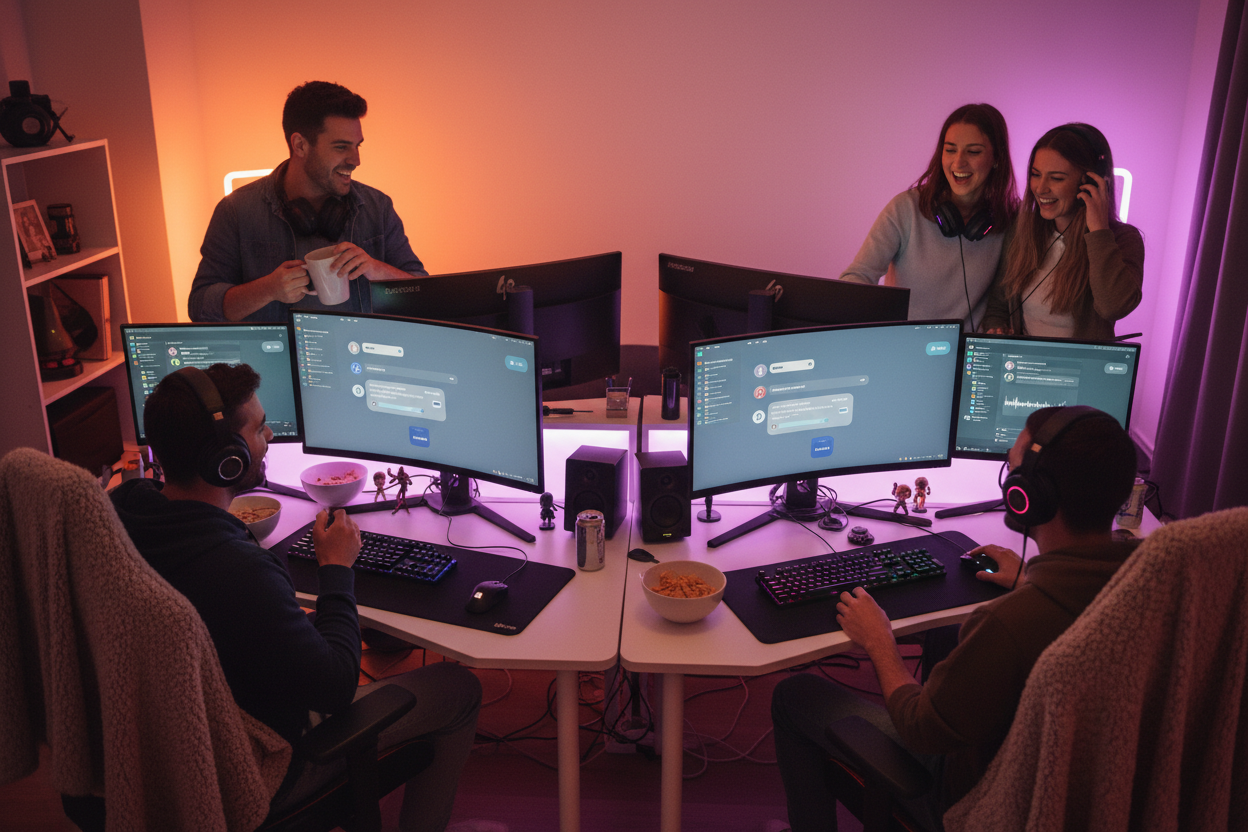
Modern gaming setup with dedicated audio equipment for Discord voice channels
The real key to can you stream music on Discord at high quality lies in your source file and your audio settings - not just which bot you pick. A 320kbps MP3 or FLAC file will always sound noticeably better than a low-bitrate stream, even after Discord compresses it.
- ►1. How to play music in discord?
- ►2. Popular Music Bots: The Easiest Way to Play Music on Discord
- ►3. Step-by-Step: How to Play Music on Discord With Great Sound
- ►4. Best Discord Audio Settings for Crystal-Clear Music
- ►5. Direct Streaming: Playing Music on Discord Without a Bot
- ►6. Upgrading Your Source Audio Before It Reaches Discord
- ►7. Troubleshooting Common Discord Music Issues
- ►8. Best Practices for Discord Music Sessions
Popular Music Bots: The Easiest Way to Play Music on Discord
Music bots remain the best way to play music in Discord for most casual users. These automated assistants connect to streaming platforms and pipe audio directly into your voice channel using simple text commands - no manual audio routing required.
Choose Your Bot
Research current options like MEE6 Music, FredBoat, or Hydra Bot. Groovy and Rythm were shut down over copyright issues, so verify a bot is actively maintained before committing.
Server Authorization
Visit the bot's official website and click 'Add to Server.' You'll need administrator permissions for your Discord server to complete this step.
Configure Permissions
Grant 'Connect to Voice Channels,' 'Speak in Voice Channels,' and 'Read Messages' permissions so the bot can function properly in your channels.
Test Basic Commands
Join a voice channel and try commands like '!play [song name]' or '!queue' to confirm everything is working before your session starts.
Bots handle streaming platform integration but they don't fix Discord's internal compression - that's where source quality and settings still matter most.
Step-by-Step: How to Play Music on Discord With Great Sound
Setting up reliable music streaming in Discord means configuring both your audio source and your Discord voice settings together. Skipping either half leaves quality on the table, even with the best bot installed.
Optimize Discord Audio Settings
Go to Settings > Voice & Video, enable 'High Quality' audio processing, set bitrate to maximum (128kbps requires a server boost), and disable automatic volume adjustment.
Prepare Your Audio Source
Whether using a bot or direct streaming, start with high-quality source files. Lossless FLAC or high-bitrate MP3s consistently outperform low-bitrate streams after Discord's processing.
Configure Voice Channel Settings
Set the channel bitrate to its maximum available level and consider enabling 'Go Live' if you want to pair music with screen sharing.
Test Audio Quality With Friends
Invite a few people to listen in, check for lag or compression artifacts, and fine-tune volume and settings based on real feedback.

Best Discord Audio Settings for Crystal-Clear Music
Finding the best Discord audio settings for music means turning off features designed for voice chat, since they actively hurt music playback. Echo cancellation and noise suppression, for example, strip detail out of songs.

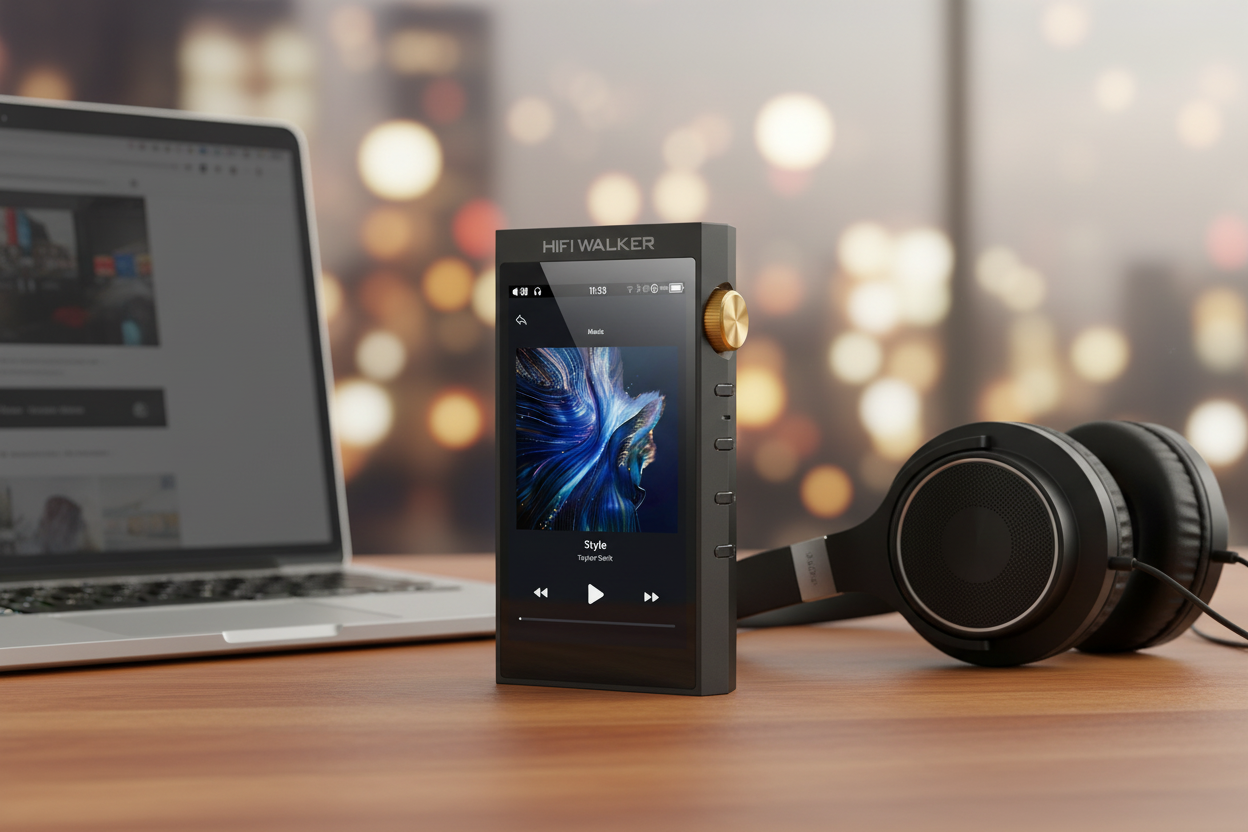
Professional audio player interface used for high-quality Discord streaming setups
The secret to great Discord audio is treating your setup like a mini broadcast chain: quality source gear feeding into properly configured software settings, not just relying on defaults.
Direct Streaming: Playing Music on Discord Without a Bot
Beyond bots, you can play music through Discord by routing your computer's audio output directly into a voice channel. This gives full control over quality and removes any dependency on third-party bot uptime.
Software Solutions
- Virtual Audio Cable (VAC)
- VoiceMeeter Banana
- OBS Audio Routing
- Windows Stereo Mix
Hardware Solutions
- Audio interface routing
- Dedicated streaming DAC
- Monitor controller
- Professional mixing console
Install Virtual Audio Software
Download VoiceMeeter or Virtual Audio Cable to create virtual devices that route audio between applications.
Configure Audio Routing
Set your music player's output to the virtual device, then set Discord's microphone input to that same virtual device.
Adjust Levels and EQ
Use the virtual software's built-in EQ and level controls to shape the sound before it hits Discord's voice channel.
Monitor and Fine-Tune
Test with friends to check for feedback loops and confirm your voice is still clear alongside the music.

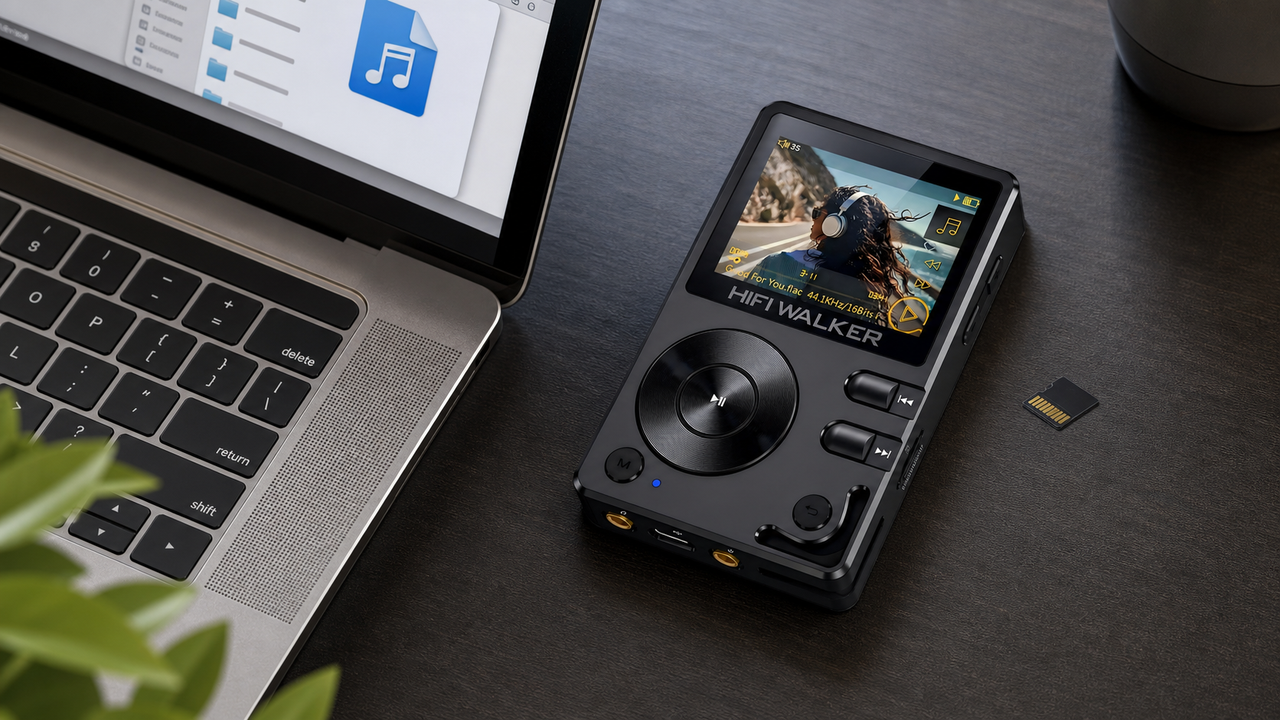
HIFI WALKER H2 Touch Hi-Res Audio Player used as a high-quality Discord audio source
↑ Back to Top
Back to Top ↑Upgrading Your Source Audio Before It Reaches Discord
Discord will always compress audio somewhat, but starting with a better source signal produces an audible difference on the other end. Dedicated hi-res players avoid the phone-DAC bottleneck that most streamers rely on by default.

Pairing a quality DAP or dongle DAC with the settings above is often what separates a muddy Discord music channel from one that actually sounds good.
Troubleshooting Common Discord Music Issues
Even with a solid setup, Discord music streaming runs into technical snags. Knowing the common causes helps you fix problems fast instead of restarting your whole session.
Common Problems
- Audio cutting out or robotic voice
- Bot not responding to commands
- Poor sound quality or compression
- Lag between audio and video
Quick Solutions
- Check server region and latency
- Verify bot permissions and status
- Adjust Discord audio settings
- Update audio drivers and restart

Discord voice and video settings panel used to troubleshoot audio issues
Most issues trace back to network connectivity, driver conflicts, or default Discord settings. Systematic troubleshooting resolves problems quickly so your high-quality audio equipment performs at its best inside Discord.
Best Practices for Discord Music Sessions
Great Discord music sessions need more than technical setup - they need etiquette and curation. Combining the best way to play music in Discord with good community habits keeps sessions enjoyable for everyone.
Establish Clear Guidelines
Set channel rules for requests, volume, and content, and consider a queue system for fair participation.
Curate Diverse Playlists
Prepare varied selections that appeal to your community while introducing new genres and artists.
Monitor Audio Levels
Regularly check that music doesn't overpower conversation, adjusting for focused listening vs. background ambiance.
Engage Your Audience
Encourage discussion about tracks and artists, and add interactive elements like voting on the next song.

Group of friends enjoying a music listening session together on Discord
Great Discord music experiences focus on community building, not just audio quality. Explore our DAP reviews and comparisons to keep upgrading your setup.
Frequently Asked Questions
Q1: What is the best way to play music in Discord?
For most users, a maintained music bot like MEE6 Music, FredBoat, or Hydra Bot is the best way to play music in Discord - it's simple to set up and doesn't require audio routing software. For higher control over quality, direct streaming via VoiceMeeter with a hi-res source like the HIFI WALKER H2 Touch feeding into your PC gives noticeably better results.
Q2: Can you play music through Discord without a bot?
Yes, you can play music through Discord without a bot using virtual audio cable software (like VoiceMeeter Banana) or by screen sharing with audio enabled. This method requires more manual configuration but avoids dependency on third-party bots, which can go offline or get discontinued due to copyright issues.
Q3: How do I play music on Discord with good quality?
To play music on Discord with good quality, start with a high-bitrate or lossless source file, enable 'High Quality' audio processing in Voice & Video settings, disable echo cancellation and noise suppression, and set your voice channel bitrate to its maximum available level.
Q4: What are the best Discord audio settings for music?
The best Discord audio settings for music include: 128kbps bitrate (with a server boost), manually configured audio processing instead of auto-enabled defaults, and echo cancellation plus noise suppression turned off, since both features are designed for voice, not music.
Q5: Can you stream music on Discord using Spotify or Apple Music?
Yes, you can stream music on Discord from Spotify or Apple Music through screen sharing with audio enabled, or by routing your desktop audio through a virtual audio cable into Discord's voice input. Some music bots also support direct links from these platforms.