


The Short Answer: Drag, Drop, Done
Yes, you can add music to an AGPTEK MP3 player in under five minutes, and no, you do not need any special software. Plug the player into your computer with the included USB cable, wait for it to show up as a drive, then drag MP3 or WAV files straight into the music folder. That is the whole process for AGPTEK, and it is nearly identical for RUIZU, Oilsky, Mymahdi, and SanDisk players too - they all use the same mass-storage USB approach.
Where people get stuck is not the dragging part. It is the file format, the folder location, or a USB cable that only charges and never syncs data. We will walk through each of those traps below, one step at a time.
Expert Insights: Key Takeaways
- Drag-and-drop over USB mass storage is the transfer method behind nearly every budget MP3 player, regardless of brand name on the case.
- The file format matters more than the brand: MP3 and WAV are broadly supported, while DRM-locked streaming downloads simply will not play on any of these devices.
- A charge-only USB cable is the single most common reason a player fails to appear as a drive on a computer.
- ►1. The Short Answer: Drag, Drop, Done
- ►2. What You Need Before You Start
- ►3. Step-by-Step: Adding Music to Your Player
- ►4. AGPTEK, RUIZU, Oilsky, Mymahdi, and SanDisk: Any Differences?
- ►5. When These Budget Players Start Feeling Limiting
- ►6. Fixing the Most Common Transfer Problems
- ►7. Building a Better Habit Around File Transfers
- ►8. Wrapping Up the Basics
What You Need Before You Start
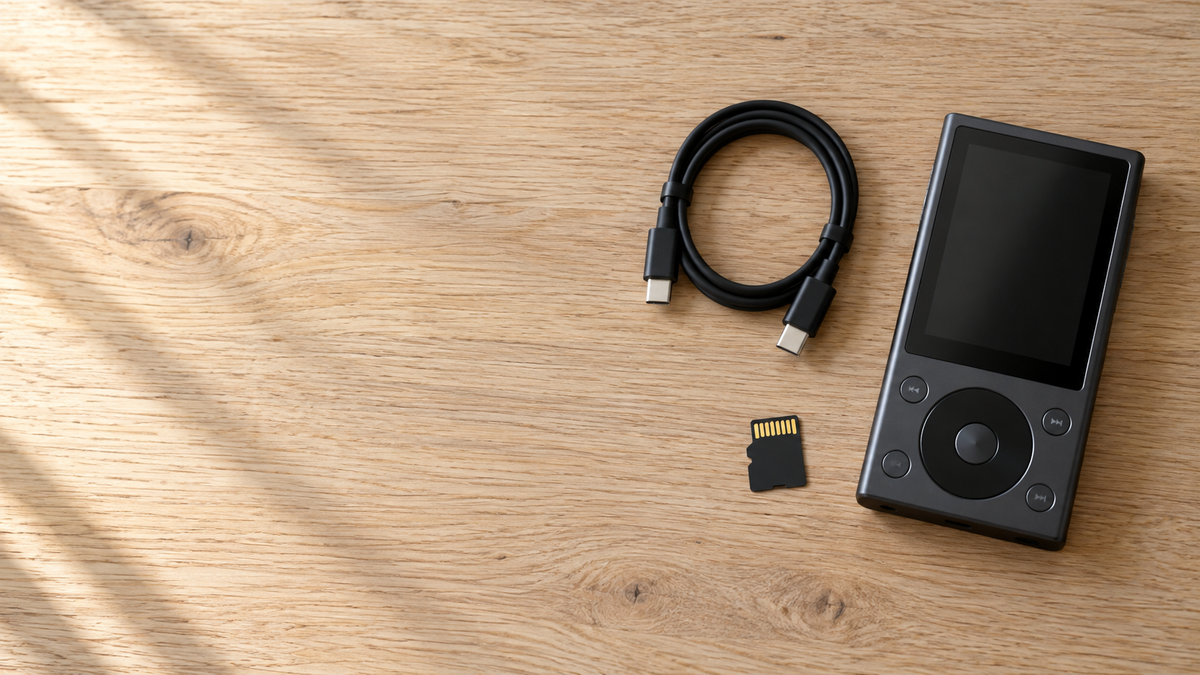
Before touching any cables, check three things: a working USB cable (not a charge-only one that came in a cheap multi-pack), a computer with a free USB port, and your music files already saved somewhere findable - a folder on your desktop works fine.
Common Setup Mistakes
- Using a charge-only micro-USB cable
- Music files still locked in a streaming app
- Player battery too low to mount as a drive
- No memory card inserted, relying on tiny internal storage
What Actually Works
- A proper USB 2.0 data cable
- Local MP3/WAV files copied to your desktop first
- Player charged above roughly 20 percent before transfer
- A microSD card inserted if your model supports expansion
One detail that trips up a lot of AGPTEK, RUIZU, and Oilsky owners: these budget players are built around basic MP3 decoding. Files ripped from a CD as MP3, or purchased as MP3/WAV downloads, will play. Streaming app downloads - the offline files inside Spotify or Apple Music - are locked with DRM and will not transfer as playable files no matter how you copy them.
Step-by-Step: Adding Music to Your Player
Connect the Player to Your Computer
Plug the USB cable into the player and then into your computer. On most AGPTEK and RUIZU models, the screen will show a USB or connecting icon. Give it five to ten seconds.
Find the Player as a Drive
On Windows, open File Explorer and look under This PC - the player should appear as a removable disk. On Mac, it will show up on the desktop or in Finder's sidebar. If nothing appears, try a different USB port or cable before assuming the player is broken.
Locate or Create the Music Folder
Open the drive. Most models have a folder already named Music, MUSIC, or similar. If there is not one, create a folder yourself - keeping music inside a dedicated folder rather than the root directory helps some players sort and display files correctly.
Drag Your MP3 or WAV Files In
Select your music files on your computer and drag them into that folder. A progress bar will show the copy in progress. Do not unplug the cable during this step, even if it looks finished - wait for the transfer to fully complete.
Safely Eject Before Unplugging
Use Safely Remove Hardware on Windows or drag the drive to Eject on Mac. Pulling the cable without ejecting first is the single most common cause of corrupted or unreadable files on budget players.
Disconnect and Play
Unplug the player, navigate its menu to Music or Songs, and your new tracks should appear. If they do not show up immediately, power the player off and back on once.

AGPTEK, RUIZU, Oilsky, Mymahdi, and SanDisk: Any Differences?
If you searched for how to download music to an Oilsky MP3 player, or how to add music to a RUIZU MP3 player, the good news is the process barely changes between brands. They are all built on the same mass-storage USB principle as an external hard drive or a USB stick.
SanDisk is the one brand where you might hit a snag: some Clip Sport models mount using MTP (Media Transfer Protocol) rather than plain mass storage, which means Mac users sometimes need a third-party app like Android File Transfer to see the folders. If you are wondering how to put music on a SanDisk MP3 player and drag-and-drop is not working, check whether your specific model uses MTP mode before assuming something is broken.
When These Budget Players Start Feeling Limiting
A $15-20 clip player is genuinely fine for a basic MP3 library. But there is a ceiling. Tiny internal storage means you are constantly deleting old albums to make room for new ones. No microSD slot on some models means that ceiling is permanent, not something you can raise later.
If your library has grown past a few hundred songs, or you have started collecting FLAC files that these budget players simply cannot decode, that is usually the point where people start looking at something built for a larger, higher-quality library. We cover the full transfer process in more depth in our guide on how to put music on an MP3 player, which applies just as well once you upgrade.

The transfer method stays the same drag-and-drop process you just learned - plug in via USB-C, drop files into the folder, eject safely. What changes is what the player can actually do with those files once they land.
↑ Back to Top
Back to Top ↑Fixing the Most Common Transfer Problems
If you have followed every step above and songs still are not showing up, the cause is almost always one of a handful of things.
Symptom
- Player not detected by computer at all
- Files copied but do not appear in the player's menu
- Only some songs play, others are silent or skip
- Player says storage full when it should not be
Likely Cause
- Charge-only cable, or a USB port needing a hub
- Files placed outside the recognized Music folder
- Unsupported format such as WMA or a DRM-locked file
- Hidden system files or leftover fragments from a failed transfer
For a deeper walkthrough on file formats and why some downloads simply will not play, our guide on downloading MP3 music to your player covers format compatibility in more detail. And if the music you are trying to move is coming from a streaming service rather than a purchased download, it is worth reading whether Spotify music can actually transfer to an MP3 player before you spend an hour trying to force it.

Building a Better Habit Around File Transfers
Once you have the process down, keeping a player stocked with music is a five-minute chore, not a project. Set up a single folder on your computer that mirrors what you want on the device, and just re-sync that folder every few weeks rather than hunting for individual songs each time.
Keep a Master Folder
Store all your MP3/FLAC files in one organized folder on your computer, sorted by artist or album.
Sync in Batches
Connect your player every few weeks and copy over new additions rather than transferring one song at a time.
Check Available Space First
Before a large transfer, glance at how much free space remains so you are not stopped mid-copy.

Wrapping Up the Basics
Adding music to an AGPTEK, RUIZU, Oilsky, Mymahdi, or SanDisk MP3 player really does come down to plug in, drag files, eject safely. No account, no app, no subscription. The steps above should get almost anyone unstuck, whether the issue was a bad cable, the wrong folder, or a format the player simply cannot read.

What Changes Once the Library Outgrows the Clip
A basic clip player solves one problem: getting songs out of a phone and onto something dedicated. But libraries grow, and formats change along the way.
The folder-and-drag routine you just built is the same one that carries over, no matter what the device looks like next.
Frequently Asked Questions
Q1: Why won't my AGPTEK MP3 player show up on my computer?
The most common cause is a charge-only USB cable that cannot transfer data. Try a different cable, ideally the one that came in the box, and a different USB port. Also confirm the player has enough charge to power on and mount as a drive.
Q2: What audio format works best for AGPTEK, RUIZU, and Oilsky players?
MP3 is universally supported across these budget players. WAV often works too. Formats like WMA or DRM-protected downloads from streaming apps typically will not play, since these players are built around basic MP3 decoding rather than broader codec support.
Q3: Can I add music without a computer, directly from my phone?
Most clip-style players like AGPTEK and RUIZU rely on a USB mass-storage connection to a computer rather than a phone-to-player app. If your model has Bluetooth, check its manual for whether it supports file transfer over Bluetooth, since this varies by model and is not universal.
Q4: How do I put music on a SanDisk MP3 player if drag-and-drop isn't working?
Some SanDisk Clip Sport models mount using MTP rather than plain mass storage. On Mac, this may require a third-party app such as Android File Transfer. On Windows, it usually appears normally in File Explorer, though syncing through Windows Media Player can also work as an alternative.
Q5: My songs transferred but won't play - what's wrong?
Check that the files are actually MP3 or WAV and not DRM-locked downloads from a streaming service. Also confirm the files landed inside the recognized Music folder rather than a random subfolder, since some players only scan specific directories.