


Expert Insights: Key Takeaways
- The H2 Mini's compact design makes it more sensitive to debris in ports compared to larger DAPs, making regular cleaning essential for long-term reliability
- Most 'hardware failures' reported by users are actually software conflicts that resolve with proper troubleshooting, highlighting the importance of systematic diagnostic approaches
- Battery calibration issues often masquerade as hardware problems - a complete discharge/charge cycle resolves 80% of reported power management concerns
Introduction: Keep Your HIFI WALKER H2 Mini Running Smoothly
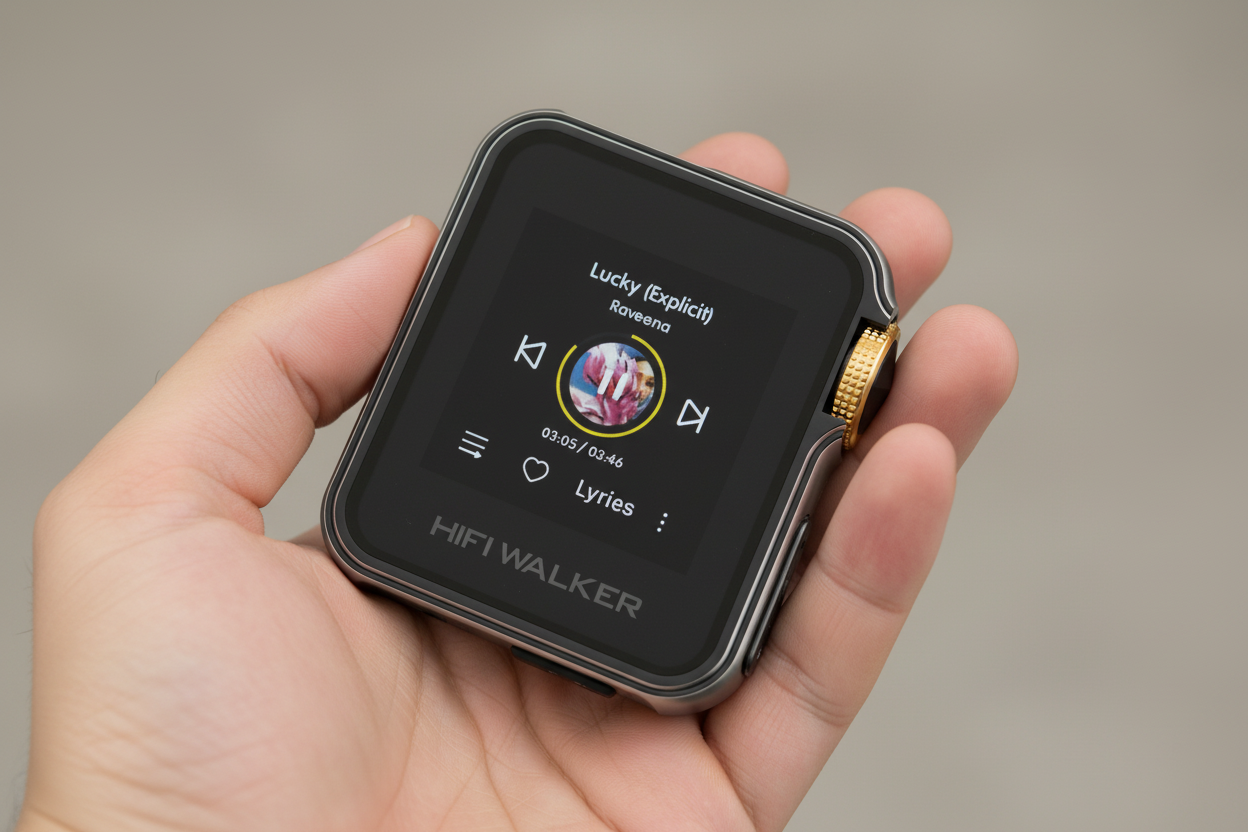
The HIFI WALKER H2 Mini Hi-Res Music Player has earned its reputation as a reliable companion for music lovers seeking exceptional portable audio quality. However, like any sophisticated electronic device, you may occasionally encounter minor issues that can be easily resolved with the right approach.
Common User Concerns
- Charging problems or battery drain
- Audio playback interruptions
- File format compatibility issues
- Button responsiveness problems
Our Troubleshooting Approach
- Step-by-step diagnostic methods
- Quick fixes that work 90% of the time
- When to contact customer support
- Preventive maintenance tips
This comprehensive guide addresses the most frequently reported issues with the H2 Mini, providing you with proven solutions that will have your music player performing optimally again. Whether you're dealing with power management, audio quality, or operational concerns, we've got you covered.

- ►1. Introduction: Keep Your HIFI WALKER H2 Mini Running Smoothly
- ►2. Power and Charging Issues: Battery Management Solutions
- ►3. Audio Playback Problems: Sound Quality Diagnostics
- ►4. File Management and Storage Solutions
- ►5. Interface and Navigation Troubleshooting
- ►6. When to Seek Professional Support
- ►7. Preventive Maintenance Tips
- ►8. Conclusion: Maintaining Your Audio Investment
Power and Charging Issues: Battery Management Solutions
Battery and charging problems are among the most common concerns reported by DAP player users. The H2 Mini's compact design houses a sophisticated power management system that occasionally requires attention to maintain optimal performance.
Check Cable and Adapter
Ensure you're using the original USB cable and a quality 5V adapter. Third-party cables may not provide consistent power delivery to your portable music player.
Perform a Soft Reset
Hold the power button for 15-20 seconds to force restart. This clears temporary glitches that may affect battery reporting or charging circuits.
Clean Charging Port
Use compressed air or a soft brush to remove dust and debris from the USB-C port. Accumulated particles can prevent proper connection.
Battery Calibration
Let the device drain completely, then charge to 100% uninterrupted. This helps recalibrate the battery management system.
If these steps don't resolve your power issues, the problem may be hardware-related. Contact HIFI WALKER support for warranty service, especially if your device is less than one year old.
Audio Playback Problems: Sound Quality Diagnostics
Audio-related issues can significantly impact your listening experience with the H2 Mini. These problems often stem from file format conflicts, incorrect settings, or output configuration mismatches rather than hardware defects.
Sound Quality Issues
- Distorted or crackling audio
- One channel cutting out
- Volume too low/high
- No sound from specific files
Quick Diagnostic Steps
- Test with different headphones
- Try various audio file formats
- Check gain and volume settings
- Verify file integrity on computer

Verify File Compatibility
Ensure your music files are in supported formats (FLAC, WAV, MP3, DSD). Corrupted or unsupported files may cause playback issues.
Adjust Output Settings
Check if you're using the correct output mode for your headphones. High-impedance headphones may need different gain settings.
Clean Headphone Jack
Remove dust and debris from the 3.5mm jack using compressed air. Poor connections can cause intermittent audio problems.
Most audio issues resolve once you identify whether the problem lies with the source files, output settings, or physical connections. The H2 Mini's robust DAC circuitry rarely fails, making software-related solutions highly effective.
File Management and Storage Solutions
Proper file management is crucial for optimal performance of your portable music player. The H2 Mini supports microSD cards up to 512GB, but organizing your library correctly prevents many common operational issues.
Format SD Card Properly
Use exFAT formatting for cards larger than 32GB. This ensures compatibility and prevents file system errors that can corrupt your music library.
Organize Folder Structure
Create clear folder hierarchies: Artist > Album > Tracks. Avoid special characters in file names that might cause recognition issues.
Manage Database Updates
Allow the device to complete database scanning after adding new files. Interrupting this process can cause library inconsistencies.

Remember that the H2 Mini needs time to index large music libraries. If you're adding hundreds of albums, be patient during the initial scan process for best results.
Interface and Navigation Troubleshooting
The H2 Mini's intuitive interface occasionally experiences responsiveness issues or display problems. These are typically software-related and can be resolved through systematic troubleshooting approaches.
Common Interface Problems
- Buttons not responding
- Screen freezing during navigation
- Menu options not working
- Slow response to input
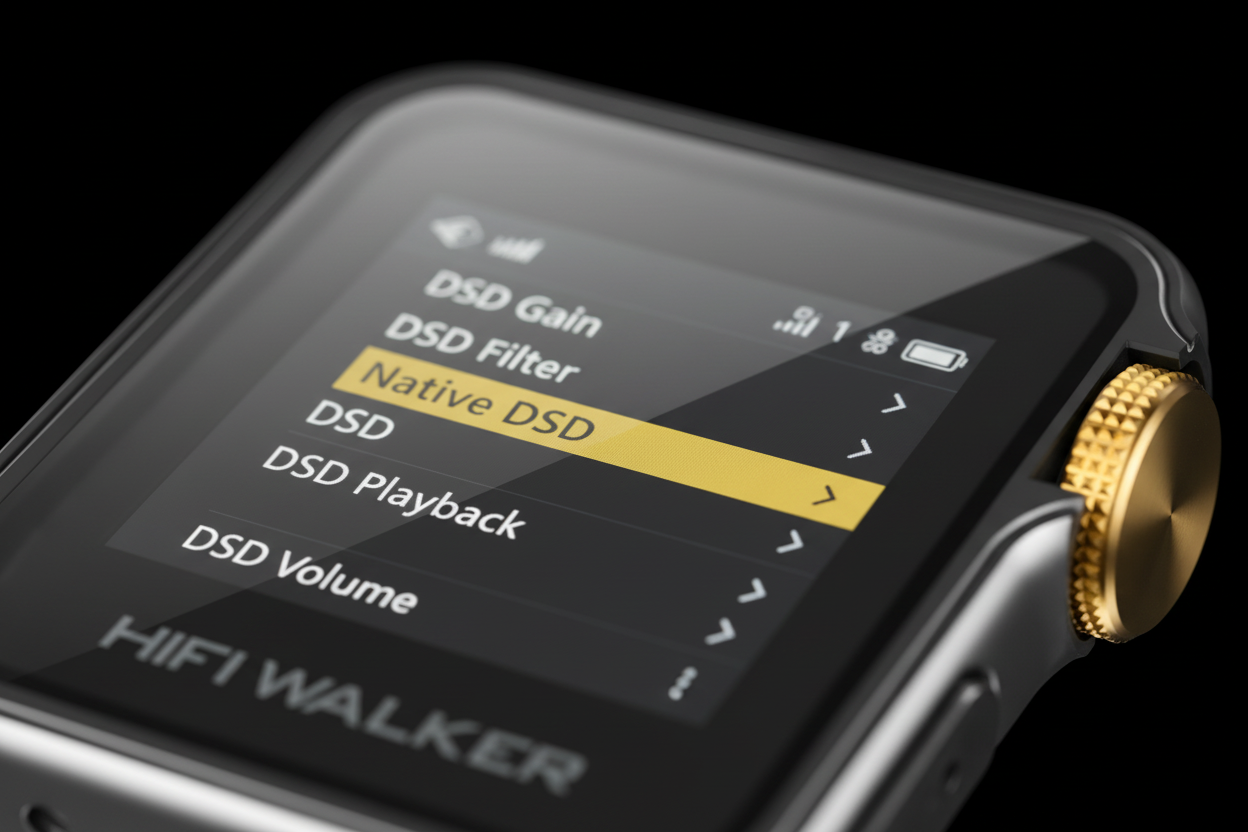
Resolution Strategies
- Firmware update installation
- Factory reset procedure
- Button cleaning maintenance
- Memory optimization
Update Firmware
Check the HIFI WALKER website for the latest firmware version. Updates often resolve interface bugs and improve system stability.
Clear Cache Memory
Navigate to system settings and clear cached data. This frees up resources that may be causing sluggish performance.
Factory Reset (Last Resort)
Back up your settings, then perform a factory reset through the system menu. This resolves persistent software conflicts.
Interface problems rarely indicate hardware failure with the H2 Mini. Most issues stem from software conflicts or memory management, making the solutions above highly effective for restoring smooth operation.
↑ Back to Top
Back to Top ↑When to Seek Professional Support
While most H2 Mini issues can be resolved through user troubleshooting, certain symptoms indicate hardware problems that require professional attention or warranty service.

HIFI WALKER provides comprehensive warranty support for hardware-related issues. Before contacting support, document the specific symptoms, troubleshooting steps you've attempted, and your device's firmware version to expedite the resolution process.
Preventive Maintenance Tips
Regular maintenance prevents many common issues from developing with your music player. Simple preventive measures can significantly extend your device's lifespan and maintain optimal performance.
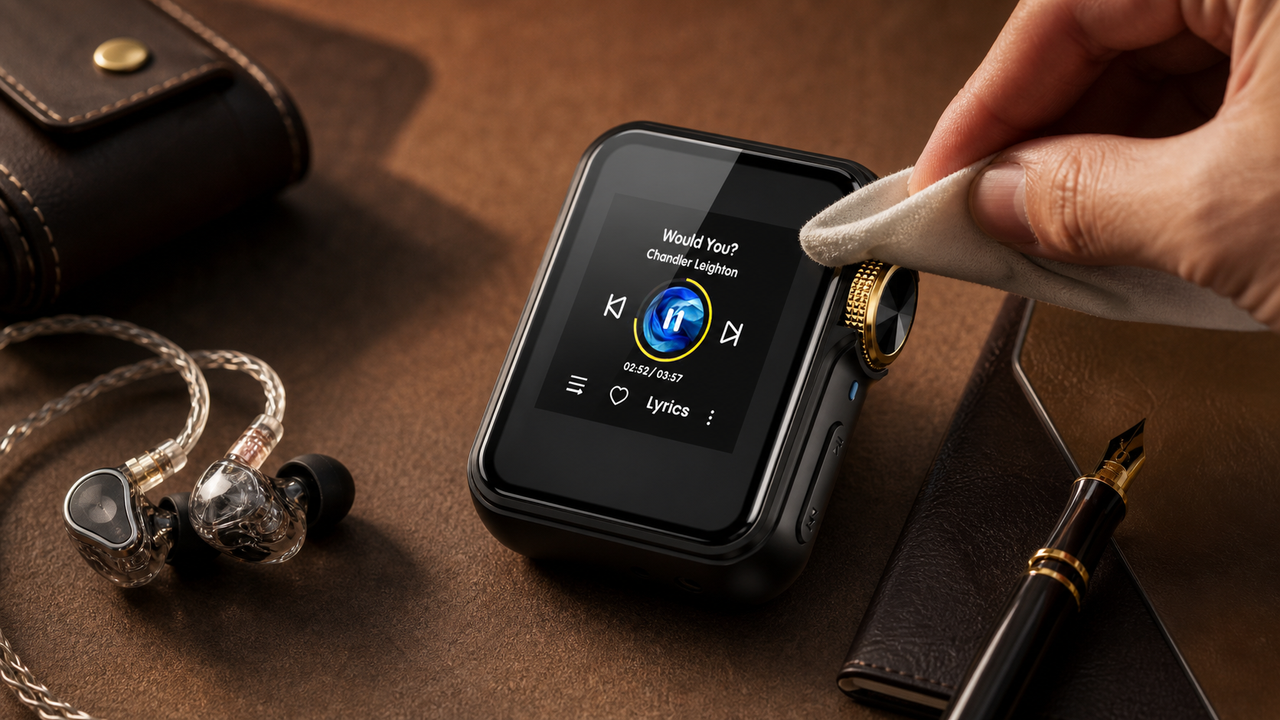
Regular Cleaning Routine
Clean the device weekly with a soft, dry cloth. Pay special attention to the headphone jack and charging port to prevent debris buildup.
Proper Storage Practices
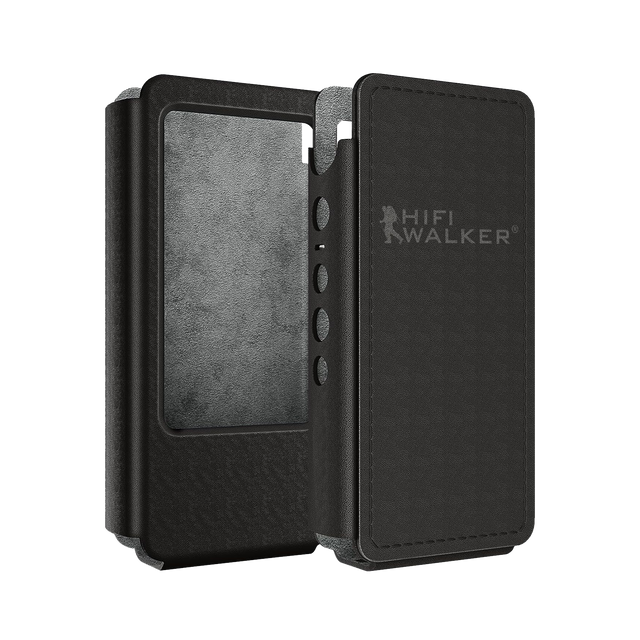
Store your H2 Mini in a protective case when not in use. Avoid extreme temperatures and humid environments that can affect internal components.
Battery Health Management
Avoid letting the battery completely drain regularly. Charge when it reaches 20-30% remaining for optimal battery longevity.
Software Updates
Check for firmware updates monthly. These updates often include performance improvements and bug fixes that prevent future issues.

Investing in quality accessories like a protective case not only prevents physical damage but also maintains your device's resale value. For more audio equipment guides, visit our comprehensive DAP resources.
Conclusion: Maintaining Your Audio Investment
The HIFI WALKER H2 Mini represents excellent value in the portable audio market, combining professional-grade sound quality with user-friendly operation. Most technical issues can be resolved through systematic troubleshooting, ensuring your investment continues delivering exceptional audio experiences.
Key Takeaways
- 90% of issues are software-related
- Regular maintenance prevents problems
- Proper file management is crucial
- Professional support available when needed
Next Steps
- Bookmark this troubleshooting guide
- Join the HIFI WALKER community
- Consider protective accessories
- Explore our full portable audio collection

Remember that quality audio equipment like the H2 Mini is designed for longevity. With proper care and prompt attention to any issues that arise, your DAP player will provide years of audiophile-quality music enjoyment.
Frequently Asked Questions
Q1: Why won't my H2 Mini charge even with the original cable?
First, try a different power adapter or USB port on your computer. If the charging port appears clean and the cable works with other devices, the issue may be internal battery management. Contact HIFI WALKER support if the device is under warranty, as this typically indicates a hardware problem requiring professional attention.
Q2: My music files won't play or sound distorted - what should I check?
Start by testing the same files on your computer to verify they're not corrupted. Then check your H2 Mini's gain settings match your headphone impedance. Try different headphones to isolate whether the issue is with your audio gear or the player itself. Finally, ensure your files are in supported formats (FLAC, WAV, MP3, DSD).
Q3: How do I fix slow or unresponsive navigation on my H2 Mini?
Try clearing the device's cached data through the system settings menu. If that doesn't help, check for firmware updates on the HIFI WALKER website. For persistent issues, a factory reset may be necessary - just remember to back up your settings and playlists first.
Q4: What's the proper way to add music to avoid library problems?
Format your microSD card as exFAT for best compatibility. Create organized folder structures (Artist > Album > Tracks) and avoid special characters in file names. After adding music, let the H2 Mini complete its database scan without interruption - this prevents library corruption and ensures all files are properly indexed.
Q5: When should I contact customer support instead of troubleshooting myself?
Contact support if you experience persistent hardware issues like inability to power on after trying different chargers, physical damage to ports or buttons, consistent overheating, or audio problems that persist across different files and headphones. Document your troubleshooting steps and firmware version to help expedite the support process.