


Last updated: June 3, 2026
How to Connect HiBy Link
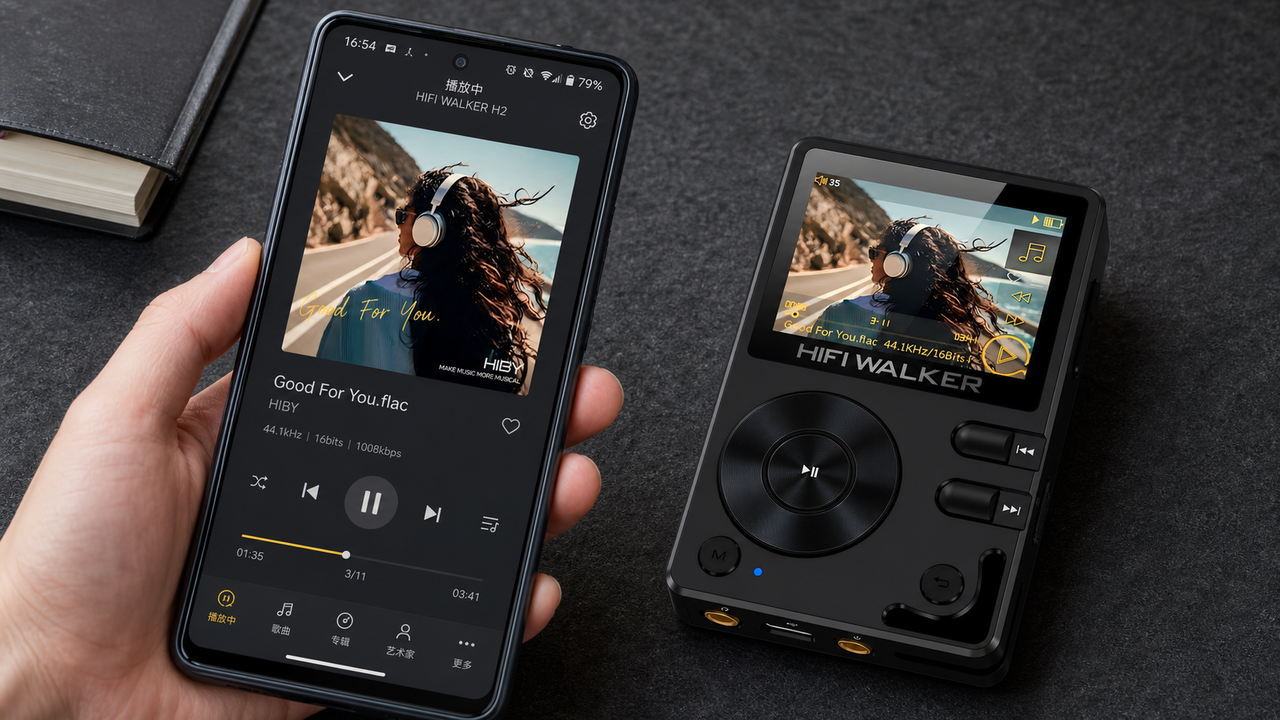
This guide shows you what HiBy Link is, when to use it, and how to connect your HIFI WALKER player to your phone step by step. If you want to control the player from your phone without constantly touching the device itself, this is the feature you need.
What Is HiBy Link?
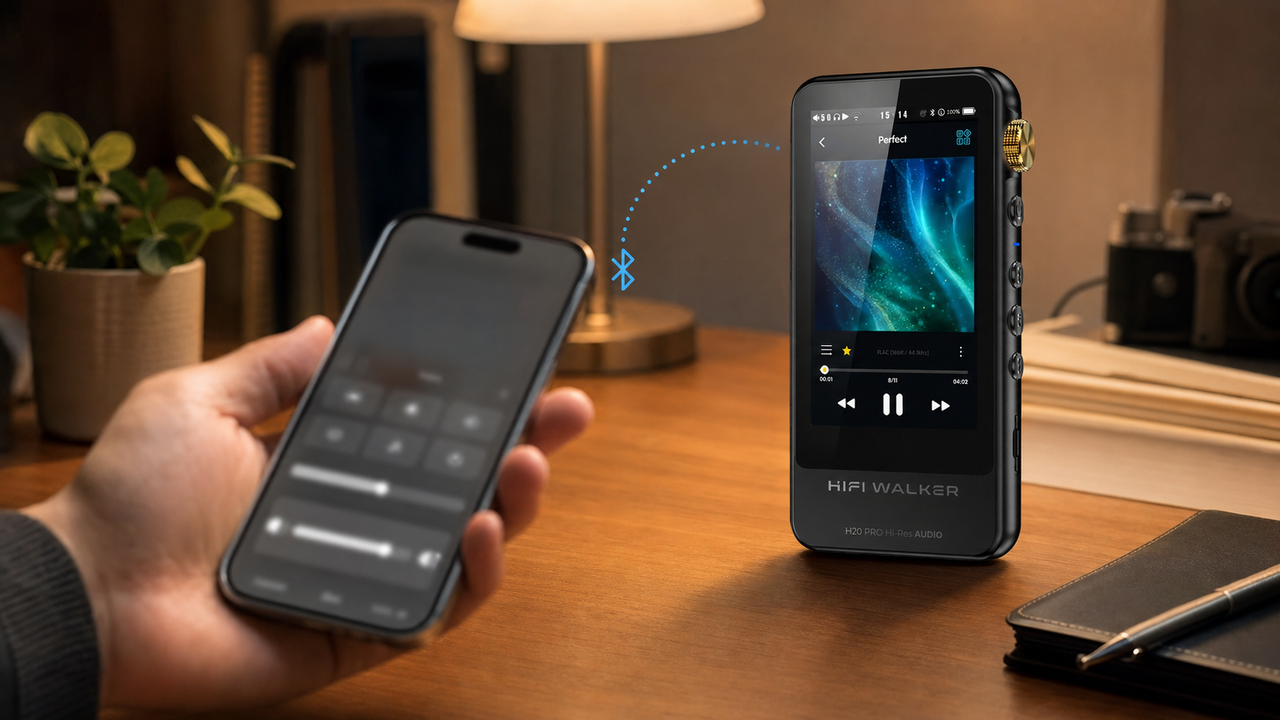
HiBy Link is a remote-control feature inside the HiBy Music app. It lets your phone act like a controller for your compatible HIFI WALKER player.
In simple terms: your music is still being played by the player, but you can use your phone to browse songs, switch tracks, pause, play, and manage playback more conveniently.
What HiBy Link Is Useful For
- You want to keep the player in your pocket or bag and control it from your phone.
- You are using the player at a desk, in a car, or connected to speakers and do not want to keep reaching for the device.
- You want a bigger phone screen to browse tracks and playlists more easily.
- You want the sound to still come from the player, not directly from the phone.
When Should You Use HiBy Link?
HiBy Link is most helpful when you want the convenience of phone control but still want the player to handle the music playback.
Before You Start
Before trying to connect, make sure all of the following are ready:
- Your HIFI WALKER player is powered on.
- Bluetooth is turned on on both the player and the phone.
- You have installed the HiBy Music app on your phone.
- You allow the app to use Bluetooth permissions when prompted.
- The player's HiBy Link function is enabled.
Download HiBy Music here:
- iPhone / iPad: HiBy Music on the App Store
- Android: HiBy Music on Google Play
Android Phone Tutorial
If you are using an Android phone, follow the steps below. You can also tap the video card to open the full Android tutorial.
Direct Android video link: https://cdn.shopify.com/videos/c/o/v/370ebace802e4ac8ac6f9a7d4cc741d6.mp4
Install and open HiBy Music
Open the HiBy Music app on your Android phone and allow Bluetooth access if the app asks for permission.
Enable HiBy Link in the app
In the HiBy Music app, tap the HiBy Link icon and turn the client on.
Turn on HiBy Link on the player
On your HIFI WALKER player, go to the HiBy Link setting and switch it on.
Select your player in the app
In the HiBy Link device list inside the app, find your player model and tap it.
Pair and confirm connection
The first time you connect, Bluetooth pairing may be required. Once the connection succeeds, you can browse and control the player from your phone.
iPhone Tutorial
If you are using an iPhone, the overall process is similar, but iOS permission prompts are often the main reason people get stuck. You can also tap the video card below to open the iPhone tutorial directly.
Direct iPhone video link: https://cdn.shopify.com/videos/c/o/v/09dd2009d7d5489fa0dc16e446172275.mp4
Install and open HiBy Music
Download HiBy Music from the App Store, open it, and allow Bluetooth access.
Turn on HiBy Link inside the app
Tap the HiBy Link icon in the app and enable it.
Turn on HiBy Link on the player
Make sure HiBy Link is enabled on the HIFI WALKER player too.
Tap your player model in the device list
Inside the app, find your player and tap it to begin pairing.
Complete Bluetooth pairing
If iPhone asks for Bluetooth pairing confirmation, accept it. After that, your phone should be able to control playback on the player.
What You Can Do After Connecting
Once HiBy Link is connected successfully, you can usually do the following from your phone:
- Browse songs on the player
- Play / pause music
- Skip tracks
- Choose albums or playlists more easily
- Control the player without taking it out of your pocket or bag
Troubleshooting: If It Still Does Not Connect
If HiBy Link is not working, the problem is usually one of these simple issues:
Quick Summary
HiBy Link lets you use your phone as a remote control for your HIFI WALKER player. If you want easier browsing, easier playback control, and less need to handle the player directly, it is a very useful feature. If you get stuck, the most common fixes are checking Bluetooth permissions, turning HiBy Link on at both ends, and reconnecting from scratch.