


HIFI WALKER H2 · Rockbox installation guide
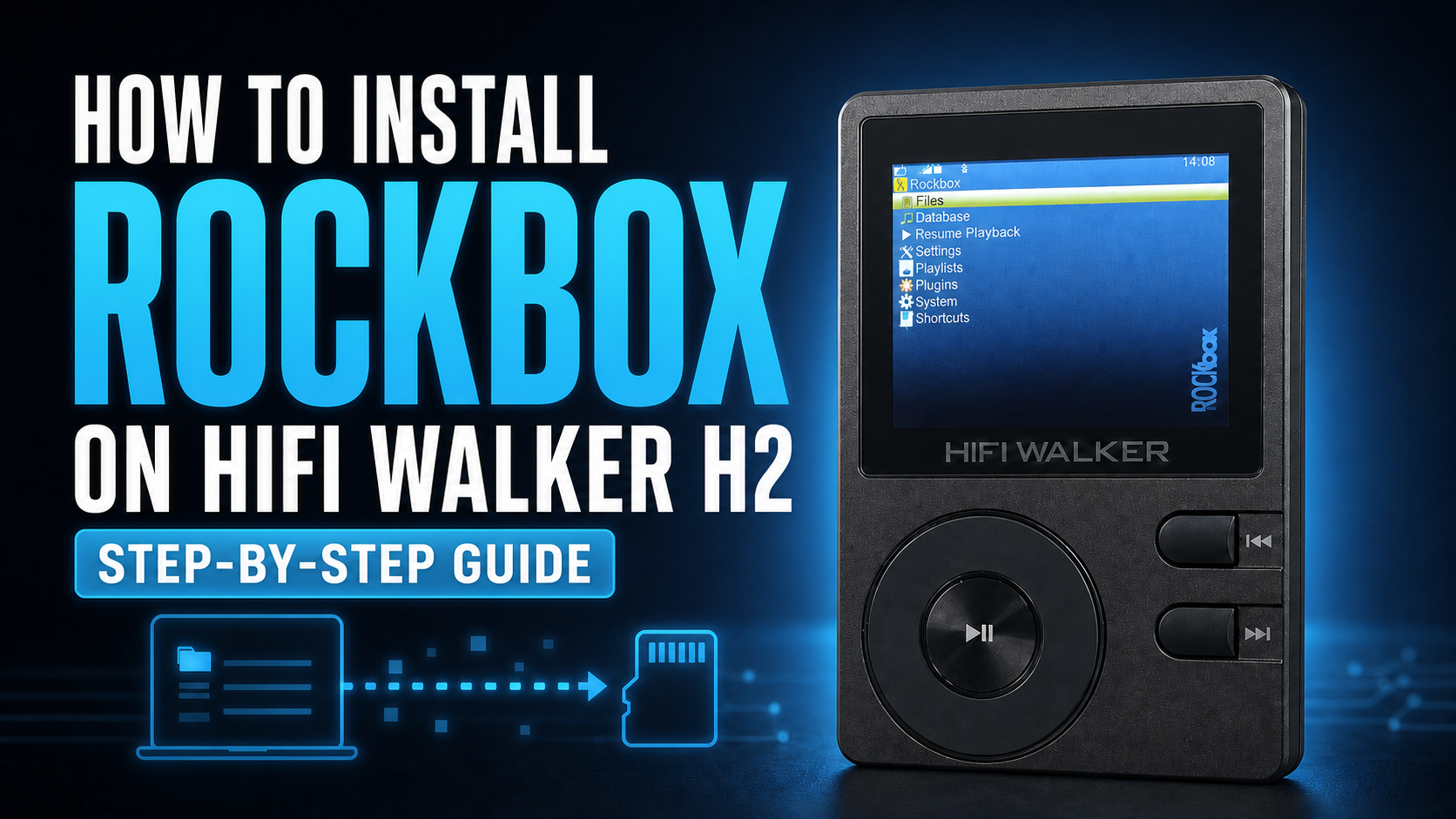
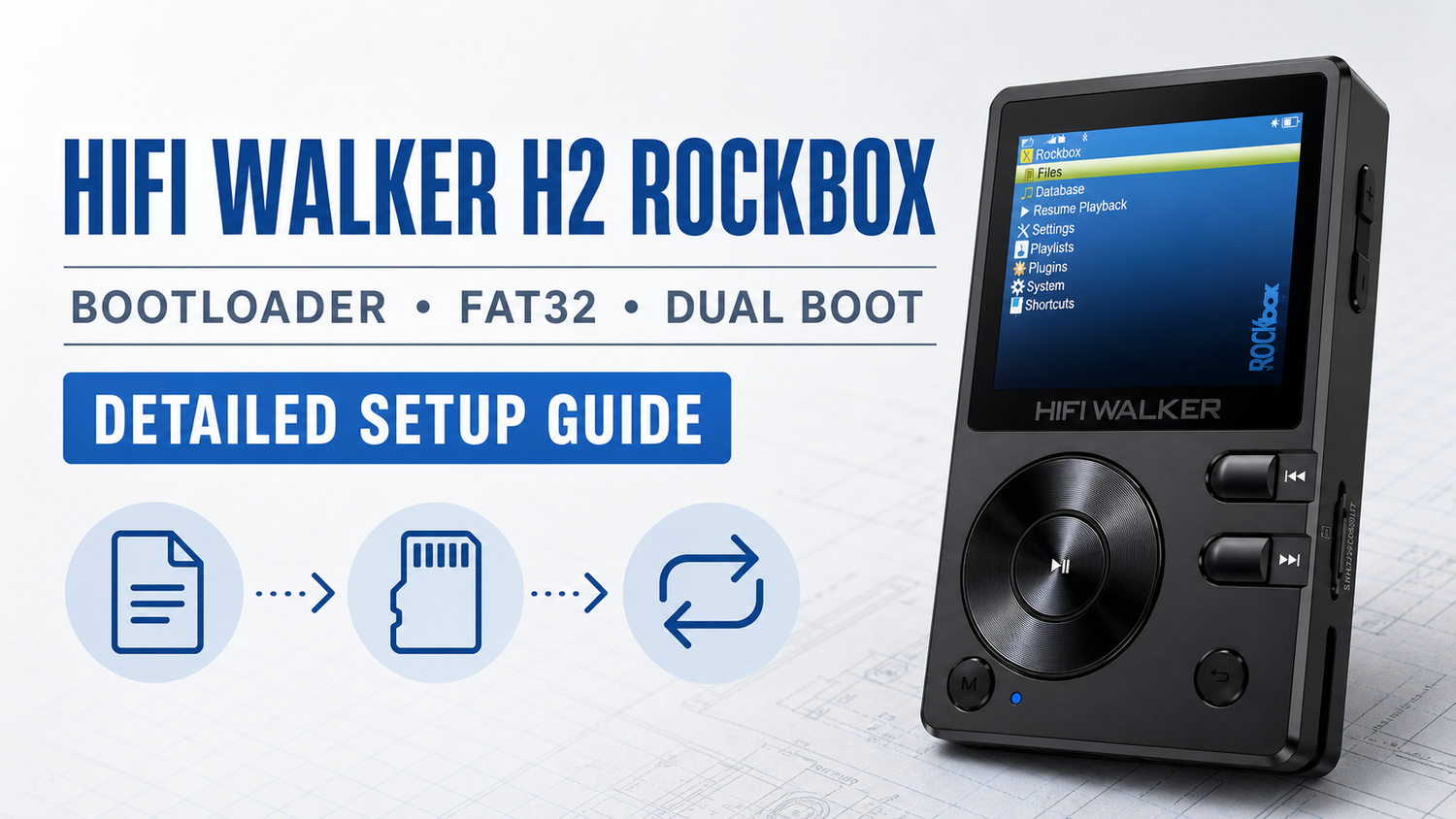
Learn how to install Rockbox on the HIFI WALKER H2, from formatting the TF card to starting Rockbox and switching back to the original H2 system.
This illustrated HIFI WALKER H2 Rockbox tutorial follows the same clear sequence as our step-by-step video. Rockbox is third-party software, so we recommend keeping the official H2 software unless you specifically want Rockbox features.
Most important: before installing anything, record the full official firmware version shown on your H2. Write it down and take a clear photo. You need the exact version to choose the matching bootloader and to identify compatible official recovery firmware if it is ever needed.
Watch the H2 Rockbox installation video
Prefer to watch the installation first? Open either video, then keep this written guide available for the download links and checks.
YouTube Shorts: https://www.youtube.com/shorts/qUH13YJC9mw
X video: https://x.com/Info003walker/status/2079500592859455711
Instagram video: https://www.instagram.com/p/DbDS8zWvI_Z/
Facebook video: https://www.facebook.com/share/v/18kaXLsGfW/
TikTok video: https://www.tiktok.com/@hifiwalker_promo/video/7665282182746819854
Table of contents · click to open or close
What you need
Format the TF card
Back up every file on the TF card first because formatting deletes its contents. On the H2, open System Settings → Reset → Format TF card, then select Yes. The card must be formatted as FAT32 before you continue.
Before continuing: confirm that your music and other files have been copied somewhere safe.
Save the official firmware version
On the H2, open System Settings → About the Player → Version. Write down the complete official firmware version and take a clear photo of the screen. Keep this information outside the player.
Do not skip this step. The exact version determines which HIFI WALKER H2 Rockbox bootloader you need. If the player ever needs to be restored, the same version helps identify the matching official firmware.
Download the matching bootloader
On your computer, open the Rockbox page below and find the H2 bootloader that matches the firmware version recorded in Step 2. Double-check the row before downloading; do not choose a bootloader by guesswork.
Open the Rockbox HIFI WALKER H2 bootloader page


Rename the file to update.upt
Rename the downloaded bootloader file to update.upt. Turn on file-name extensions in your computer's file browser first, so you do not accidentally create update.upt.upt.
Copy update.upt to the TF card
Copy update.upt directly to the TF card root. The root is the top level of the card; do not place the file inside a folder.

Install the Rockbox bootloader
Return to the H2 and open System Settings → Firmware Update → Yes. The bootloader installs automatically. When the screen shows “Error loading Rockbox. File not found.”, do not panic. At this stage, that message means the bootloader is installed and the Rockbox files still need to be added.


Download the Rockbox firmware
Connect the H2 to your computer. In the bootloader menu, select USB mode and press the Play button. Then download the Native Rockbox build below. The filename must include erosqnative.
Download rockbox-erosqnative-4.0.zip

Extract Rockbox directly to the TF card
Open the downloaded ZIP archive and extract its contents directly to the TF card root. Do not create an extra folder. When extraction is complete, the card root should contain a folder named .rockbox.
Correct card structure: TF card → .rockbox folder.
Start Rockbox
Safely disconnect the USB cable. In the bootloader menu, select Rockbox, the first option, and press Play. The H2 completes the startup process. Rockbox is now installed and running on your HIFI WALKER H2.


How to switch between the H2 systems
Start with the player powered off. Use the following button combinations to open the bootloader menu or choose the system you want.
- Power + Volume Up: open the bootloader menu.
- Power + Play: start the original HIFI WALKER H2 system.
- Normal power-on: start Rockbox.


That completes the HIFI WALKER H2 Rockbox installation. Keep the firmware version you recorded in Step 2 somewhere safe.
Need help with your HIFI WALKER H2?
Email sales@hifiwalker.com. Include your order number and a clear description of the problem. If possible, attach the firmware version recorded before installation and a photo of the error screen.