


How to Use an MP3 Player: The Short Version First
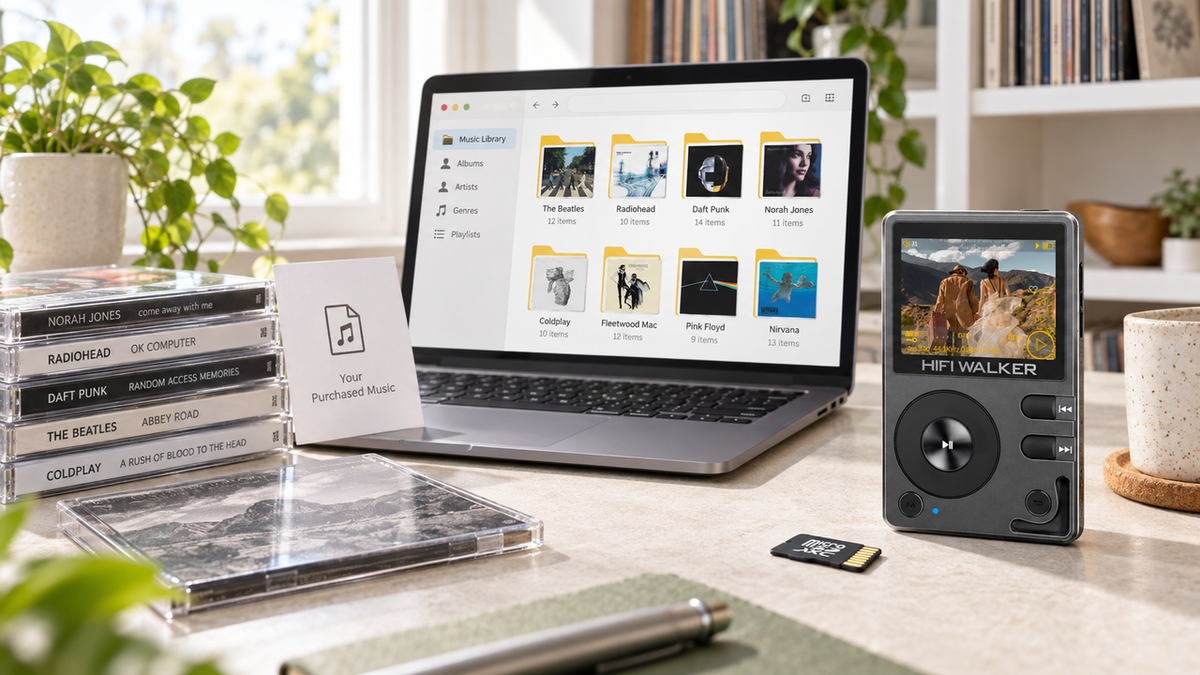
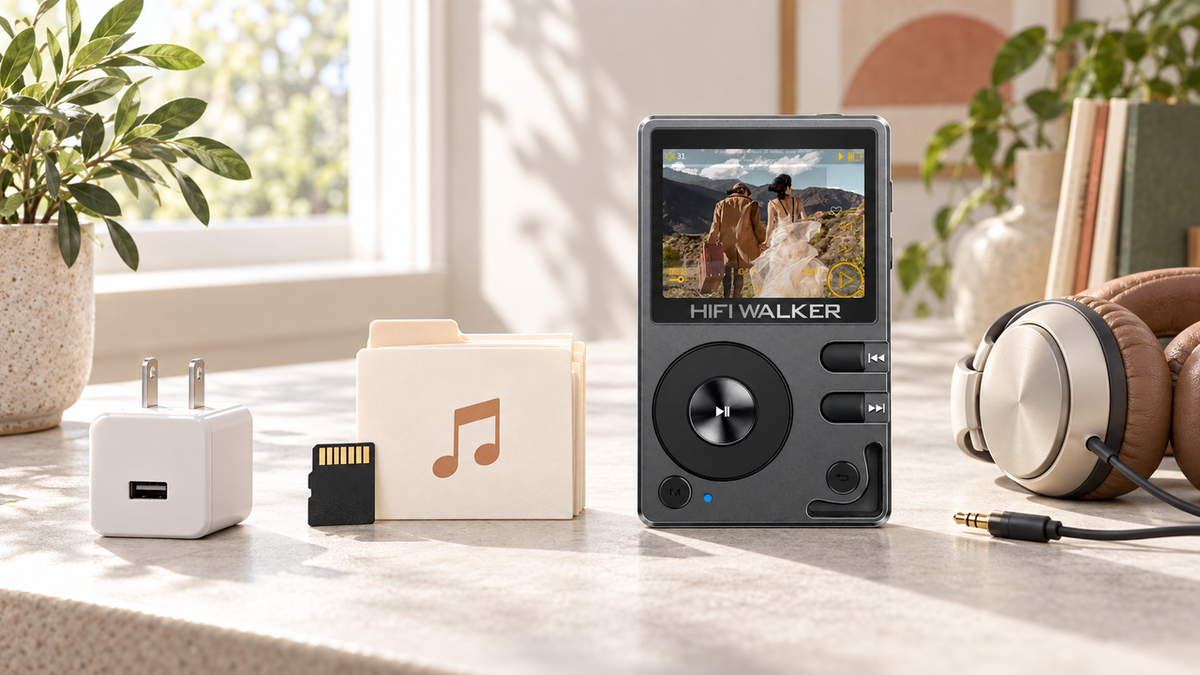
Simpler than setting up a new phone: charge it, power it on, get your music files onto its card, then plug in headphones and press play. This guide follows the HIFI WALKER Linux players - H2 Mini, H2, H2 Touch, H20 Pro and H20 Ultra - which connect to a computer as USB mass storage. Android-based players such as the G7 line behave differently, and that is flagged where it matters.
Most of the confusion does not come from the player. It comes from expecting it to work like a phone app, when a local-file player is closer to a storage drive with a screen and a headphone amplifier attached. Once that clicks, the rest follows.

Expert Insights: Key Takeaways
- On a USB mass-storage player the setup is closer to a flash drive than a smartphone - no account, no app store, no login screen. Android-based players work differently, so check which kind you have before following any transfer guide.
- Battery level is the cheapest thing to rule out when a new player will not start. Check it first because it is quick, not because it is proven to be the usual cause.
- A charge-only cable will power the player but never show it as a drive - worth ruling out with a second, data-capable cable before assuming a fault.
- ►1. How to Use an MP3 Player: The Short Version First
- ►2. What You Need Before You Start
- ►3. Step-by-Step: First Setup and First Playback
- ►4. If You Would Rather Not Use a Computer
- ►5. Bluetooth, Wired Headphones, and Basic Settings
- ►6. Why Some People Want a Player That Doesn't Connect to the Internet
- ►7. Choosing Your First Player: What Actually Matters
- ►8. Troubleshooting: When Something Doesn't Work
What You Need Before You Start
Before touching any buttons, gather three things: the player, a cable that supports data transfer (charge-only cables are common and will never show the player as a drive), and the music files you want on it. Check which connector your model uses - most current players are Type-C, but not all. If your music is still locked inside a streaming app, that is a separate problem worth sorting out first.
What Confuses First-Timers
- Expecting an app store or login screen
- Assuming Wi-Fi means streaming apps work
- Not knowing where the storage card slot is
- Trying to drag songs before the player is recognized as a drive
What Actually Happens
- On a USB mass-storage player, it appears on the computer as a plain drive
- You copy files the same way you would copy them to a USB stick
- A microSD or T Card slot handles storage on the Linux models covered here
- Android or MTP players need a different transfer method, especially on a Mac - check your model's instructions
The file-copy procedure itself is covered in our guide on how to put music on an MP3 player. This page picks up from there: powering on, finding your tracks, and using the controls.
The first ten minutes with a new player
A lot of the friction in setting up a dedicated player has nothing to do with the device itself — it's the habits carried over from smartphones.
None of this is complicated, but none of it is obvious either if the only setup experience you have is a smartphone app store.
Step-by-Step: First Setup and First Playback
Here is the run from box to first track. Take them in order. Battery level is listed first because it is the easiest thing to rule out, not because we have any data ranking it against other causes.
Charge Before the First Session
Give the player a charge before the first session. HIFI WALKER lists charging times of about 2 hours for the H2 Mini, 3 hours for the H2, H2 Touch and H20 Pro, and 3.5 hours for the H20 Ultra. If the player does not respond later, battery level is one of the first things to check.
Power On and Check the Screen
Press and hold the power button rather than tapping it; the hold time varies by model, so check the manual if a short press does nothing. You should reach a home screen with a music library and a settings entry.
Get Your Music Onto the Card
On these Linux models the player connects as USB mass storage and appears as a drive, so you copy FLAC, WAV or MP3 files across and eject safely before unplugging. Android or MTP players need a different method, especially on a Mac - follow that model's instructions. The full copy procedure is in the transfer guide linked above.
Update the Library if Tracks Are Missing
If new files do not appear in the music list, use the library-update option described in your player's manual. Menu names and locations differ between models, so check the manual rather than assuming a particular button sequence rebuilds the index.
Plug In Headphones and Start Low
Connect your headphones before you press play, set the volume low, then bring it up. On models with more than one output, check which one is selected in the output setting - the H20 Pro and H20 Ultra have both a 3.5mm and a 4.4mm balanced output, and several models also offer a line-out function, so check your model's spec sheet for what each jack does.
Learn the Basic Controls
Before your first longer session, find play/pause, next and previous track, volume, and the screen or key lock. Layouts differ: the H2 and H2 Touch use six physical buttons, the H20 Ultra adds a rotary volume knob alongside its touchscreen. Your manual has the map for your model.

If You Would Rather Not Use a Computer
Not everyone wants to involve a laptop. A microSD card reader on a phone, or a card moved across from another device, both work on the models with a card slot.
The full breakdown is in our guide on how to put music on an MP3 player without a computer, which covers card readers, phone-to-card transfers, and what to do if your phone has no card slot.
Some models also support Wi-Fi song transfer - the HIFI WALKER H2 Touch Hi-Res Audio Player, for example, can receive files over a network connection. That is file transfer, not a streaming app: the H2 Touch does not run streaming services.
Bluetooth, Wired Headphones, and Basic Settings
Once music is loaded, the settings menu is where most people spend their first real session. To pair Bluetooth headphones, put the headphones into pairing mode first, then open the player's Bluetooth menu and select them from its device list. Menu names and layout vary between models, so use your manual as the reference rather than a generic sequence.
On firmware: check for an update only when the manufacturer recommends one for your model and current version, through the official HIFI WALKER Download Center. If it reports that no update is needed, or that no compatible update exists, keep the firmware you have - a higher version number is not by itself a reason to install it. Separately, if you have been using wireless earbuds and want to try wired listening, our guide on MP3 players with Bluetooth covers how the wireless and wired sides work together on the same device.

↑ Back to Top
Back to Top ↑Why Some People Want a Player That Doesn't Connect to the Internet
A recurring search is for an MP3 player that doesn't connect to the internet at all — no notifications, no background app updates, nothing pulling attention away from the music. That's less a limitation and more the entire point for a lot of buyers.
Players like the HIFI WALKER H20 Pro Hi-Res Audio Player and H2 Mini Hi-Res Music Player are built around local file playback rather than app ecosystems. There is no social feed to open by accident, no signed-in account, nothing syncing in the background - just a library of the files you put there. A local-file player without an app store keeps music separate from social-app notifications; the illustration below compares features, not measured notification counts.

A Phone Doing Music Duty
- Notifications and other apps share the screen and the battery
- Battery split between calls, apps, and music
- Streaming quality set by the service, account tier, app settings and network
A Dedicated Player
- No app switching, no pop-ups
- Battery dedicated entirely to playback
- Plays the local files you put on it, at whatever quality those files are
Choosing Your First Player: What Actually Matters
For a true first player, simplicity beats specs. A clear menu, a physical volume control, and straightforward file transfer matter more on day one than chasing the highest-spec DAC chip on paper.

For someone who wants to explore sound quality further while keeping setup simple, the H20 Ultra Hi-Res Audio Player uses a touch screen and a rotary volume knob, which feels closer to a familiar phone-style interface while still being a dedicated local-file player.

Either way, browsing the full HIFI WALKER MP3 player collection is a reasonable next step once you know roughly what screen size and control style you prefer.
Troubleshooting: When Something Doesn't Work
Here is what to check before assuming the unit itself is faulty. These are listed as checks, not ranked by how often they happen - no failure statistics are cited here.
Symptom
- Player won't turn on
- Computer doesn't recognize the player
- Songs don't show up after transfer
- Bluetooth won't pair
First Thing to Try
- Charge it, then press and hold the power button; check the manual for the hold time your model needs
- Try a different cable - many cables are charge-only and carry no data
- Use the library-update option described in your player's manual, or restart the player
- Delete the old pairing on both devices and pair again from scratch
If files copied over but will not play at all, check the format. The players here read FLAC, WAV and MP3; anything else should be checked against the model's listed formats. A file with an unusual extension, or one that did not finish downloading, can sit in the library looking normal while refusing to play.
What's on the other side of a simple file transfer
Once dragging files onto a player feels routine, a few more doors tend to open — not because the player demands it, but because the format does.
None of it requires starting over — it's the same player, just used a little further than the first ten minutes.
Frequently Asked Questions
Q1: How do I use an MP3 player for the first time?
Charge it, power it on, then get your music onto its card. On the HIFI WALKER Linux models the player connects as USB mass storage and appears as a drive, so you copy files across and eject safely; Android or MTP players use a different method, especially on a Mac. Then plug in headphones, start at a low volume, and pick a track. If new files are missing from the list, use the library-update option described in your player's manual.
Q2: How do I set up an MP3 player without any technical experience?
No special software is needed for a USB mass-storage player: connect it, copy files across, disconnect safely. Use a cable that carries data, not a charge-only one. Android or MTP players may need a different transfer method - check your model's instructions. If you would rather skip the computer, a microSD card reader on your phone works on the models with a card slot.
Q3: Can I use an MP3 player without connecting it to the internet?
Yes — dedicated players like the H20 Pro Hi-Res Audio Player and H2 Mini Hi-Res Music Player are built around playing local files rather than streaming apps, so there's no requirement to connect to Wi-Fi or any online account to use them day to day.
Q4: Why won't my new MP3 player turn on?
Check the battery level, the cable and the charger first, and check the power-button instructions in the manual - some models need a press and hold rather than a tap. If it still will not start after charging, contact support rather than assuming a particular cause.
Q5: Do I need special software to load music onto an MP3 player?
No dedicated app is required for most models — you drag and drop audio files directly from your computer's file browser. Some models with Wi-Fi, like the H2 Touch Hi-Res Audio Player, also support transferring songs over a network connection.