


Can You Keep Your iTunes Music When You Replace an iPod?
You can keep listening to compatible, unprotected music files from your iTunes collection on a dedicated player such as the HIFI WALKER H2. You copy those files to its microSD card rather than syncing the device through iTunes like an iPod. Want to take your favorite albums with you again? Start by checking the music you already have.
Searching for iPod alternatives that work with iTunes often comes from a simple wish: the player can change, but the music should stay. You may have albums collected over years, recordings imported from CDs, and songs that still remind you of a particular trip. A new listening device can give those files another place to play.
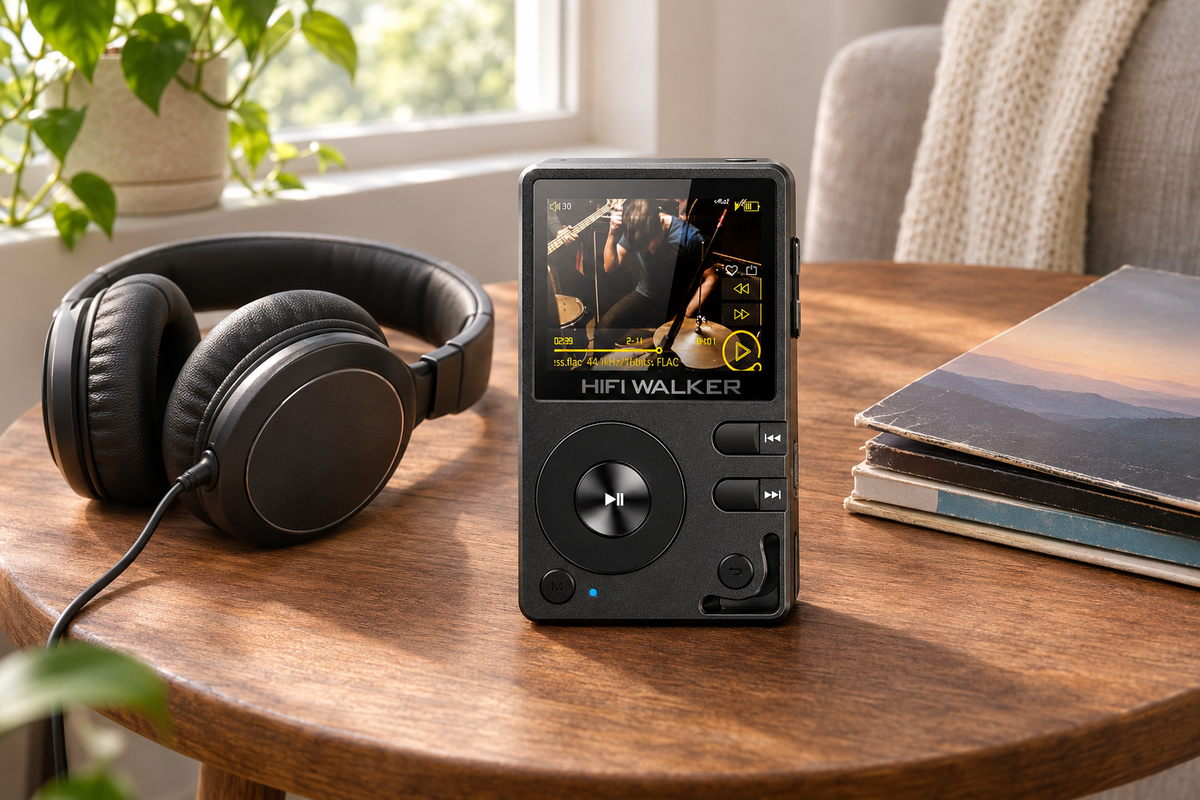
The HIFI WALKER H2 is a dedicated music player for local audio files, with a screen and physical controls for choosing what to hear. It is worth considering when you want your own collection on a separate device. Before choosing it, check what you need to preserve: the recordings themselves, your listening order, or the automatic management you had with an iPod.
View the HIFI WALKER H2 to see the player, its controls, and the current product options.
Expert Insights: Key Takeaways
- Check the recordings, playlists, and management habits you want to preserve before choosing an iPod replacement.
- The H2 plays compatible local files copied to microSD; native iTunes syncing is a separate requirement.
- For large collections, plan around file size and track count, and keep your computer library and backup.
- ►1. Can You Keep Your iTunes Music When You Replace an iPod?
- ►2. Playing iTunes Files and Syncing With iTunes Are Different
- ►3. Which Music in Your Library Can You Bring Along?
- ►4. How Will You Manage Your Music After Switching Players?
- ►5. What Happens to Playlists and Your Library Organization?
- ►6. Why Consider HIFI WALKER for Your Existing Collection?
- ►7. Is a Local-File iPod Replacement Right for You?
Playing iTunes Files and Syncing With iTunes Are Different
Start by deciding what you mean by an iPod replacement for your iTunes library. You might want the same songs, an easy way to add new albums, a favorite playlist in the right order, or the exact syncing routine you used before. Those are separate requirements, and knowing which matters most makes the choice much easier.
For an MP3 player that plays iTunes music, file compatibility answers whether a recording can play. Syncing answers a different question: how software keeps the device's selection up to date. The H2 uses a file-copying approach. Your computer remains the home of your original library, and you decide what belongs in the selection you carry.
Which Music in Your Library Can You Bring Along?
Check the recordings you most want to keep, not just whichever file is easiest to find. A collection can combine imported CDs, store purchases, and older recordings with different conditions. Start with the music that would make the new player worthwhile to you.
Apple describes current iTunes Store songs as unprotected iTunes Plus AAC purchases, while older protected purchases can still exist. The H2 lists MP3 and AAC among its supported formats. Check the actual file and its protection status rather than treating the name of the store or the file extension as a guarantee.
Example: an album imported from your own CD. Check that every track is still on your computer in a supported format. For a recording you enjoy from beginning to end, completeness matters as much as the presence of its title in the library.
Example: a purchased album you revisit often. Locate its eligible, unprotected files. Distinguish the original release from alternate versions so you prepare the recording you actually enjoy, rather than relying on the album name alone.
Example: an older purchase that matters to you. Check its protection status and resolve any uncertainty about that file before ordering. A different player does not change a recording's access conditions.

How Will You Manage Your Music After Switching Players?
First locate the songs you own and want to carry. Apple's iTunes file-location instructions for Windows explain how to find the underlying recording. Use the instructions for the app on your computer; menu names can differ between iTunes and the Music app.
Use our HIFI WALKER H2 music-transfer guide for the copying procedure. Here, consider the ongoing routine: what happens when you add or change music after that first transfer?
When you add a new album, prepare it in the computer library first. Download your eligible purchase or import your own recording in a supported format. Confirm the files are complete, then add a copy to your player selection using the model's transfer instructions. You can keep the wider collection on the computer while taking only what you want to hear.
A simple arrangement helps: keep a clearly named preparation folder for additions you intend to copy. After adding those files to the card, note that the addition is complete. You do not need to repeat the entire collection each time. This is a suggested organizational habit, not an automatic feature of the player.
When you change a file on the computer, remember that the card holds another copy. Editing a name, choosing a different version, or replacing a recording in the original collection does not automatically update the existing copy. Decide which version you want on the player and manage that copy deliberately.
Keep originals and a separate backup, and check copied additions before deleting or replacing anything. Leave your music software's working folders where it expects them. This lets you refresh the listening selection without turning the portable player into the only home for years of music.
↑ Back to Top
Back to Top ↑What Happens to Playlists and Your Library Organization?
Song details and library rules need different preparation. Review the file information that helps you recognize your albums, then consider the playlists or app-specific organization you want to retain.
Song titles, artist names, album names, and track numbers are useful details to inspect in your files. These are often called tags: descriptive information associated with a recording. File names and folder names are another part of your organization. Review both, especially when an album contains tracks with similar names or several performers.
A compilation is a good example. You may remember it by the album title rather than by each artist. Check that the files are grouped and named in a way you can recognize, then ask about the player's navigation if browsing compilations is central to your choice. Do not assume a new device will reproduce your computer app's grouping or display layout.
Playlists need both their information and their songs. Apple explains that a playlist export contains information rather than the audio recordings. An exported list can help you remember a sequence, but copying that list alone does not put the songs on the player's card.
For a favorite fixed sequence, identify the recordings and keep a reference to the order you want. The H2 transfer guide covers its supported playlist-file workflow. That gives you a specific process to follow after choosing the player, without assuming an exported iTunes document is a ready-to-play collection.
Ratings, play counts, and Smart Playlist rules belong in a different part of your decision. Preserve them in your computer library if they are important; do not expect them to migrate with a folder of audio. You can still use a computer-generated selection to decide which recordings to copy, while distinguishing that selection from the rules that created it.
To keep iTunes playlists when replacing an iPod, identify whether you need the same songs, a fixed order, or a changing list. Confirm any essential artwork, sorting, or browsing behavior for the new device.
Why Consider HIFI WALKER for Your Existing Collection?
The HIFI WALKER H2 gives compatible local music a dedicated place to play without depending on an internet connection. Its screen and physical controls provide a separate device for enjoying the albums you prepare.
For a large library, check both total file size and track count. The H2 supports microSD expansion up to 512GB and recognizes up to 14,999 songs. Those are different limits. Having space left on a card does not remove the song-count limit, and a collection of larger files can use the available space before reaching that count.
Use your computer to review the size and number of the audio files you actually intend to take, rather than relying only on how many album titles appear in the library app. Count songs separately from artwork and documents, but include all files you plan to copy when estimating space. Leave room for music you may add later.
A large archive can stay on your computer while a selected part travels with you. Consider that approach if the full collection exceeds the player's limits, or if you prefer a smaller selection to browse.
The H2 provides a 3.5mm headphone connection and Bluetooth for wired and wireless listening options. Match the connections to the headphones you enjoy using, then picture the complete setup you will carry. The practical value is your music ready on a separate device, with a way to listen that fits your routine.


Is a Local-File iPod Replacement Right for You?
Use your file checks and preferred management routine to choose the next step. These buying scenarios are examples for you to assess.
Give support a concrete question when you need help. A description such as 'I want to use my own AAC files and preserve this fixed playlist order' is more useful than 'Does it work with iTunes?' Share file details without account credentials or personal information. It helps separate a format question from a playlist question.
When your files and preferred routine fit, explore the HIFI WALKER H2 and review the selected option, package contents, and product details. You can then make the purchase with a clear purpose: a particular collection you want to take with you, and a management routine you are comfortable continuing.
Prepare your first album using the linked guide, then check it on the player before adding more. Your familiar collection can have a new place to go, with a workflow you understand.
Give a Favorite Album a New Place to Go
Start with music you already want to hear, then choose a player around that collection.
Keep your originals and build the listening selection you want to carry.
Frequently Asked Questions
Q1: Can I play iTunes music on an MP3 player?
Compatible, unprotected audio files from your collection can be used on a player that supports them. For the H2, copy the files to its microSD card; this is different from native iTunes syncing.
Q2: Can non-Apple MP3 players sync with iTunes?
Check that feature for the exact model. The HIFI WALKER H2 does not use native iTunes device syncing. It is a local-file choice for compatible music you copy yourself.
Q3: Will adding an album in iTunes automatically add it to my H2?
No. Adding music to your computer library does not update a separate copy on the player's card. Prepare the new compatible files and copy the additions using the H2 transfer instructions.
Q4: Can I transfer iTunes playlists to an MP3 player?
Treat playlist information and audio files separately. An iTunes playlist export does not include the songs. Use the destination player's supported playlist workflow, and confirm any ordering requirements that matter to you.