



G7 & G7 Pro parental control guide
Parents often want a child to use Spotify, audiobooks, or e-books without turning a music player into another unrestricted screen. The questions are practical: How do I block games and video apps, stop web browsing, schedule device-free hours, and keep the settings away from my child? This guide explains how to set parental controls on an MP3 player using the built-in HIFI WALKER G7 and G7 Pro parental controls. You will learn how to protect the controls with a password, check daily app use, block selected apps, schedule app restrictions, limit internet access, and keep approved music or reading available when the setup allows it.

Table of contents · click to open or close
Why parents look for parental controls on an MP3 player
A dedicated Android music player can still run streaming, video, game, social, and browser apps. That is useful, but it also means the device is not automatically limited to music and reading. Parents usually want to keep approved apps available without giving a child unrestricted access to every app or the internet.
Common searches and questions include:
- How do I set parental controls on an MP3 player?
- Do HIFI WALKER G7 and G7 Pro have parental controls?
- Can I block apps on an Android music player?
- Can I block YouTube, games, or the browser but allow Spotify?
- How do I limit screen time on an MP3 player?
- Can I turn off internet access but keep downloaded music?
- Can I password-protect parental-control settings?
The built-in Parental Control app separates these needs into different controls. App blocking, scheduled app restrictions, and internet restrictions are not the same setting.
Which parental control should you use?
| If you want to… | Use… |
|---|---|
| See how long each app was used today | App Usage Details |
| Stop a child from changing parental-control settings | Parental Lock |
| Keep selected apps unavailable until a parent changes the setting | Block Apps |
| Block selected apps during homework, school, or bedtime | App Limit Schedule |
| Turn off internet access during selected periods | Internet Time Limit |
Keep Spotify online but block unwanted apps: leave internet access on and use Block Apps.
Create an offline period: use Internet Time Limit. Streaming stops, while local files and eligible downloaded content may remain available.
Before you begin
Choose which apps should remain available, download any eligible offline music or books, select a parent password, and check that the player’s date and time are correct.
Protect the settings with Parental Lock
The problem: Restrictions are easy to undo if a child can open the control panel and change them.
Open the pre-installed Parental Control app and select Parental Lock:
- Enter a four-character password.
- Tap SET PASSWORD.
- Reopen the app and confirm that it asks for the password.
Set the password before configuring other controls. Keep it somewhere safe; if it is lost, a factory reset may be required, which erases local data and settings.

Check daily app use with App Usage Details
The problem: A parent may not know which apps a child used or how much time was spent in each one that day.
Open App Usage Details to see the daily usage time recorded for each app. This screen is for viewing usage only. It does not block apps, apply schedules, or limit internet access.

Block games, video apps, social apps, or the browser
The problem: A child may open games, videos, social apps, or the browser when the player is meant for music, audiobooks, or reading.
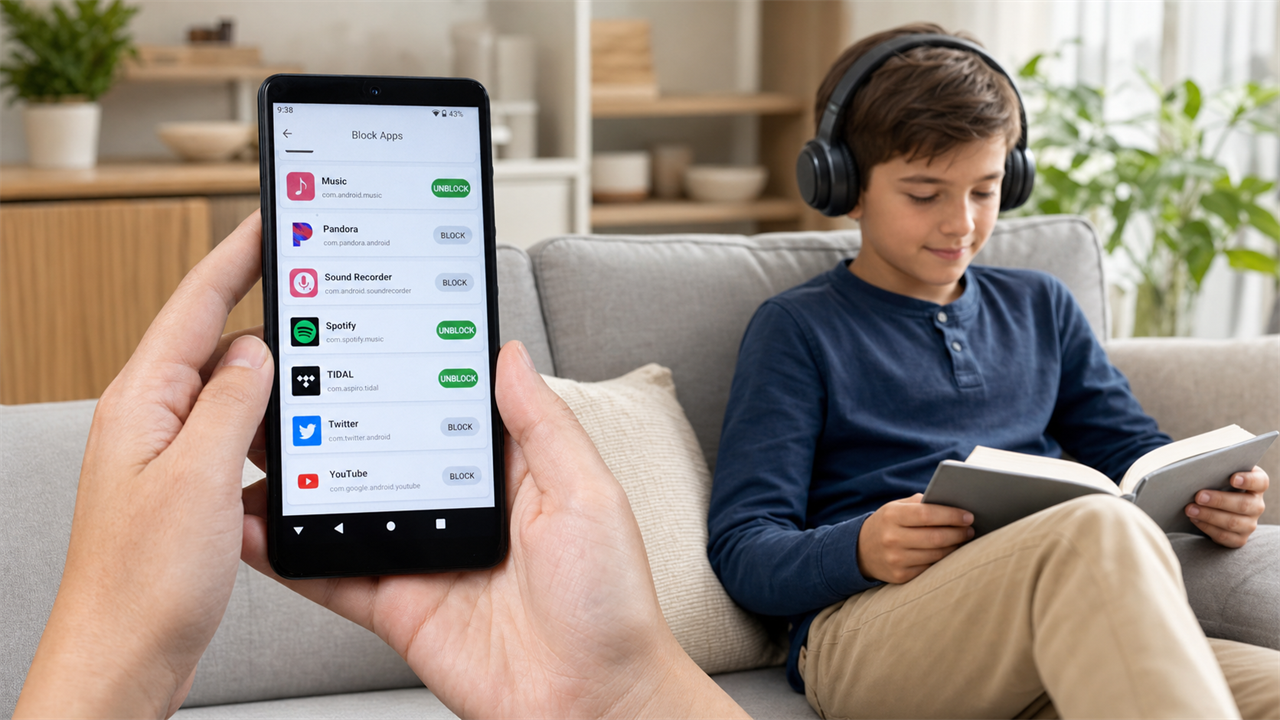
Use Block Apps to keep selected apps unavailable until a parent changes the setting:
- Open Block Apps.
- Find the app and change its status to blocked.
- Leave approved music, audiobook, and reading apps unblocked.
- Exit Parental Control and test the blocked app.
The player displays App disabled by parental controls instead of opening the restricted app.
To block the browser but allow Spotify, keep Wi-Fi on, leave Spotify unblocked, and block only the browser and other unwanted apps. Spotify still requires internet access for streaming.

Schedule app-free hours
The problem: Some apps may be acceptable after school but distracting during homework, family time, or bedtime.
Use App Limit Schedule to block selected apps during chosen time windows:
- Add a schedule.
- Select the days and start/end time.
- Select the apps the schedule should control.
- Save the schedule.
During an active schedule, the selected app displays Limited Time Slots. This feature uses scheduled time windows; it is not a cumulative “one hour per day” counter.

Schedule internet-free time
The problem: Online streaming, browsing, and other internet activity can continue during homework, bedtime, or other offline periods.
Use Internet Time Limit to restrict Wi-Fi internet access during selected times:
- Select the days and start/end time.
- Turn on Enable this time limit.
- Tap UPDATE TIME LIMIT.
When active, the player shows Internet Access Restricted. Spotify and other streaming services cannot stream, but local MP3 files and eligible content already downloaded through an app may still play offline.
If you want Spotify to keep streaming while the browser is blocked, use Block Apps instead of Internet Time Limit.

Test the setup
- Open an approved music or reading app.
- Try a permanently blocked app.
- Test a scheduled app during its blocked period.
- Check the internet restriction during its active period.
- Confirm that Parental Control requires the parent password.
Use Google Family Link for additional controls
The built-in app covers the controls shown above. Families that want additional Google account supervision or supported daily-limit options can also install Google Family Link. Compatibility and features depend on Google’s current account, age, country, and device requirements.
Read Google’s current Family Link setup instructions.
Troubleshooting
Spotify stops when Internet Time Limit starts
This is expected because streaming requires internet access. Download eligible content first, or keep internet access on and use Block Apps to restrict only unwanted apps.
A blocked app still appears on the home screen
Blocking may prevent the app from opening without removing its icon. Open it and confirm that the parental-control restriction message appears.
A schedule does not start
Check the selected days, start/end time, saved app selection, the enable switch, and the player’s date and time.
The parent password is lost
A factory reset may be required. Back up important local files first because a reset erases data and settings.
Frequently asked questions
Do HIFI WALKER G7 and G7 Pro have built-in parental controls?
Yes. Both include a pre-installed Parental Control app for checking daily app use, blocking selected apps, scheduling app restrictions, limiting internet access, and password-protecting the settings.
Can I block the browser but allow Spotify?
Yes. Keep internet access on, leave Spotify unblocked, and use Block Apps to restrict the browser and other unwanted apps.
Can I turn off internet access but keep music available?
Local files and eligible downloaded content may remain available. Online streaming stops while Internet Time Limit is active.
Can I limit a child to one hour of app use per day?
The built-in App Limit Schedule blocks selected apps during chosen time windows; it is not a cumulative daily-minute counter. Google Family Link may offer additional daily-limit options on supported configurations.
Can a child change the parental-control settings?
Set Parental Lock first. The four-character password protects the control panel from unauthorized changes.
Can I use Google Family Link instead?
Google Family Link is a separate option for supported Google accounts and Android configurations. It is not required for the built-in controls.
Choose G7 or G7 Pro for family-managed listening
Choose HIFI WALKER G7 for a compact Android music player with a 4-inch screen, or G7 Pro for a larger 5.2-inch screen, 4 GB RAM, and 32 GB internal storage. Both support the parental-control setup described in this guide.